This page has two halves. The first, List of available assets, points you to ready-made test assets you can download and play directly. The second, Generation of MPEG-I SD compliant glTF2.0 assets, explains how to author your own assets in Blender using the exporter add-on.
Content repositories
5G-MAG is hosting a repository with test assets implementing some of the core extensions defined in MPEG-I Scene Description (ISO/IEC 23090-14): rt-xr-content.
Note the assets produced by the MPEG-I SD group are typically available for download at the ISO/IEC 23090-14 standards page. Khronos hosts sample glTF2.0 assets on GitHub: glTF-Sample-Assets.
Blender add-on to generate MPEG-I SD compliant glTF2.0 assets
The Reference Tools also provides a Blender add-on to support MPEG_* glTF extensions and export glTF files.
The repository is available here: rt-xr-blender-exporter A tutorial is available here: Blender glTF Exporter and Unity Player
List of available assets
These ready-made assets in the rt-xr-content repository exercise the core MPEG glTF extensions, so you can download and play them without authoring anything yourself.
MPEG_anchor (test content)
The MPEG_anchor glTF extension enables anchoring nodes and scenes to features (Trackable) tracked by the XR device.
| Trackable type | Test content |
|---|---|
| TRACKABLE_VIEWER | anchoring/anchorTest_viewer_n.gltf |
| TRACKABLE_FLOOR | awards/scene_floor_anchoring.gltf |
| TRACKABLE_PLANE | awards/scene_plane_anchoring.gltf |
| TRACKABLE_CONTROLLER | anchoring/anchorTest_ctrl_n.gltf |
| TRACKABLE_MARKER_2D | anchoring/anchorTest_m2D_n.gltf |
| TRACKABLE_MARKER_3D | anchoring/anchorTest_m3D_n.gltf |
| TRACKABLE_MARKER_GEO | anchoring/anchorTest_geoSpatial_n_cs.gltf |
| TRACKABLE_APPLICATION | anchoring/anchorTest_app_n.gltf |
MPEG_scene_interactivity and MPEG_node_interactivity
Behaviours in a 3D scene can be defined through the MPEG_scene_interactivity and MPEG_node_interactivity glTF extensions. An interactivity behaviour combines one or more triggers that condition the execution of one or more actions.
| Trigger type | Test content |
|---|---|
| TRIGGER_COLLISION | gravity/gravity.gltf |
| TRIGGER_PROXIMITY | gravity/gravity.gltf, geometry/UseCase_03-variant1-geometry.gltf |
| TRIGGER_USER_INPUT | gravity/gravity.gltf, geometry/UseCase_03-variant3-geometry.gltf |
| TRIGGER_VISIBILITY | geometry/UseCase_03-variant3-geometry.gltf |
| Action type | Test content |
|---|---|
| ACTION_ACTIVATE | gravity/gravity.gltf |
| ACTION_TRANSFORM | gravity/gravity.gltf |
| ACTION_BLOCK | gravity/gravity.gltf |
| ACTION_ANIMATION | geometry/UseCase_03-variant1-geometry.gltf |
| ACTION_SET_MATERIAL | gravity/gravity.gltf |
| ACTION_MANIPULATE | |
| ACTION_MEDIA | 🚧 not yet supported in the Unity player (issues/19); test asset: geometry/UseCase_02-variant3-geometry.gltf |
| ACTION_HAPTIC | |
| ACTION_SET_AVATAR |
MPEG_media, MPEG_accessor_timed, MPEG_buffer_circular
Support for media sources (eg. mp4, dash, rtp, ...) exposing media buffers to the presentation engine through the MPEG_media, MPEG_accessor_timed, MPEG_buffer_circular glTF extensions.
Sample scene with media pipelines
MPEG_texture_video (test content)
Supports video textures buffers through the MPEG_texture_video glTF video extension. Video decoding is implemented by media pipelines.
Sample scene with video texture
MPEG_audio_spatial (test content)
Supports audio sources positioned in 3D through the MPEG_audio_spatial. For each audio source the extension specifies attenuation parameters controlling the audio source loudness as a function of the viewer's distance.
Sample scene with spatial audio source
Generation of MPEG-I SD compliant glTF2.0 assets
This half explains how to author your own MPEG-I Scene Description assets in Blender using the exporter add-on. The extension definitions are the same as in the list above; the steps below focus on how to configure each extension in Blender.
MPEG_anchor (Blender configuration)
Configure anchoring of a node
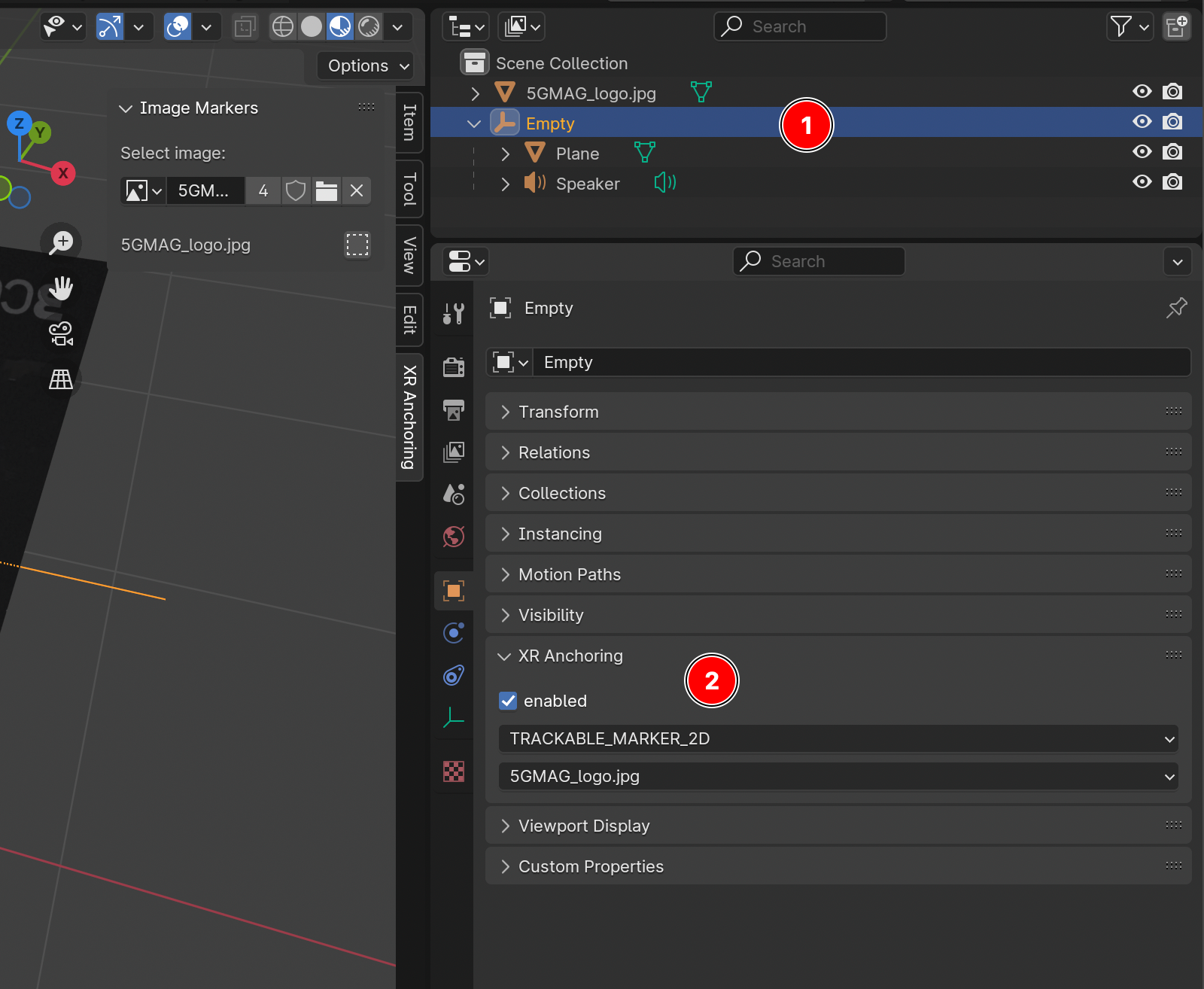
- select the node to be anchored
- locate the XR Anchoring panel in object properties, select an anchor type and configure the anchor
The following anchor types can be configured in the exporter:
- TRACKABLE_FLOOR
- TRACKABLE_VIEWER
- TRACKABLE_CONTROLLER
- TRACKABLE_PLANE
- TRACKABLE_MARKER_2D
- TRACKABLE_MARKER_GEO
- TRACKABLE_APPLICATION
This authoring list omits TRACKABLE_MARKER_3D, which does appear in the player feature tables. It is not clear whether this is intentional (not yet supported by the exporter) or an omission. Confirm with the maintainers before relying on it.
Creating a 2D marker node
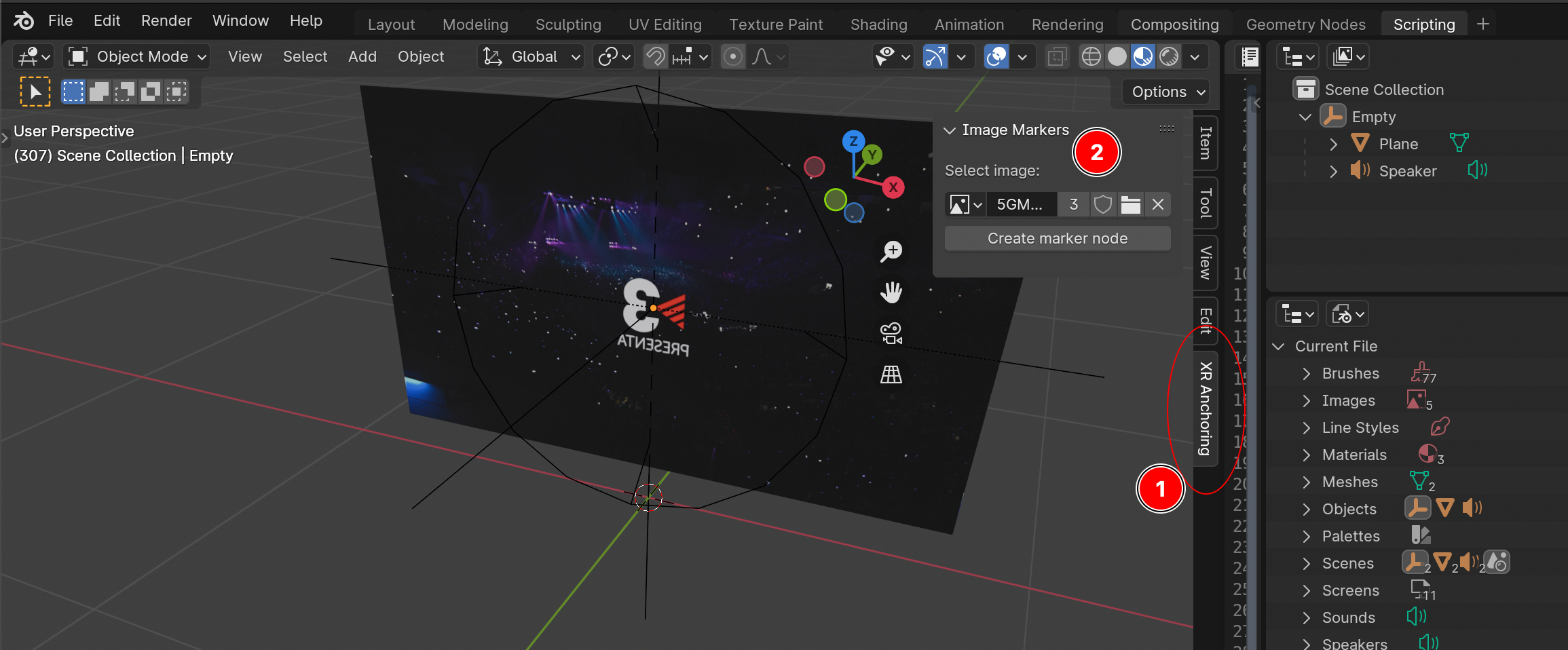
Figure: creating a 2D marker node from an image in the XR Anchoring panel.
- locate the XR Anchoring panel (press N while the UI is focused on the 3D view)
- select an image and hit 'create marker node', the marker 2D node is added to the scene and can now be used to configure an anchor
MPEG_texture_video (Blender configuration)
To add a video and export it as MPEG_texture_video, first make sure that the blender's scene output format matches the framerate of the videos used as texture.
- Create or select a material
- Select the shader slot which will be using the video, and make it an 'Image texture'
- Open or Select the video to use
All Image textures with a movie source are exported as MPEG_texture_video extensions:
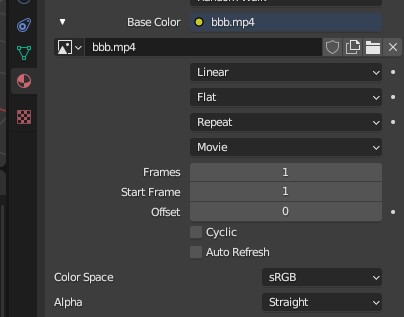
Figure: a Blender image texture with a movie source, exported as an MPEG_texture_video extension.
MPEG_audio_spatial (Blender configuration)
Audio sources
To add an audio source to the scene:
- Add a Speaker node to the scene: 3D Viewport > Add > Speaker
- Add a file source to the speaker's Sound. The file is assumed to contain a single channel of audio (MONO).
- Configure speaker's Distance parameters:
- Max Distance
- Attenuation (roll-off factor)
- Distance Reference All other parameters are ignored.
The audio attenuation model is configured as a scene property in Blender.
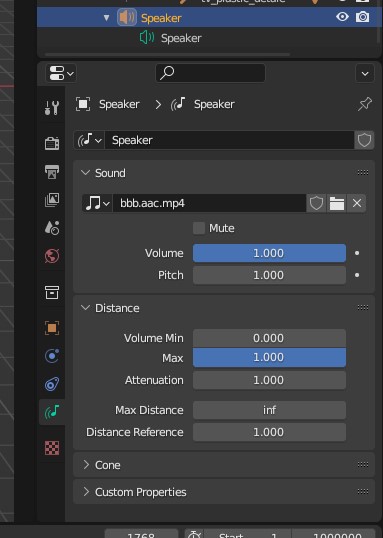
Figure: configuring a Speaker node as a spatial audio source in Blender.
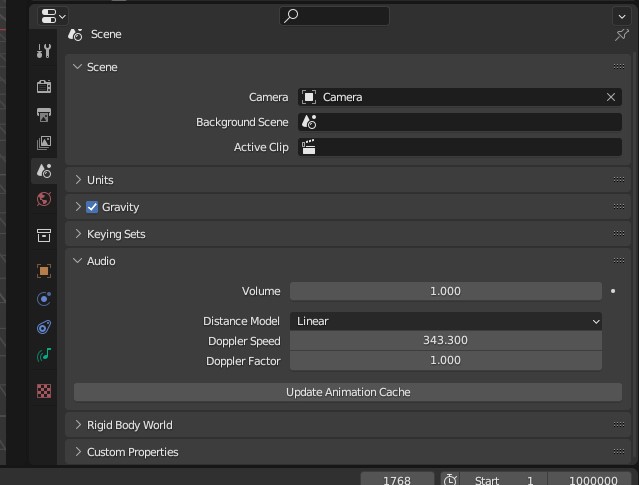
Figure: the audio attenuation model set as a scene property in Blender.
Next steps
- Build and run the player to view your assets: Android or Meta Quest 3.
- Watch the Blender glTF exporter walkthrough.