In this tutorial you run the CAMARA Dedicated Networks API Portal and use it, against a CAMARA sandbox, to find a service area, reserve a dedicated network there for a time window, give a device access to it, and dismantle both again.
Read the README of rt-camara-examples and the portal's own README before you start. They list what the portal needs and every setting.
| Repository | What it is | Used in |
|---|---|---|
| rt-camara-examples | The portal (management-portal/DedicatedNetworks), the MCP server and the Insomnia collections | All sections |
| You want | Go to |
|---|---|
| The portal running and connected to the sandbox | 1. Start the portal |
| To understand the order of the steps | 2. The workflow |
| A dedicated network for a device, step by step | 3. Reserve a network and give a device access |
| Network and access in one form | 4. Quick Booking |
| To release what you booked | 5. Dismantle |
You need: a computer with Node.js LTS, npm and git; a browser; internet access (the maps load from OpenStreetMap); and test credentials for a CAMARA sandbox. The sandbox addresses and the credentials are provided to 5G-MAG members on request.
1. Start the portal
git clone https://github.com/5G-MAG/rt-camara-examples.git
cd rt-camara-examples/management-portal/DedicatedNetworks
npm install
cp .env.example .env
Open .env in an editor and fill in the values you were given:
| Variable | Value |
|---|---|
CLIENT_ID, CLIENT_SECRET | The test credentials |
TOKEN_URL | The address of the token endpoint |
AREAS_URL | The base URL of the Dedicated Network Areas API |
NETWORKS_URL | The base URL of the Dedicated Network API |
PROFILES_URL | The base URL of the Dedicated Network Profiles API |
ACCESSES_URL | The base URL of the Dedicated Network Accesses API |
Leave QOD_URL and SINK_BASE_URL empty for now. Keep .env private: it holds your secret, and git ignores it. Then start the portal:
node server.js
Open http://localhost:3001. Check the four dots at the top right of the header, Areas, Profiles, Networks and Accesses: when all are green, the portal has a token and reaches the four APIs.
2. The workflow
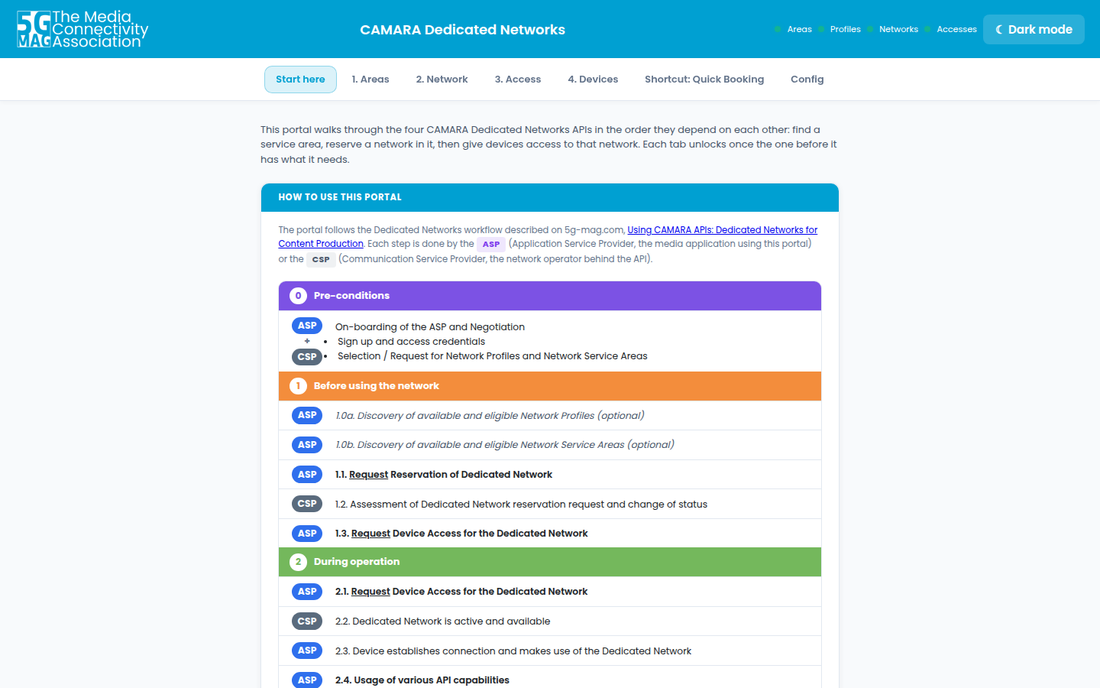
The Start here tab shows the workflow the portal follows, from the page on 5g-mag.com on using the CAMARA Dedicated Networks APIs for content production. Each step is marked ASP (the application service provider, which is you in the portal) or CSP (the communication service provider, the network operator).
On-boarding of the ASP and Negotiation
- Sign up and access credentials
- Selection / Request for Network Profiles and Network Service Areas
In the portal, steps 1.0a and 1.0b are the lists of profiles and areas, 1.1 is Create Network, 1.3 and 2.1 are giving a device access (the 3. Access and 4. Devices tabs), and 3.1a is the deletion in section 5. The tabs follow the same order The tabs follow the same order (1. Areas, 2. Network, 3. Access and 4. Devices), and each tab unlocks when the one before it has what it needs: a tab that is greyed out says in its tooltip what to do first.
Press Start with 1. Areas to begin.
3. Reserve a network and give a device access
3.1 Find a service area
On 1. Areas, press Load All Service Areas. The areas of the sandbox appear on the map and in the list on the right.
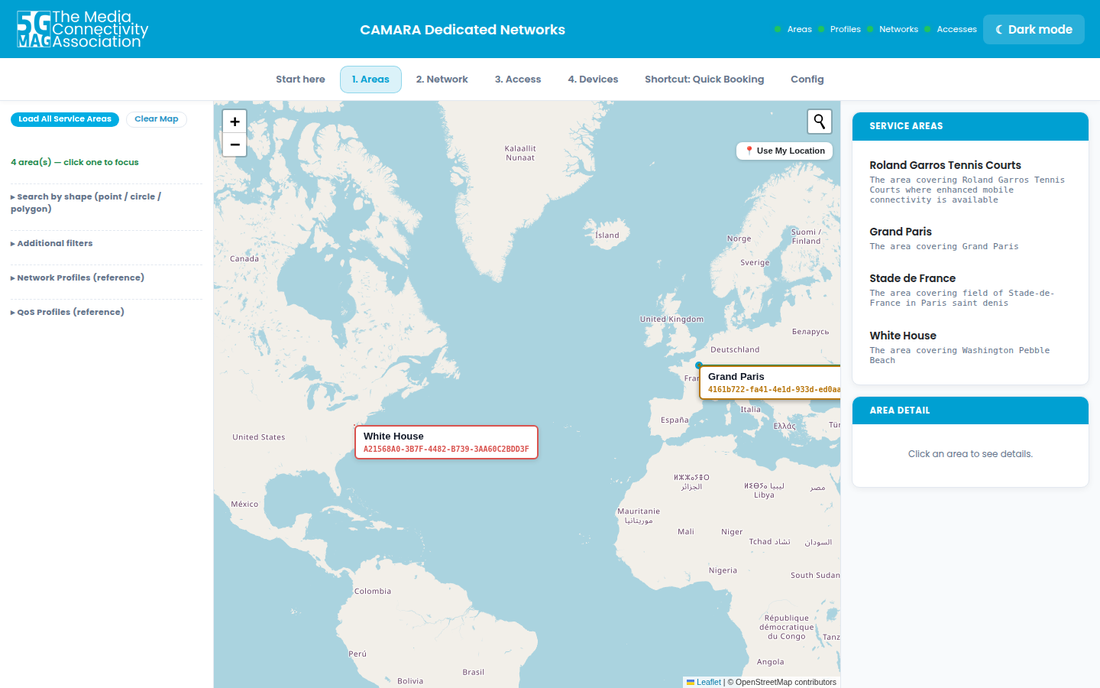
Click Roland Garros Tennis Courts. The panel below the list shows its geometry, the network profiles it supports and its QoS profiles. Press Use This Area →.
To search instead of listing, open Search by shape (point / circle / polygon), mark a point, circle or polygon on the map and press Find Areas At Point, Find Overlapping or Find Covering. Additional filters adds the area name, a network profile and a QoS profile name, and you can combine them. Network Profiles (reference) and QoS Profiles (reference) list what the sandbox offers.
3.2 Reserve the network
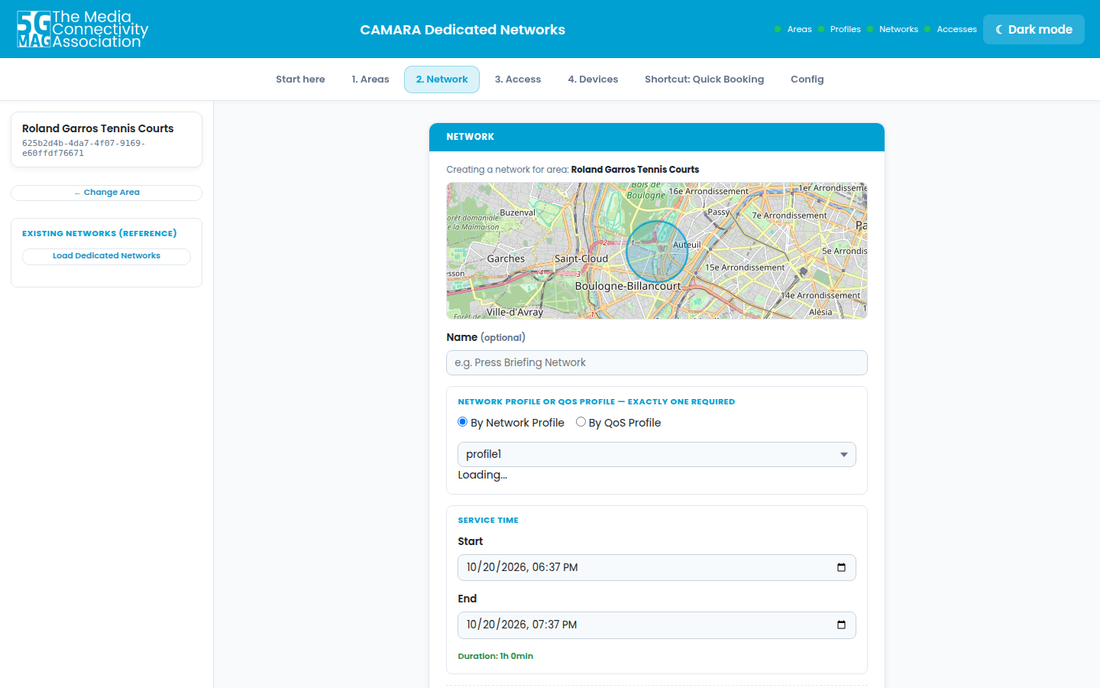
The 2. Network tab opens with your area at the top left.
- Choose By Network Profile and pick
profile1from the list. By QoS Profile is the other way; exactly one of the two is needed. - Service time starts now and ends in one hour. Change Start and End if you like.
- Press Create Network.
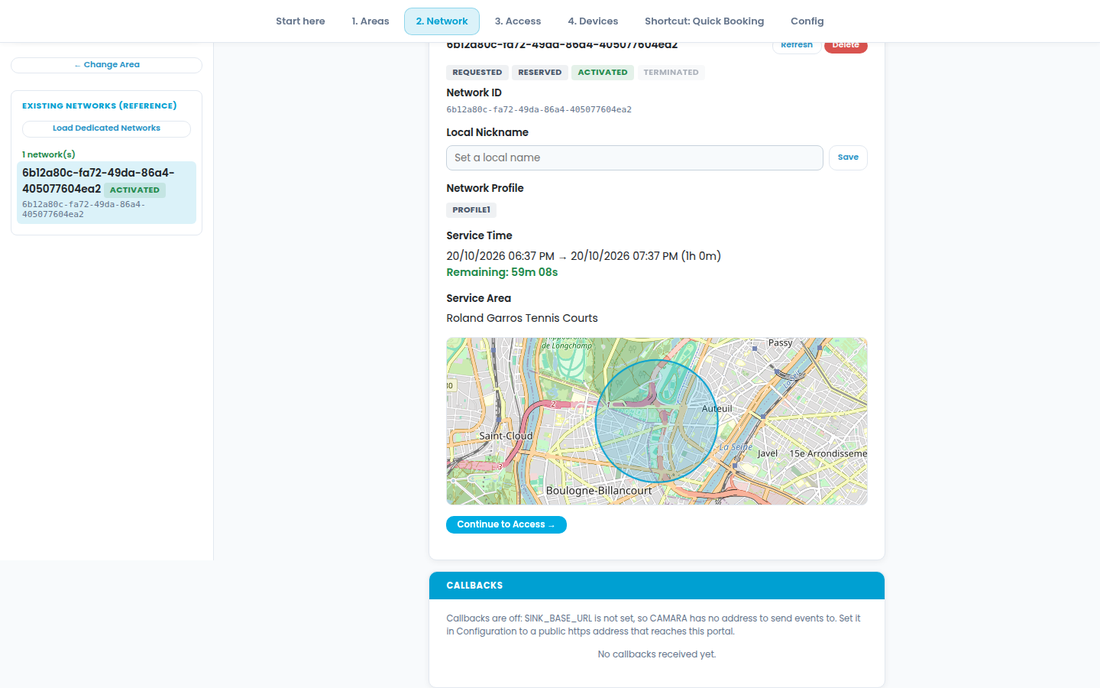
The tracker shows the four states of a network, REQUESTED, RESERVED, ACTIVATED and TERMINATED, and highlights the current one. A network that starts now reaches ACTIVATED within seconds; press Refresh if it has not yet. Remaining counts down to the end of the service time. When it is activated, press Continue to Access →.
3.3 Give a device access
On 3. Access, a device is identified by its phone number (MSISDN, with the country code).
- Under "or quick-add a new device to the pool", type a name, for example
Camera 1, and a number such as+1234567890, and press + Add to pool & use. - Press Create Access.
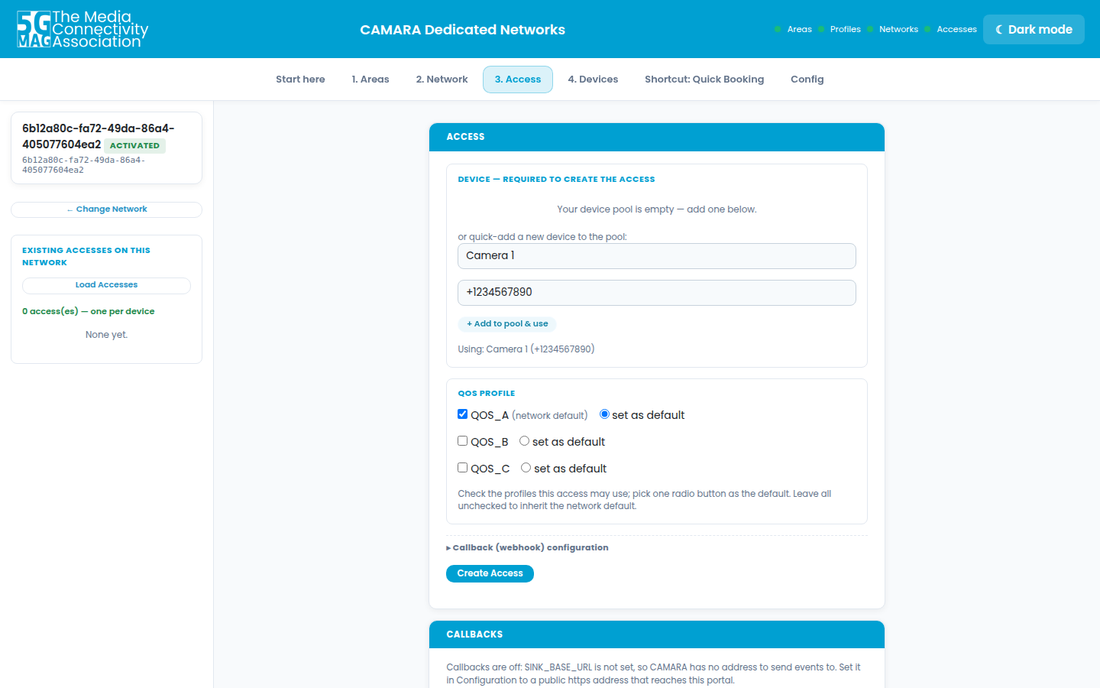
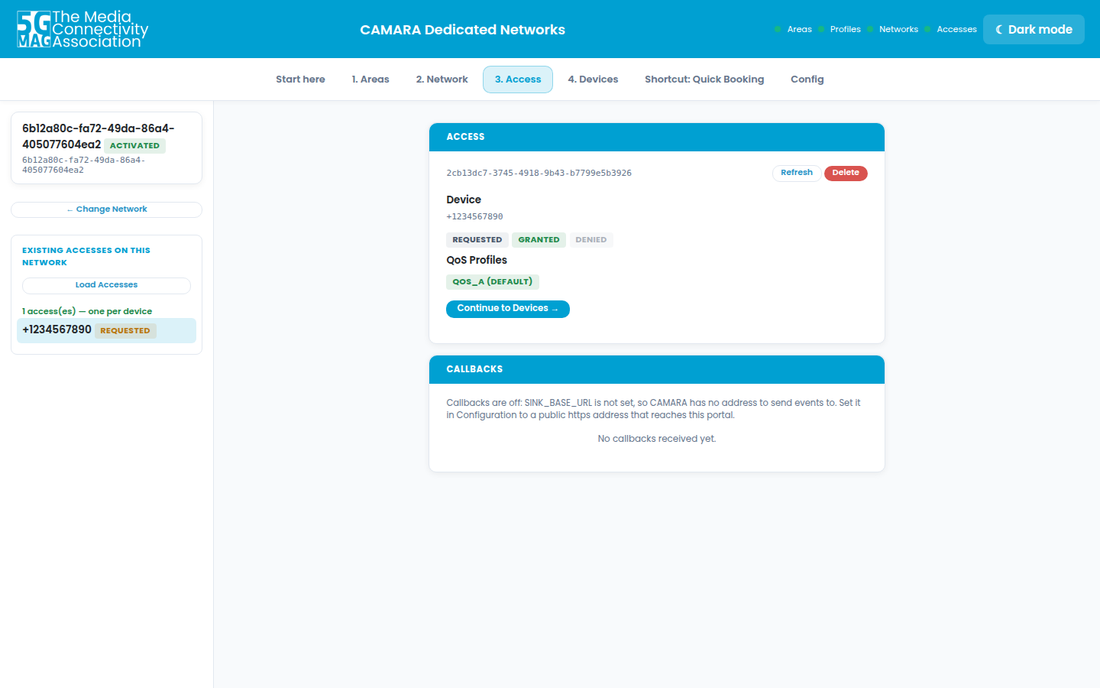
The tracker shows the three states an access can have, REQUESTED, GRANTED and DENIED. When it is granted, the card shows the device and its QoS profiles, with the default one marked. A denied access shows the reason code and message. The sandbox takes one device for each access.
3.4 See the devices
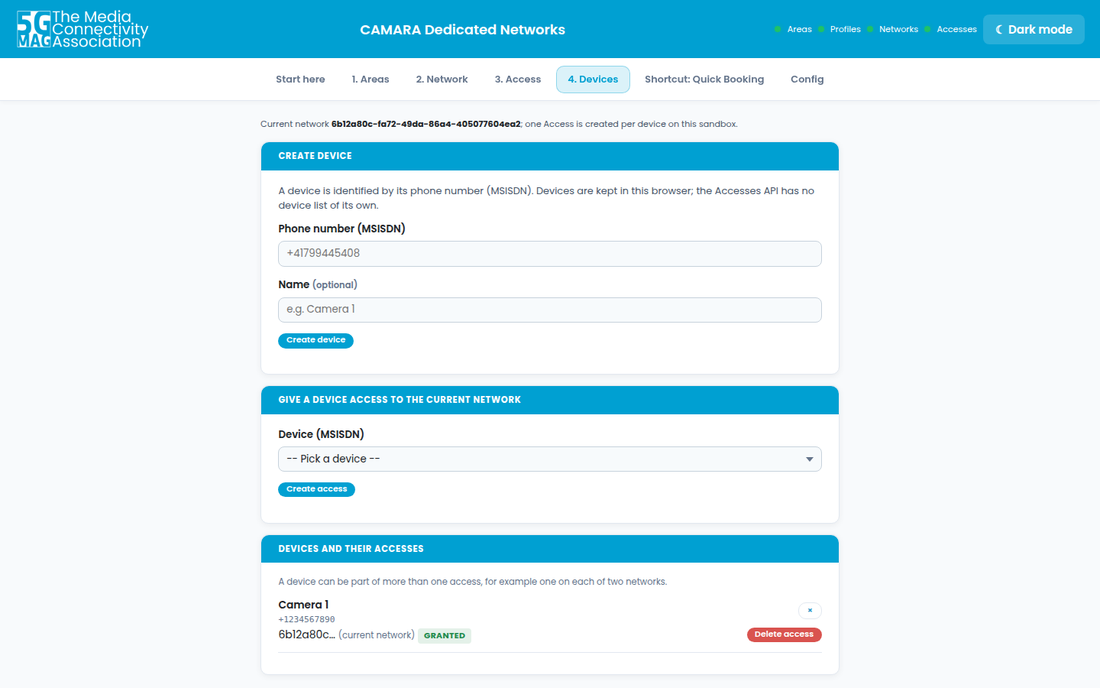
4. Devices keeps the devices you created, in the browser, since the Accesses API has no list of devices. Create device adds one, Create access gives a device from the list access to the current network, and Devices and their accesses shows every access of each device, on any network. A device can belong to more than one access, for example one on each of two networks.
After a restart of the portal, Load Dedicated Networks in the sidebar of the Network tab lists the networks that exist, so that you can select one again.
4. Quick Booking
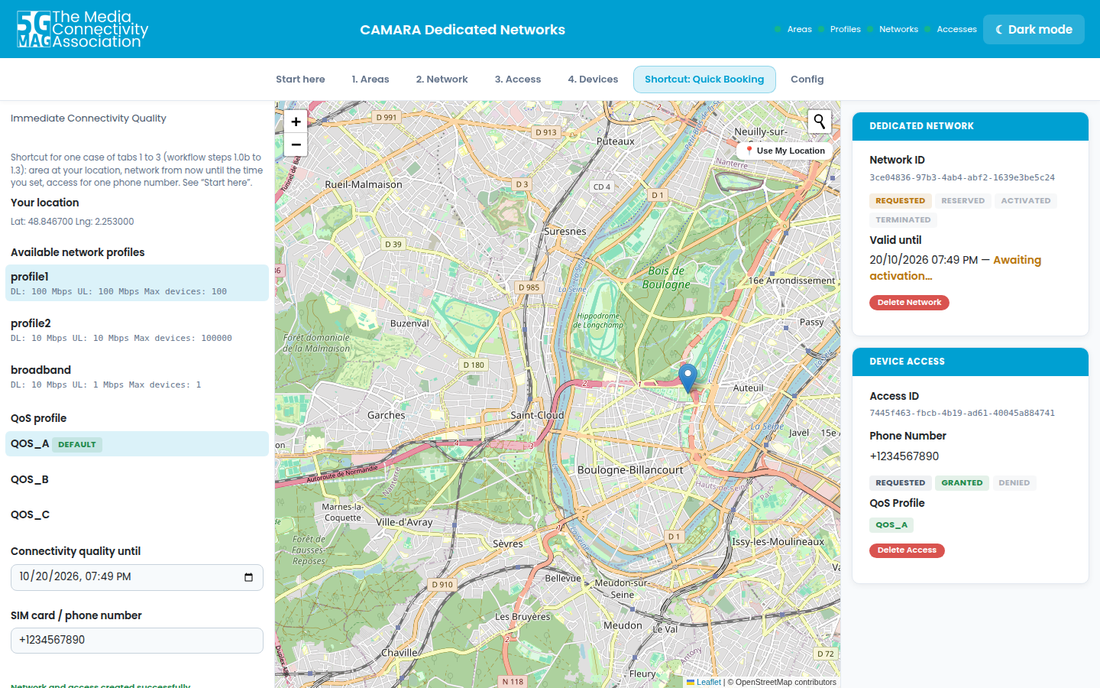
Shortcut: Quick Booking does tabs 1 to 3 in one form: an area at your location, a network from now until a time you set, and an access for one phone number.
- Click the map, or press Use My Location. The coordinates appear under Your location and the profiles available there are listed.
- Choose a network profile, for example
profile1. The QoS profile with the default mark is preselected. - Set Connectivity quality until (it starts one hour ahead) and type a SIM card / phone number.
- Press Obtain Connectivity Quality NOW.
The Dedicated Network and Device Access cards appear on the right, with the same trackers as before. A network booked here is unlocked in the other tabs too.
5. Dismantle
Release what you booked in the reverse order: the access first, then the network.
- On the access card, or under Devices and their accesses, press Delete access.
- On the 2. Network tab, press Delete.
Both disappear from the trackers. A deleted network can no longer be given access.
Receive status notifications (callbacks)
The sandbox can send a notification when a network or an access changes status. For the portal to receive them, give it a public https address that reaches it. For a local test, use a tunnel, and stop it when you are done, because the portal has no login and the tunnel makes all of it, the Config tab included, reachable by anyone with the address:
npx localtunnel --port 3001
Copy the tunnel address into .env as SINK_BASE_URL and restart the portal. When you create a network or an access, the callback section of the form registers the portal as the receiver. Notifications for the resource on screen refresh its tracker at once, and all of them are listed in the Callbacks panel of the Network and Access tabs.
Change the credentials without editing the file
The Config tab holds the client ID, the client secret, the token address, the API base URLs, the Quality on Demand address and the sink base URL, and lets you change them while the portal runs. The secret is write-only: it is never shown back, and leaving it blank keeps the current one. Save applies the values and Reload reads the saved ones again.