The DVB-I Application is a DVB-I client that runs in a web browser. It finds a service list, shows its channels with their programme guide, and plays them (ETSI TS 103 770 V1.2.1, the client side of clause 4.1). In this tutorial you run it, open a public service list, open the list you publish yourself, find a list through a Service List Registry, and read the guide.
Read the README of rt-dvb-i-application before you start; DEPLOYMENT.md in the same repository gives every setting. The other repositories below are only needed in the sections that name them.
DVB-I Application
rt-dvb-i-applicationA browser DVB-I client that discovers a service list, presents its channels with their content guide, and plays them, per ETSI TS 103 770.
DVB-I Application Provider
rt-dvb-i-application-providerPublishes a DVB-I service list and its content guide, and gives an editor for maintaining them, per ETSI TS 103 770.
DVB-I Service List Registry
rt-dvb-i-service-list-registryAnswers DVB-I client queries with a list of Service List Entry Points, per ETSI TS 103 770 V1.2.1 clause 5.1.3.2.
Where the other repositories are used:
rt-dvb-i-application-provider: 3. Open your own service listrt-dvb-i-service-list-registry: 4. Find a list through a registry
| You want | Go to |
|---|---|
| The client showing a service list in a few minutes | 1. Run the client |
| To know the screen and the keys | 2. The screen |
| The list you publish with the provider | 3. Open your own service list |
| The client to look a list up for a country | 4. Find a list through a registry |
| To know what the client did and that it works | 5. Check it |
You need: a Linux machine with git, Node.js 20 or later with npm, curl and a browser (Chrome, Edge or Firefox); about 25 MB of disk and a connection to the internet, because the client loads its two player libraries from a CDN and section 1 opens a list published elsewhere. Sections 3 and 4 also need the provider and the registry running, which the two other tutorials set up.
1. Run the client
cd ~
git clone https://github.com/5G-MAG/rt-dvb-i-application.git
cd rt-dvb-i-application
npm install
npm start
{"time":"2026-10-20T22:38:25.629Z","level":"info","msg":"DVB-I Client listening (http)","port":5000}
DVB-I Client      →  http://localhost:5000
Open http://localhost:5000 in a browser. The client first tries the provider on your own machine, which is not set up yet (section 3), so the sidebar says Load failed. Press the gear icon at the top of the sidebar (or the S key) to open the settings, and under Service list URL press the dtv.fi button. It loads the list that Sofia Digital publishes at https://dvbi-rest.dtv.fi/services_r4/DVBI(epg).
The sidebar shows the name of the list, DVBI(epg), and its channels with their channel numbers (eleven when this page was written). Press a channel to play it.
2. The screen
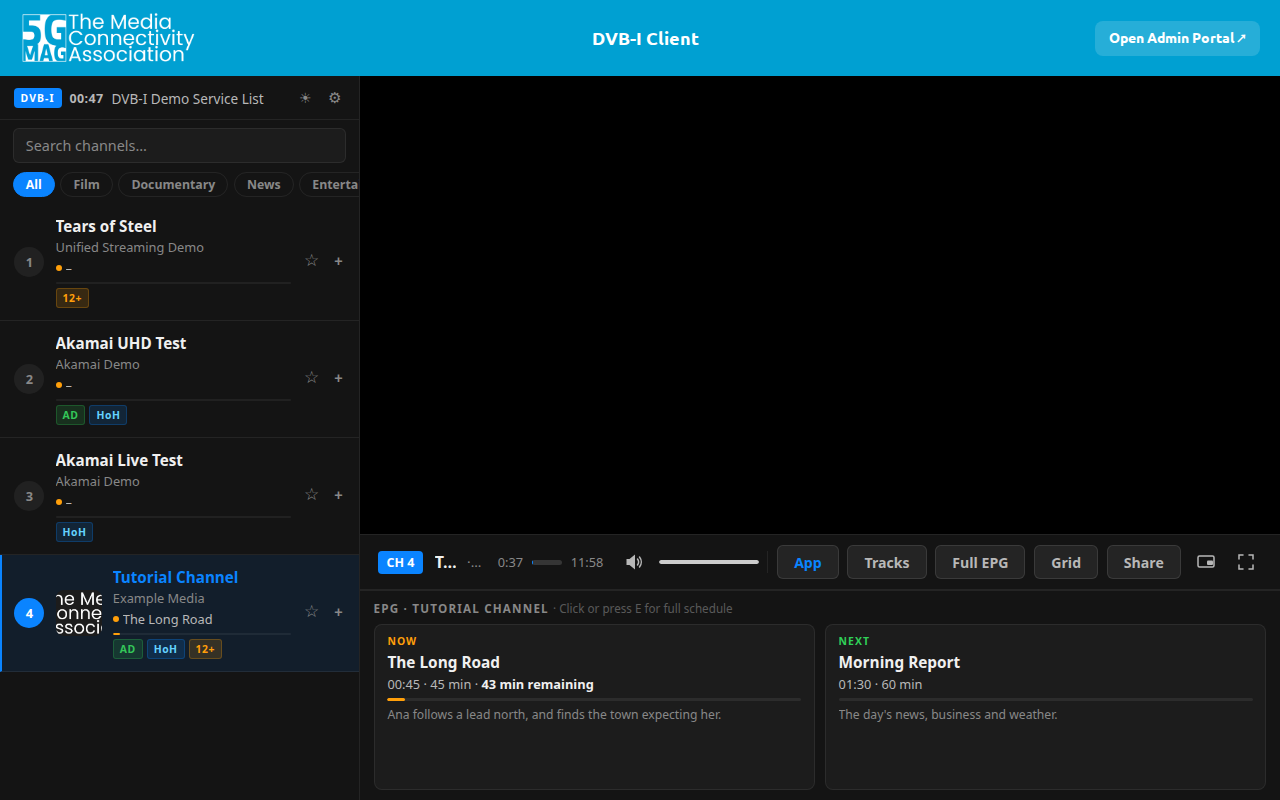
The picture area is black in this capture because it was taken in a headless browser without video codecs. In your browser the stream plays.
| Where | What it is |
|---|---|
| Sidebar, top | The name of the list, the clock and the buttons for the theme and the settings |
| Sidebar, search and genre buttons | Filter the channels by text or by genre |
| Channel cards | The channel number, the name, the provider, the programme on now, and badges (for example AD for audio description, HoH for subtitles for the hard of hearing, SUB, an age rating) |
| Under the player | Tracks (audio and subtitle tracks), Full EPG, Grid, Share and the buttons for picture in picture and full screen |
| Guide strip | Now and Next for the channel |
Keys: ↑ and ↓ change channel, a channel number 1 to 9 tunes to it, E opens the full programme guide, S the settings, ? the help, Esc closes a panel.
3. Open your own service list
Run the provider of Tutorial: DVB-I Application Provider, sections 1 and 3, so that http://localhost:4000/service-list.xml answers.
The client reaches service lists through its own server (/proxy), because a browser cannot fetch most lists across origins. That server refuses addresses on your own machine unless you name them. Stop the client with Ctrl+C and start it again with the provider's address allowed:
PROXY_ALLOW_ORIGINS="http://localhost:4000,http://127.0.0.1:4000" npm start
Open http://localhost:5000/?url=http://localhost:4000/service-list.xml. The url in the address is the service list to load; the client remembers it in the browser for the next visit.
The sidebar shows DVB-I Demo Service List and its channels. If you did section 3 of the provider tutorial, channel 4 is Tutorial Channel, with the programme that is on now. Select it, or press 4. The strip under the player shows Now and Next from the provider's programme guide, and E opens the full schedule.
To change something and see it arrive, edit a channel in the provider's admin portal (http://localhost:4000/), press Save & Publish, and reload the client page.
PROXY_ALLOW_ORIGINSWithout it the client shows Load failed and Error: HTTP 400: its server answered that the address is private or on the loopback interface. Name each origin you need, with its scheme, host and port; everything else stays refused. A list on another machine needs nothing.
4. Find a list through a registry
A client that is given no list address asks a Service List Registry for the lists of a country. Run the registry of Tutorial: DVB-I Service List Registry, with the second list of its section 3, and start the client with both origins allowed:
PROXY_ALLOW_ORIGINS="http://localhost:4000,http://localhost:7000" npm start
- Open
http://localhost:5000and open the settings. - Under Service List Registry, replace the address in the first box with
http://localhost:7000/query. The client remembers it. - In the second box type the country code
CHEand press Look up.
The client sends GET /query?TargetCountry=CHE to the registry. The registry holds two lists for Switzerland, so the client offers both under Found 2 service lists:
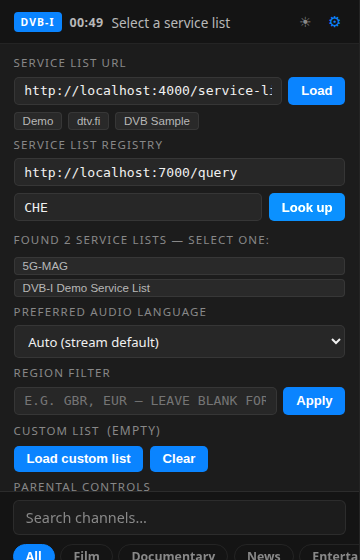
- Press
DVB-I Demo Service List. The client loads it from the address the registry gave and shows its channels.
With one match the client loads the list at once. If a registry lists several addresses for the same list, the client keeps them as fallbacks.
The box under Service List Registry is filled in with a public registry address when you first open the settings. That address did not answer when this page was written (a request to it returned HTTP 404), so always put the address of your own registry there.
5. Check it
To see which requests the client made for your list, open the browser's developer tools on the Network tab and reload: the service list and the programme guide go to /proxy?url=... on port 5000, the logos, the stream manifests and the segments go straight to the servers named in the list.
To confirm that the client's server can reach a list, without the browser:
curl -s 'http://localhost:5000/proxy?url=http://localhost:4000/service-list.xml' | head -3
<?xml version="1.0" encoding="UTF-8"?>
<ServiceList
  xmlns="urn:dvb:metadata:servicediscovery:2024"
If it answers {"error":"URL resolves to a disallowed (private/loopback) address"} the origin is not in PROXY_ALLOW_ORIGINS.
The repository has unit tests and browser tests:
npm run test:unit
The unit tests finish with pass 9 and fail 0. npm test also runs the browser tests; they need a Playwright browser, installed once with npx playwright install chromium, and use Firefox when you set BROWSER=firefox.
6. Stop and clean up
Press Ctrl+C in the terminal of the client. To remove it, delete ~/rt-dvb-i-application.
What was run for this page
Every command above that is not named below was run on a clean clone of main (commit 7a9ae28) on Ubuntu Linux with Node.js 24.21.0 and npm 11.19.0. The pages were driven in a headless Chromium (Playwright 1.64.1; headless shell 156.0.8078.4), which is also how the two pictures were taken.
Section by section: 1 run (the dtv.fi list loaded, the eleven channels listed; the Load failed message of the default list was seen); 2 run (the screen read; the keys 4 and E were tried, the others are from the help screen of the page); 3 run (the list loaded with ?url=, channel 4 selected, the programme guide shown, the Load failed message seen without PROXY_ALLOW_ORIGINS); 4 run (registry address typed, CHE looked up, two lists offered, the second chosen and loaded); 5 run (curl on /proxy; npm run test:unit printed pass 9).
Partly run: playing a channel. In the headless browser the player fetched the DASH manifest and the audio segments of the Akamai test stream, all with status 200, but the picture was not shown because that browser has no video codecs, and playback was not watched in a desktop browser. Not run: the browser tests of npm test (no Playwright browser was installed), the Share button, the settings for audio language and parental controls, and playback of the other channels.