The DVB-I Application Provider publishes a DVB-I service list and its content guide, and gives an admin portal for maintaining them without editing XML. It is the Service List Server and the Content Guide Server of the architecture in ETSI TS 103 770 V1.2.1, clause 4.1. In this tutorial you run it, add a channel, publish the list and the programme guide of that channel, and check what it publishes against the DVB-I schema.
Read the README of rt-dvb-i-application-provider before you start; it points to DEPLOYMENT.md for the settings you need before anyone else can reach the server. The other repositories below are only needed in the sections that name them.
DVB-I Application Provider
rt-dvb-i-application-providerPublishes a DVB-I service list and its content guide, and gives an editor for maintaining them, per ETSI TS 103 770.
DVB-I Application
rt-dvb-i-applicationA browser DVB-I client that discovers a service list, presents its channels with their content guide, and plays them, per ETSI TS 103 770.
DVB-I Service List Registry
rt-dvb-i-service-list-registryAnswers DVB-I client queries with a list of Service List Entry Points, per ETSI TS 103 770 V1.2.1 clause 5.1.3.2.
Where the other repositories are used:
rt-dvb-i-application: Tutorial: DVB-I Applicationrt-dvb-i-service-list-registry: Tutorial: DVB-I Service List Registry
| You want | Go to |
|---|---|
| The provider publishing a list in a minute | 1. Run the provider |
| To know what the admin portal offers | 2. The admin portal |
| A channel of your own in the list | 3. Add a channel and publish |
| A programme guide for the channel | 4.1 Programmes |
| A channel off the list for a while | 4.2 Switch a channel off |
| Proof that the XML is valid DVB-I | 5. Check what you published |
| The admin closed to others | 6. Close the admin |
You need: a Linux machine with git, Node.js 20 or later with npm, curl and a browser; about 30 MB of disk. For section 5 you also need python3 with the venv module and the DVB-I schema files (see that section).
1. Run the provider
cd ~
git clone https://github.com/5G-MAG/rt-dvb-i-application-provider.git
cd rt-dvb-i-application-provider
npm install
npm start
{"time":"2026-10-20T22:37:41.244Z","level":"info","msg":"No config.json, started from config.example.json","path":"..."}
{"time":"2026-10-20T22:37:41.253Z","level":"info","msg":"DVB-I Application Provider and Admin Portal listening (http)","port":4000}
DVB-I Application Provider and Admin Portal  →  http://localhost:4000
Service list    →  http://localhost:4000/service-list.xml
The first start copies config.example.json to config.json. That file is your service list from now on. In a second terminal, read the list and ask the server about itself:
curl -s http://localhost:4000/service-list.xml | head -12
curl -s http://localhost:4000/api/health
<?xml version="1.0" encoding="UTF-8"?>
<ServiceList
  xmlns="urn:dvb:metadata:servicediscovery:2024"
  xmlns:xsi="http://www.w3.org/2001/XMLSchema-instance"
  xmlns:hls="vnd:apple:mpegurl"
  xmlns:tva="urn:tva:metadata:2024"
  xmlns:dvbisd-t="urn:dvb:metadata:servicediscovery-types:2023"
  id="tag:dvbi.example,2024:servicelist:default"
  version="2" xml:lang="en">

  <Name>DVB-I Demo Service List</Name>
  <ProviderName>DVB-I Demo</ProviderName>
{"status":"ok","version":2,"services":3}
The stock list has three channels (Tears of Steel, an Akamai UHD test stream and an Akamai live test stream). The version attribute is the number of the list; the specification says it shall be incremented for every published change (clause 5.5.1, table, @version), and the provider does it each time you press Save & Publish.
2. The admin portal
Open http://localhost:4000/ in a browser.
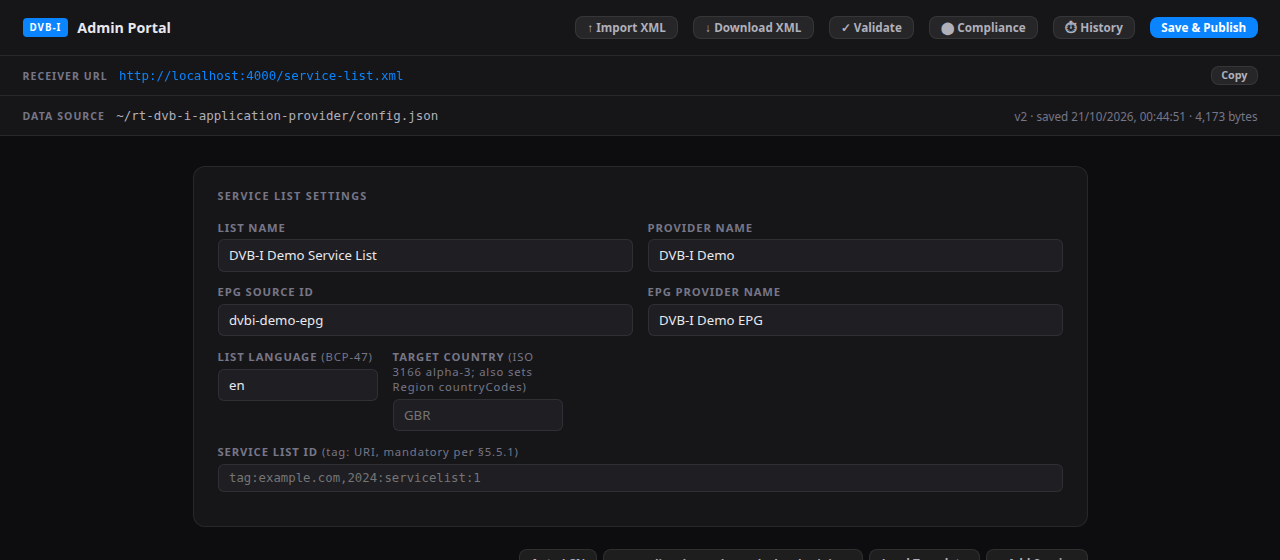
| Where | What it is |
|---|---|
| Toolbar | Import XML, Download XML, Validate, Compliance, History and Save & Publish |
| Receiver URL | The address clients fetch the list from, with a Copy button |
| Service List Settings | The name of the list, the provider, the content guide source, the language, the target country and the Service List ID |
| Services | One row for each channel: Clone, Edit, Delete, the up and down arrows, and the On switch. The selector next to Load Template offers ready-made starting points |
| Generated XML | The XML the list produces, with Refresh and Copy |
The portal saves nothing until you press Save & Publish: it rewrites config.json and raises the version of the list.
3. Add a channel and publish
The routine for every change: edit in the portal, Save Service in the editor, Save & Publish, then read the published XML.
-
In the Service List Settings, type a Service List ID that is a
tag:URI of your own, for exampletag:example.com,2026:servicelist:tutorial. The stock file leaves it empty and Validate (section 5) asks for it. If you registered a list in Tutorial: DVB-I Service List Registry, use the same value as itsid. -
In the services toolbar, choose Reference service (all fields, DASH) in the selector and press Load Template. The editor opens with every field filled in.
-
Change these fields:
Field Value Service Name Tutorial ChannelLCN 4Unique ID (UID) tag:example.com,2026:service:tutorial-channelMulti-language service names, enlineTutorial Channel(the names there replace the Service Name in the published list)Stream URL of the DASH instance https://dash.akamaized.net/dash264/TestCasesUHD/2b/11/MultiRate.mpd, the DASH stream the stock list already usesTarget Region (under the instances) empty Subscription Package empty 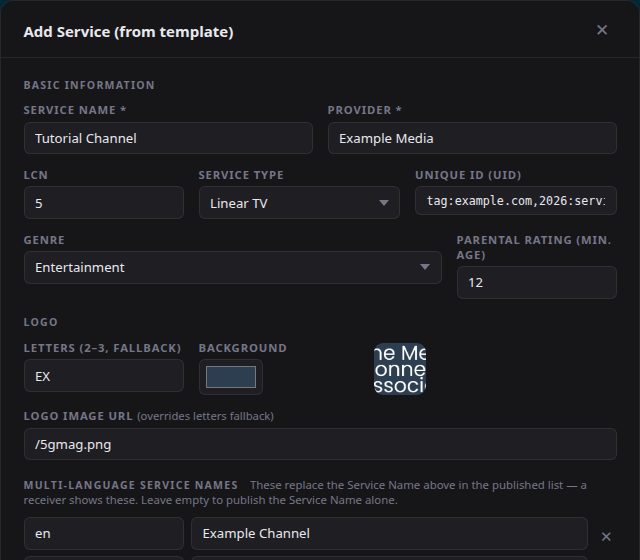
-
Press Save Service, then Save & Publish.
Check the published list: the channel is in it, and the version has gone up.
curl -s http://localhost:4000/service-list.xml | grep -n -E 'version="[0-9]+" xml:lang|channelNumber="4"|>Tutorial Channel<'
9:  version="3" xml:lang="en">
24:      <LCN channelNumber="4" serviceRef="tag:example.com,2026:service:tutorial-channel"/>
177:    <ServiceName xml:lang="en">Tutorial Channel</ServiceName>
(The stock list was version 2, so the first publish makes it 3.) The list is served with Last-Modified, and a client that sends If-Modified-Since gets 304 Not Modified until you publish again (clause 4.3.2.2):
LM=$(curl -sI http://localhost:4000/service-list.xml | grep -i last-modified | cut -d' ' -f2- | tr -d '\r')
curl -s -o /dev/null -w '%{http_code}\n' -H "If-Modified-Since: $LM" http://localhost:4000/service-list.xml
304
4. Recipes
Each recipe is the routine of section 3 with a different edit.
4.1 Programmes for a channel
The template already carries two programmes for its channel, Morning Report (60 minutes) and The Long Road (45 minutes). In the editor they are under the programmes heading; each has a title, a duration in minutes, a synopsis, and optional image, series, episode, age, genre and catch-up fields. + Add Programme adds a row.
The provider turns the programmes into a schedule that repeats them in order, from two hours before the current hour to eight hours after now. Ask for it with the unique ID of the channel (the guide takes it as sid):
curl -s 'http://localhost:4000/epg/nownext?sid=tag:example.com,2026:service:tutorial-channel'
<TVAMain xmlns="urn:tva:metadata:2024" xmlns:mpeg7="urn:tva:mpeg7:2008" xmlns:xsi="http://www.w3.org/2001/XMLSchema-instance" xmlns:tva="urn:tva:metadata:2024" xml:lang="en">
  <ProgramDescription>
    <ProgramInformationTable>
    <ProgramInformation programId="crid://dvbi.example.com/2024/prog/1">
      <BasicDescription>
        <Title type="main">The Long Road</Title>
(The answer goes on with the second programme and the two schedule events; the times are those of your clock.) /epg/schedule?sid=... returns the whole window in the same format. A channel with no programmes gets a valid, empty TVAMain document with status 200.
4.2 Switch a channel off
Press On on a channel; it changes to Off. Press Save & Publish. The channel and its channel number leave the published list, and the version goes up. Press Off, then Save & Publish, to bring it back.
curl -s http://localhost:4000/service-list.xml | grep -c '<Service '
3
(That is the count with one of four channels off.)
5. Check what you published
In the portal. Press Validate for the checks on the list: the names, the Service List ID, unique channel numbers and identifiers, and a stream and a valid address for every channel.
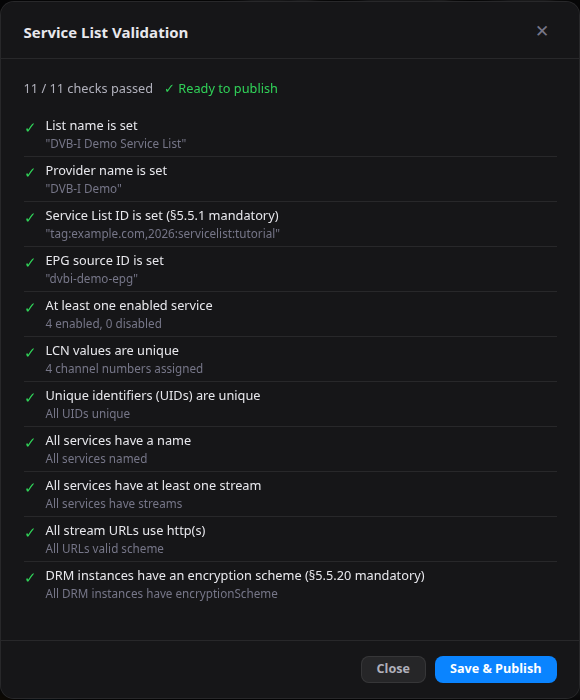
Press Compliance for a longer set of checks against TS 103 770 and DVB document A184r2 on the current list, or on an external one by address or file. On the list of this page it reported 38 of 38 checks passed.
Against the schema. The repository does not carry schema files. You supply them from a folder outside the clone.
-
Put the schema files in one folder, for example
~/dvb-i-schemas. The specification's electronic attachment archive has the base schemadvbi_v6.0.xsdand its imports (TS 103 770 V1.2.1, annex B). The stock list carries HLS instances, which the base schema does not know, so the check needs the schema that adds the HLS and HbbTV extensions,dvbi_v6.0+hls+hbbtv.xsd, withhls-url-6.0.xsdandhbbtv-ext-6.0.xsd; a third party publishes it (see the note below). The programme guide check also needstva_metadata_3-1_2024.xsd,tva_mpeg7.xsdandxml.xsd. -
Run the repository's own check:
DVBI_SCHEMAS=~/dvb-i-schemas npm run test:xsdSchemas: ~/dvb-i-schemasservice list: dvbi_v6.0+hls+hbbtv.xsdTV-Anytime: tva_metadata_3-1_2024.xsdDVB-I / TV-Anytime XSD conformance testService list (comprehensive sample):✓ service-list.xml: VALIDService list (live config.json):✓ config.json: VALID...EPG (live config.json endpoints):✓ epg-schedule.xml: VALID✓ epg-nownext.xml: VALID==== ALL VALID (1 not checked, see above) ====(The listing is shortened at the dots. The line that says
NOT CHECKEDis about the 5G broadcast extension, which no DVB schema defines; the DVB-I over 5G with 5G Broadcast tutorial covers it.) -
Check the list you published yourself with the
check.pyof Tutorial: DVB-I Service List Registry:curl -s http://localhost:4000/service-list.xml > list.xml~/dvbi-check/bin/python check.py "$HOME/dvb-i-schemas/dvbi_v6.0+hls+hbbtv.xsd" list.xmlVALID: list.xmlAgainst the base
dvbi_v6.0.xsd, the same stock list is reported invalid, because the schema does not knowm3u8RefType(the HLS instances). A list with DASH instances only is not affected by that.
The run for this page used copies from the schemas folder of a third-party repository, paulhiggs/dvb-i-tools, because a download of the ETSI archive from the command line was refused (HTTP 403). The ETSI archive was not opened for this page.
6. Close the admin
Without a token, anyone who can reach the port can change the list and upload logos. Start the provider with ADMIN_TOKEN set before anyone else can reach it (DEPLOYMENT.md):
ADMIN_TOKEN="$(openssl rand -hex 24)" npm start
With a token set, the admin routes need Authorization: Bearer <token>, and the portal asks for the token the first time it is refused. The list and the guide stay public. Check with a second instance on another port:
ADMIN_TOKEN=secret123 PORT=4100 npm start
curl -s -o /dev/null -w '%{http_code}\n' http://localhost:4100/api/config
curl -s -o /dev/null -w '%{http_code}\n' -H 'Authorization: Bearer secret123' http://localhost:4100/api/config
curl -s -o /dev/null -w '%{http_code}\n' http://localhost:4100/service-list.xml
401
200
200
TS 103 770 V1.2.1, clause 7.3, says a DVB-I client uses HTTP over TLS to reach a Service List Server and a Content Guide Server, and allows plain HTTP only on the same private subnet as the client. The provider can serve HTTPS itself: set HTTPS_KEY_PATH and HTTPS_CERT_PATH to the paths of a PEM key and certificate, or terminate TLS in a reverse proxy (DEPLOYMENT.md).
7. Stop and clean up
Press Ctrl+C in the terminal of each instance. To remove the provider, delete ~/rt-dvb-i-application-provider, ~/dvb-i-schemas and ~/dvbi-check.
What was run for this page
Every command above was run on a clean clone of main (commit 003ce59) on Ubuntu Linux with Node.js 24.21.0 and npm 11.19.0, Python 3.14.4 and lxml 6.1.3 (libxml2 2.14.6). The portal steps were driven in a headless Chromium (Playwright 1.64.1; headless shell 156.0.8078.4), which is also how the three pictures were taken.
Section by section: 1 run; 2 run (the portal opened and read); 3 run (the template loaded and changed as in the table, saved, published; the version, the channel number and the 304 read back); 4.1 run (/epg/nownext and /epg/schedule read and checked against the schema); 4.2 run (off, publish, count, on, publish); 5 run (Validate 11 of 11, Compliance 38 of 38, npm run test:xsd and check.py valid); 6 run for the token on a second instance, and not run for HTTPS (HTTPS_KEY_PATH and HTTPS_CERT_PATH are from DEPLOYMENT.md).
Whether the stream URLs play was not part of this page's checks. A valid list and a published channel are what the provider is responsible for; the picture is checked in Tutorial: DVB-I Application.