In this tutorial you run rt-media-origin in Docker and use its dashboard to create content in every format it supports.
Each repository below has a README that lists what to install and how to build and run it. Read the one for rt-media-origin before you start, and the others when you reach the section that uses them.
| Repository | What it is | Used in |
|---|---|---|
| rt-media-origin | The origin: packages and serves the content, with a dashboard and a Docker image. See also its docker/README.md | All sections |
| rt-media-android-application | The Reference Media Application that plays the content on a phone | Tutorial: Reference Media Application |
| rt-xr-content | Scenes and videos for XR | 6. Content for XR |
| rt-xr-unity-player | The XR scene player | 6. Content for XR |
| rt-v3c-content | Volumetric video titles | 7. Content for V3C |
| rt-v3c-unity-player | The V3C Immersive Player | 7. Content for V3C |
| You want | Go to |
|---|---|
| A first stream that plays in a minute, with no media of your own | 1. Start the origin |
| A film on demand, as DASH, HLS or CMAF | 4.1 |
| A live channel from a file, a playlist or a test card | 4.2 |
| Already encoded video served without re-encoding, or a folder served as it is | 4.3 |
| Radio | 4.4 |
| Titles and posters metadata for the Reference Media Application | 4.5 |
| Real-time feeds: SRT, RTSP, RTMP, RTP, RIST, MoQ | 5. Push to a player |
| Videos and a scene for an XR player | 6. Content for XR |
| Volumetric video for the V3C player | 7. Content for V3C |
You need: a Linux machine with Docker (compose plugin), git and Git LFS, and ffmpeg on that machine to look at what you made (ffprobe and ffplay). Allow 2 GB of disk. To play on a phone, continue with the Reference Media Application tutorial.
1. Start the origin
git lfs install
git clone https://github.com/5G-MAG/rt-media-origin.git
cd rt-media-origin
mkdir -p docker/config docker/data
cp docker/.env.example docker/.env
Edit docker/.env. Set PUBLIC_HOST to the address other devices reach this machine on (ip -4 route get 1.1.1.1 prints it after src), and HOST_UID and HOST_GID to the output of id -u and id -g. Then start it:
docker compose -f docker/compose.yaml --env-file docker/.env up -d --build
The first build takes a few minutes. When it is up, curl http://<PUBLIC_HOST>:3344/healthz lists the channels of the example configuration the origin wrote to docker/config/origin.yaml: three test-card channels in DASH, HLS and CMAF (tv-dash, tv-hls, tv-cmaf), a radio channel and one channel for each push method (RTSP, RTMP, SRT, RTP, MoQ).
PUBLIC_HOST is the address the other devices use, not localhost. If your phone or player cannot ping it, nothing further will work.
Play the first stream. Wait a few seconds after the start, then:
ffplay http://<PUBLIC_HOST>:3344/tv-dash/manifest.mpd
You are watching a test card with a tone, made by the origin with ffmpeg, with no media of your own.
2. The dashboard
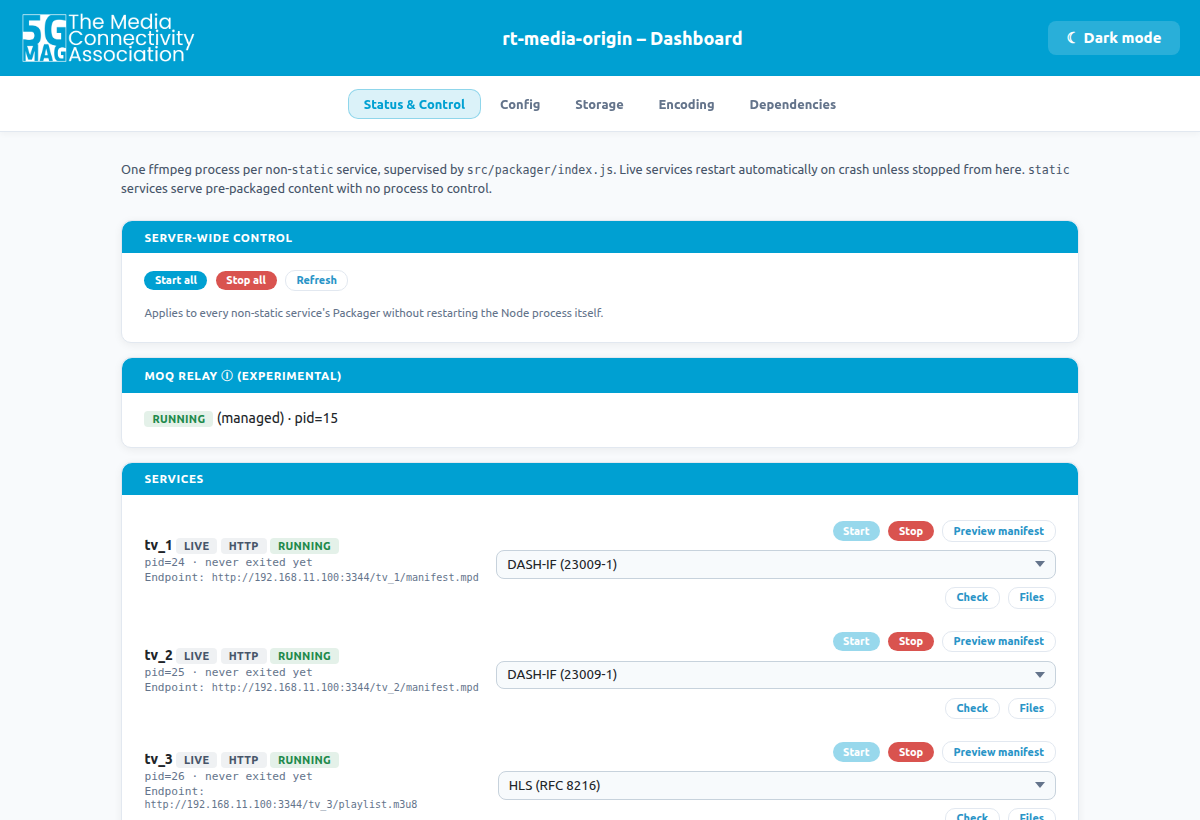
Open http://<PUBLIC_HOST>:3344/dashboard/; the origin also prints this address when it starts (docker compose -f docker/compose.yaml --env-file docker/.env logs origin). Status & Control lists every channel with its state and its endpoint, and lets you start, stop and check each one. Config edits the same configuration as a form. Saving a change in Config applies it at once: a new channel starts, and no restart is needed.
3. Your media, and the routine for every channel
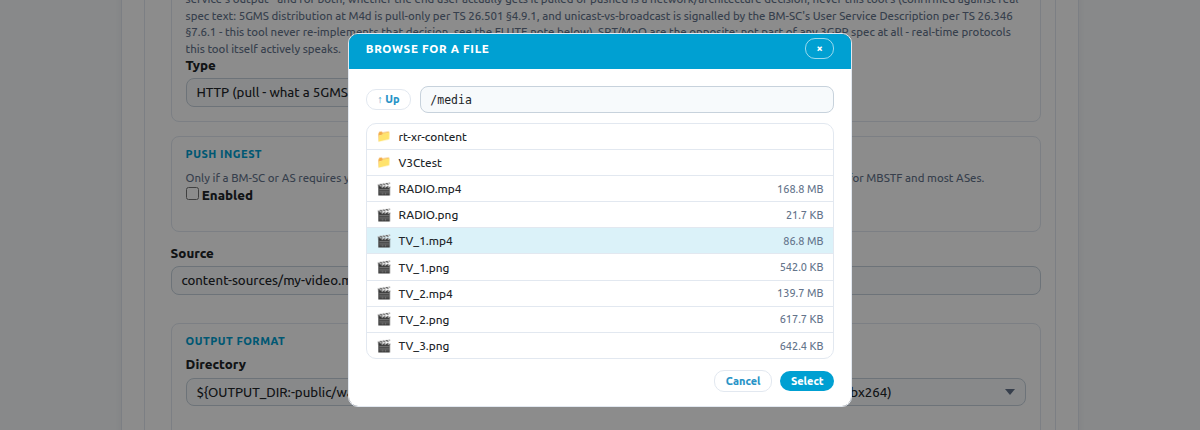
Where media goes. The origin reads source files from one folder, shown as /media inside the container and as the Browse start folder in the dashboard. By default it is content-sources/ in your clone, which holds three short films and a radio programme (about 550 MB, fetched by Git LFS). To use your own folder, set MEDIA_DIR in docker/.env to its full path and run the up -d command again. The folder is mounted read-only. What the origin produces is written to docker/data.
If you have no media yet, make a ten-second clip in your media folder:
ffmpeg -y -f lavfi -i testsrc2=size=640x360:rate=25 -f lavfi -i sine=frequency=440:sample_rate=48000 \
  -t 10 -c:v libx264 -preset veryfast -pix_fmt yuv420p -g 50 -keyint_min 50 -sc_threshold 0 \
  -c:a aac -b:a 96k -shortest sample.mp4
The routine. Every channel in this tutorial is made the same way:
-
Open Config. Under the channel list, choose a template in Load from template and press Load.

-
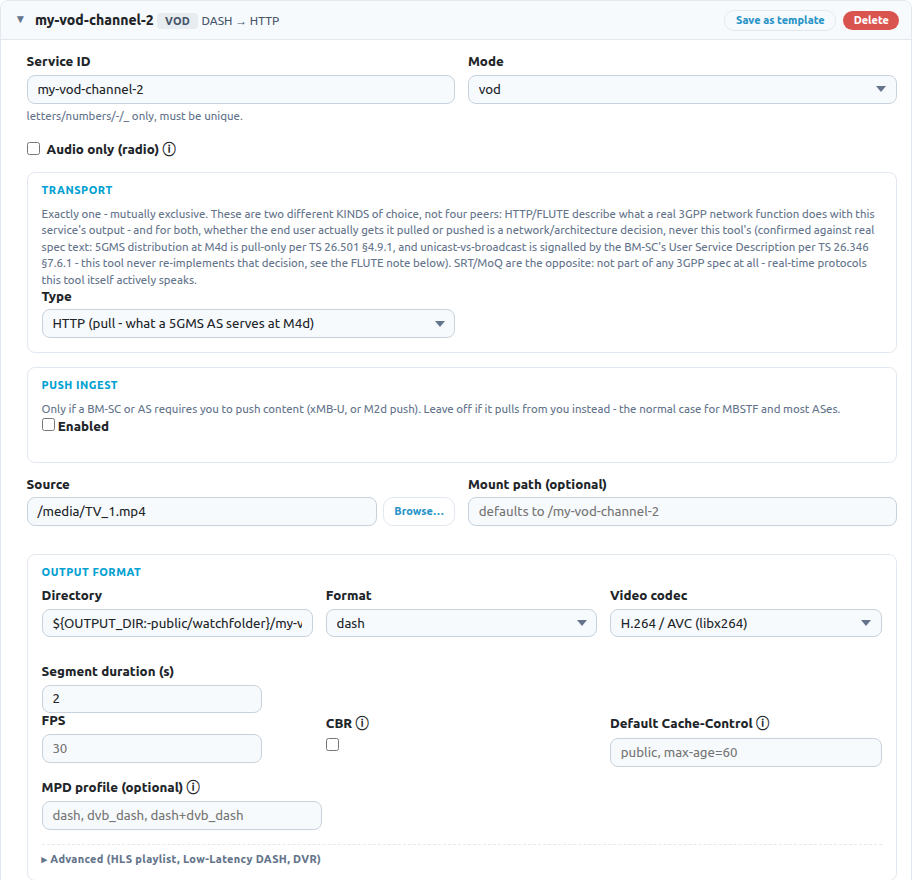
A new channel card appears at the end of the list, with its own id and its own output folder. Change what the recipe tells you to change. To pick a source file, press Browse next to Source, choose the file and press Select.
-
Press Save config. The channel starts.
-
Open Status & Control. The channel shows Endpoint: that address is what a player opens.

-
Check it with
ffprobe -hide_banner <endpoint>, which lists the video and audio streams, or play it withffplay <endpoint>.
The recipes below name the template and list only what differs.
4. Streaming content
4.1 A film on demand: DASH, HLS and CMAF
Template VOD: complete asset. Set Source to a file in the media folder, for example /media/TV_1.mp4. The origin packages the whole file as a complete presentation with two renditions (720p and 540p) and 2-second segments, so a player can seek anywhere.
- DASH: the default. Endpoint:
/<id>/manifest.mpd. - HLS: set Format to
hls. Endpoint:/<id>/manifest.m3u8. - CMAF: set Format to
cmaf. Endpoint:/<id>/manifest.mpd.
The DASH and CMAF manifest is there as soon as the channel starts. The HLS playlist appears when the whole file has been packaged, which takes about the length of the film; the channel then shows "stopped, exit code 0" and stays served. That is normal.
4.2 A live channel
From one file, looped. Template Live channel: loop one file. Set Source. The origin plays the file again and again as a live stream with four renditions (720p down to 180p). Endpoint: /<id>/manifest.mpd. The manifest appears after the first segments are made, which can take a minute; refresh the Status & Control tab until the endpoint answers.
From a playlist. Template Live channel: schedule (playlist). Edit the schedule entries in the card: each has a path and a label, for example /media/TV_1.mp4 labelled "Llama Drama" then /media/TV_2.mp4 labelled "Gran Dillama". The files play in order and the whole list repeats. Status & Control shows which item is playing.
A test card, no media needed. Template Test card (no source media needed). Nothing to change. Endpoint: /<id>/manifest.mpd.
The same dropdown has templates that set the profile a standard asks for: DVB-DASH (ETSI TS 103 285), low-latency DASH, CMAF hybrid, 3GPP TV (TS 26.116) and VR (TS 26.118), the 5G Media Streaming interoperability point, and constant-bit-rate HLS and DASH for broadcast senders (the rt-mbms-examples templates). Load one, set Source, save. Each template's description says what it sets.
4.3 Without re-encoding
Already encoded video, remuxed. Template Generic repackage channel (remux pre-encoded sources, no re-encoding), or XR video as DASH or XR video as HLS for a single file. Pick the file with Browse next to the source path. The origin repackages it with ffmpeg -c copy, so it is quick and loses nothing. The video needs a keyframe at least every segment duration (2 seconds). When it has finished the channel shows "stopped, exit code 0" and stays served.
A folder that is already packaged. Template Generic static channel (no encoding). Set Directory to the folder (press Browse and use Use this folder) and, if you like, Mount path. Everything in the folder is served as it is, with the right content types and range support. This is how you serve content that another tool made.
4.4 Radio
From a file. Template Radio: live audio-only channel (loop one file). Set Source to an audio or video file; only the audio is used. The channel is served as DASH or HLS, depending on its format.
A test tone, no media needed. Template Radio: test tone (no source media needed).
A station with a continuous stream and "now playing". Template Radio: station playout with continuous stream and now playing. Edit the schedule entries as in the playlist above (for example /media/RADIO.mp4 labelled "RADIO"). The origin plays them in order and serves the channel three ways: the HLS playlist /<id>/playlist.m3u8, one endless audio stream at /<id>/stream.aac for players that take a single URL, and the item that is playing at /<id>/now-playing.json.
4.5 Titles and posters
A viewing application such as the Reference Media Application shows a title, a description and a poster for each channel. They come from the origin, at http://<PUBLIC_HOST>:3344/metadata.json.
-
Put a poster image (
.png,.jpg,.jpeg,.webp,.gifor.svg) in the media folder. -
Open
docker/config/origin.yamlin an editor and add ametadataline to the channel:metadata: { title: "My channel", description: "What it is.", mediaType: movie, poster: my-channel.png }mediaTypeismovie,tv_showorradio, and decides the row the application puts the channel in. -
Restart the origin so it reads the file:
docker compose -f docker/compose.yaml --env-file docker/.env restart origin -
Check:
curl http://<PUBLIC_HOST>:3344/metadata.jsonlists the channel, andhttp://<PUBLIC_HOST>:3344/posters/my-channel.pngshows the poster.
5. Push to a player
Some deliveries are not pulled from the origin: the origin sends the stream to a receiver. The example configuration has one channel for each. Three of them go through a relay, MediaMTX, which docker compose starts beside the origin.
| Delivery | Channel | How to receive it |
|---|---|---|
| RTSP | tv-rtsp | ffplay rtsp://<PUBLIC_HOST>:8554/tv-rtsp |
| RTMP | tv-rtmp | ffplay rtmp://<PUBLIC_HOST>:1935/tv-rtmp |
| SRT | tv-srt | ffplay "srt://<PUBLIC_HOST>:8890?streamid=#!::m=request,r=tv-srt" |
| RTP multicast | tv-rtp | multicast group 239.255.42.1, port 15006, MPEG-TS over RTP |
| MoQ | tv-moq | a MoQ player subscribing to broadcast tv-moq on the origin's relay at https://<PUBLIC_HOST>:4443/anon |
| RIST | add a channel | see the Reference Media Application tests |
For the RTP channel, start the origin with the host-network overlay, which lets IP multicast leave on the host's interface:
docker compose -f docker/compose.yaml -f docker/compose.host.yaml --env-file docker/.env up -d
To make a push channel of your own, load the template SRT contribution feed (real-time) or MoQ live (EXPERIMENTAL, IETF draft, moq-lite), or open any channel card and change Transport (HTTP, SRT, MoQ, RIST, RTMP, RTSP or RTP) and fill in the address it asks for. What each needs on the receiving side:
| Transport | Needs |
|---|---|
rtsp | a server that accepts RTSP publishing (ANNOUNCE and RECORD), for example MediaMTX |
rtmp | for HEVC, VP9, AV1 or VVC, Enhanced RTMP on the server |
srt | to publish to a relay, a stream ID that declares the mode, for example #!::m=publish,r=live/tv1 |
rist | an even media port, from 2 to 65534; RTCP uses the next port |
rtp | a receiver for MPEG-TS over RTP, payload type 33 |
moq | a moq-lite relay, such as moq-dev's moq-relay |
RTP multicast, MoQ and RIST are exercised end to end by the tests of the Reference Media Application, which receives them on a phone or a laptop.
6. Content for XR
An XR scene player needs the videos and audio that the scene names, at addresses it can reach. The origin serves them.
-
Get the content. Clone it into your media folder, so the dashboard's Browse can see it (set
MEDIA_DIRto this folder first, see step 3):mkdir -p ~/content && cd ~/contentgit clone https://github.com/5G-MAG/rt-xr-content.gitgit -C rt-xr-content lfs pull -
Serve the videos as they are. Load the template XR videos served as they are over HTTP (a folder of video files), press Browse next to Directory, go to
rt-xr-content/videoand press Use this folder, then Save config. Every video in the folder is athttp://<PUBLIC_HOST>:3344/xr-video/<file name>, with range requests. Check:curl -I http://<PUBLIC_HOST>:3344/xr-video/bbb_360p_48k.mp4. -
Serve one video as DASH or HLS. Load XR video as DASH (or XR video as HLS), press Browse next to the source path, pick the video (for example
rt-xr-content/ar-video-plane/ccma_1080p30_avc_2000kbps.mp4, orTV_1.mp4from the example media) and save. The origin repackages it without re-encoding.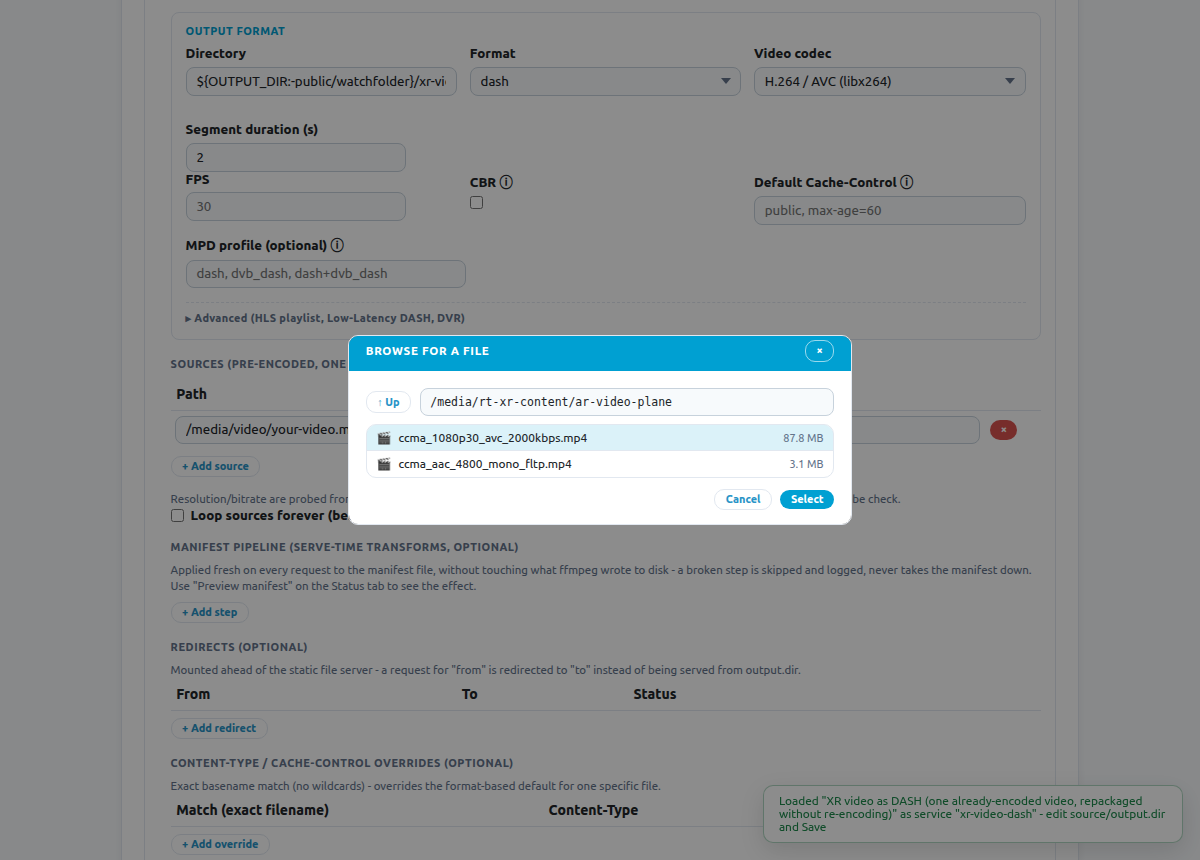
-
One scene for the player. The origin serves a fixed MPEG-I scene at
http://<PUBLIC_HOST>:3344/scene.gltf: a plane on the floor that plays the video and its audio, with the 5G-MAG image until the first frame arrives. Add that address once to the scene player (itsPathsfile takes one address per line). The scene never changes and holds no address; it plays the first repackaged channel with DASH output, or the channel named inserver.sceneChannelin the origin's configuration, so you change what plays by changing that channel's source. The scene declares a 1920x1080 video at 25 frames per second.
Scenes of your own can name any of the addresses above in their MPEG_media entries.
The media of rt-xr-content has its own licences.
7. Content for V3C
The V3C Immersive Player streams volumetric titles over DASH. The titles come from rt-v3c-content as zip files.
-
Get and unpack the titles into the media folder (set
MEDIA_DIRto it first):git clone https://github.com/5G-MAG/rt-v3c-content.gitgit -C rt-v3c-content lfs pull<origin clone>/docker/unpack-v3c-content.sh rt-v3c-content ~/contentEach title is unzipped to
~/content/V3Ctest/<title>/, with itsstream.mpd,init.mp4and segments. -
Serve them. Load the template V3C volumetric video (static, pre-packaged), as the V3C player names it. Press Browse next to Directory, go to
V3Ctestand press Use this folder, then Save config. The channel is mounted at/V3Ctest.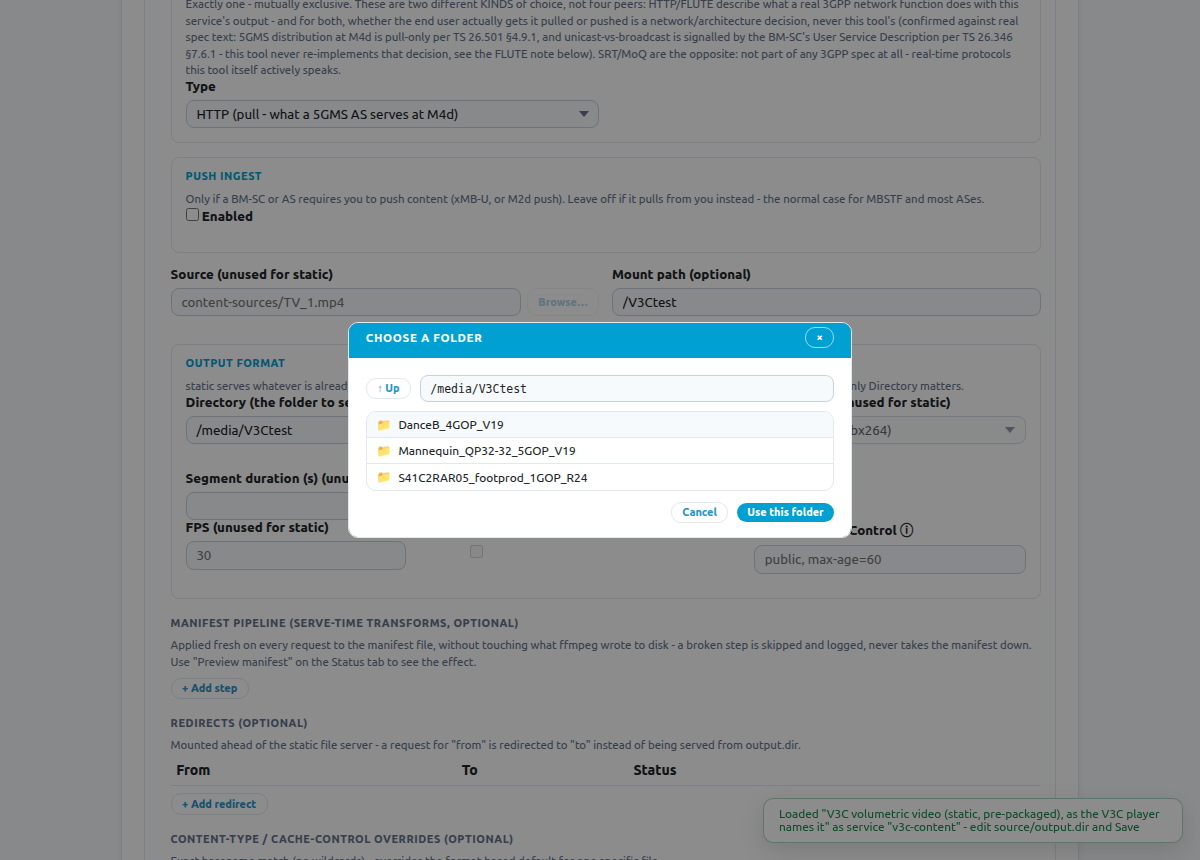
-
Check. Each title is at
http://<PUBLIC_HOST>:3344/V3Ctest/<title>/stream.mpd:curl -s -o /dev/null -w "%{http_code} %{content_type}\n" http://<PUBLIC_HOST>:3344/V3Ctest/DanceB_4GOP_V19/stream.mpd -
Point the player at it. In the player's
config.json, set the server'sIPandPortunder Networking, Servers toPUBLIC_HOSTand 3344. The player lists the titles it finds and streams the chosen one.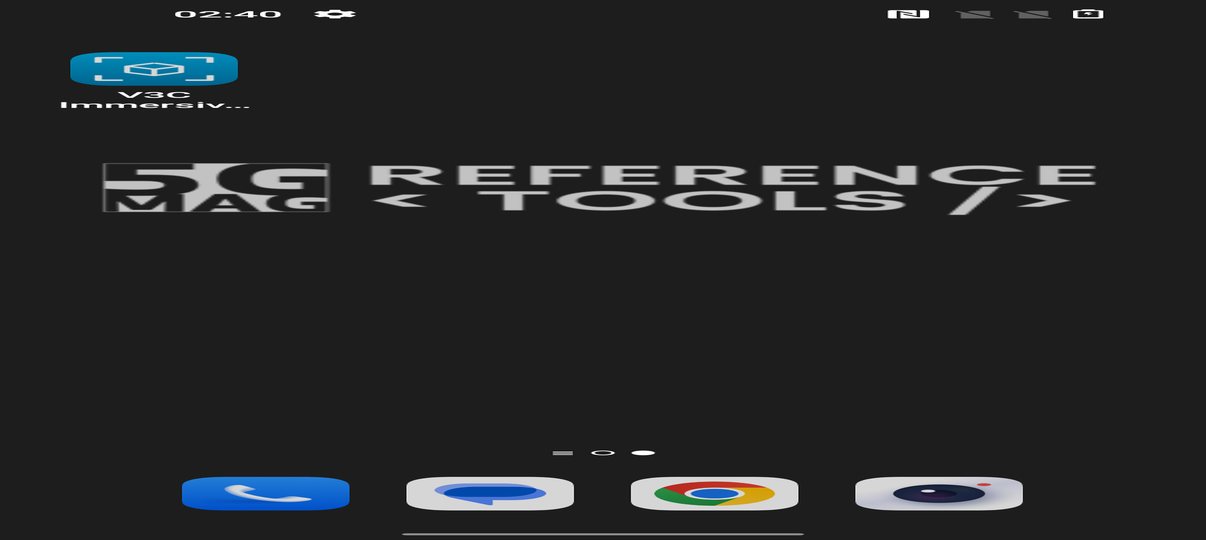
The Footprod title is content of XDProd, from rt-v3c-content, shown under the licence supplied with it.
The V3C content has its own licences.
8. Check what you made
- Manifest check. On Status & Control, the Check button next to a channel compares its manifest with a specification you choose in the list beside it, for example DASH-IF (ISO/IEC 23009-1), and lists what passes and what does not.
- Preview manifest shows the manifest as the origin serves it.
- Files lists what the channel has written.
- Dependencies (a tab) checks that ffmpeg, the fonts and the other tools the origin needs are present.
9. Stop and clean up
docker compose -f docker/compose.yaml --env-file docker/.env down
The files the origin made stay in docker/data; delete that folder to remove them.