The Reference Media Application is an Android application, shown on the phone as 5GMAGflix Reference Application, with two modes, switched with the Watch | Test toggle under its header:
- Watch shows the channels of an origin as rows of posters, with a title and a description for each, and plays the one you choose.
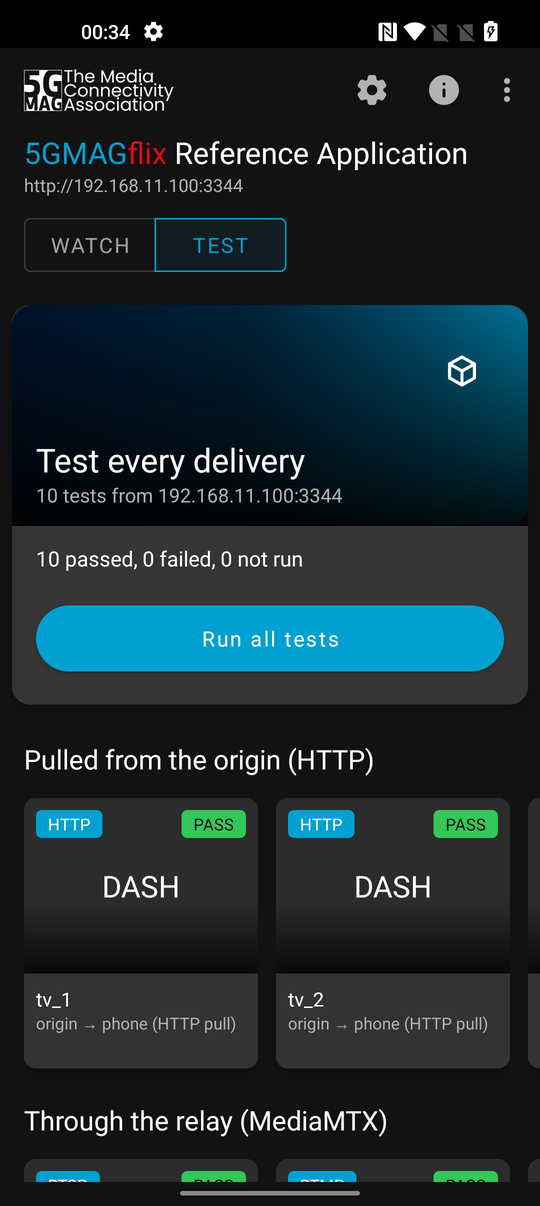
- Test builds one test per channel and delivery method the origin is set up to send, plays each one on the phone, and compares what arrives with what the origin's configuration says it sends.
You set the origin address and everything else in its Settings, when you build it, or when you start it from adb.
Read the README of rt-media-android-application before you start. It lists what the build needs. The origin has its own, rt-media-origin.
| Repository | What it is | Used in |
|---|---|---|
| rt-media-android-application | The Reference Media Application, and the laptop scripts in its rig/ folder | All sections |
| rt-media-origin | The origin the application plays from and tests | Tutorial: Media Origin |
| You want | Go to |
|---|---|
| The application on your phone | 1. Build and install |
| It to find your origin | 2. Point it at the origin |
| Channels with titles and posters | 3. Watch |
| Every delivery method checked and a report | 4. Test |
| The tests run from your laptop | 5. Run the tests from the laptop |
You need: an Android 10 (API 29) or later phone on the same network as the origin, with USB debugging on; a Linux machine with JDK 17 or later, the Android SDK (platform 37 and platform-tools) and git; and an origin that is running. If you do not have one, do Tutorial: Media Origin section 1 first.
1. Build and install
git clone https://github.com/5G-MAG/rt-media-android-application.git
cd rt-media-android-application/android
echo "sdk.dir=$HOME/Android/Sdk" > local.properties
./gradlew assembleDebug
adb install -r app/build/outputs/apk/debug/app-debug.apk
On the phone's launcher it is 5GMAGflix Reference App. On first start Android asks to allow notifications; allow them.
2. Point it at the origin
The phone needs the address of the origin, http://<PUBLIC_HOST>:3344, where PUBLIC_HOST is the address of the machine running it (the value you gave in docker/.env). Before you go on, check from the phone's browser that http://<PUBLIC_HOST>:3344/healthz answers; if it does not, the phone and the machine are not on the same network and nothing below will work.
Set the address in one of three ways:
-
In the application: press the gear icon, type the address into rt-media-origin address, and press Save.
-
When you start it from the laptop:
adb shell am start -n com.fivegmag.referencemediaapplication/.MainActivity --es origin http://<PUBLIC_HOST>:3344 -
When you build it: add
-PmediaAppOriginUrl=http://<PUBLIC_HOST>:3344to the./gradlew assembleDebugcommand, so the application starts with that address.
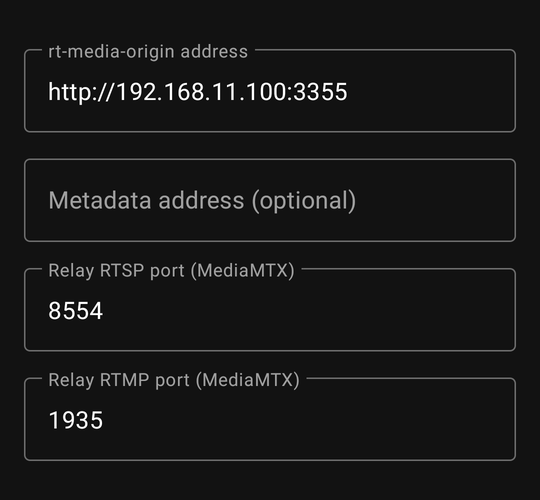
The other settings:
| Setting | What it does |
|---|---|
| Metadata address (optional) | Where Watch reads titles and posters from. Leave it empty to use <origin>/metadata.json. |
| Relay RTSP port, Relay RTMP port | The ports of the MediaMTX relay that RTSP, RTMP and SRT go through (8554 and 1935). Change them only if you changed them on the origin. |
| Accept the MoQ relay's self-signed certificate | On by default: the origin's MoQ relay makes its own certificate. |
| Limits: seconds per test, longest start-up, dropped frames allowed, stalls allowed | When a test passes: 20 seconds each, start-up within 10000 ms, at most 1 % dropped frames and no stalls by default. These are the application's own settings, not values from a specification; every report records the values it used. |
Several origins. To switch between origins without typing, list them in android/app/src/main/assets/app_config.json before you build, and tap the origin address under the header to choose one:
{ "sources": [ { "name": "Lab", "originUrl": "http://192.168.1.20:3344" } ] }
3. Watch
For something to watch, the origin needs channels with titles and posters. The quickest way is the origin's combined example, which carries the three example films and a radio programme and one channel for each delivery method. In your rt-media-origin clone (with its example media fetched by Git LFS):
cp docker/config.combined.example.yaml docker/config/origin.yaml
docker compose -f docker/compose.yaml --env-file docker/.env up -d --force-recreate origin
Open the application and select Watch. The first channel is featured at the top, and the others are in rows by type: Movies, TV Shows and Radio. Press a channel, then Play.
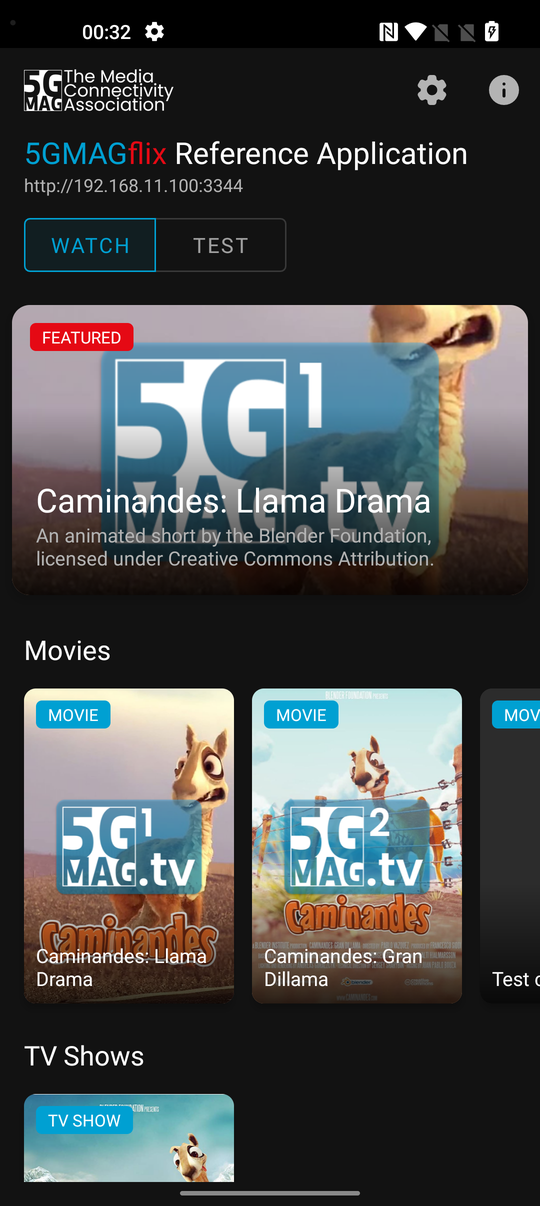
Caminandes: Llama Drama, by the Blender Foundation, under the Creative Commons Attribution licence; a 5G-MAG logo was added. Credits are in content-sources/ATTRIBUTION.md of rt-media-origin.
Where the titles and posters come from
The application reads one JSON document, http://<PUBLIC_HOST>:3344/metadata.json, which the origin makes from the metadata of each channel. It is keyed by channel id:
{
  "tv_1": {
    "title": "Caminandes: Llama Drama",
    "description": "An animated short by the Blender Foundation, licensed under Creative Commons Attribution.",
    "posterUrl": "/posters/TV_1.png",
    "mediaType": "movie"
  }
}
mediaTypeismovie,tv_showorradio, and decides the row.posterUrlcan be relative: the application resolves it against the address the document came from. The origin serves the images from its media folder at/posters/<file name>.- A channel with no metadata is still shown, by its id and without a poster.
To add titles and posters to your own channels, follow Tutorial: Media Origin. To read them from somewhere else, put that address in Metadata address in the Settings.
4. Test
Select Test. The application lists one card per channel and delivery method of the origin's configuration, grouped by how the stream reaches the phone, such as "Pulled from the origin (HTTP)" and "Through the relay (MediaMTX)". Press Run all tests, or open a card to run just that one.
While a test runs, its page shows what the phone receives (the picture, the resolution, the codec, frames decoded and dropped, audio), the path the media takes and the document that delivery follows.
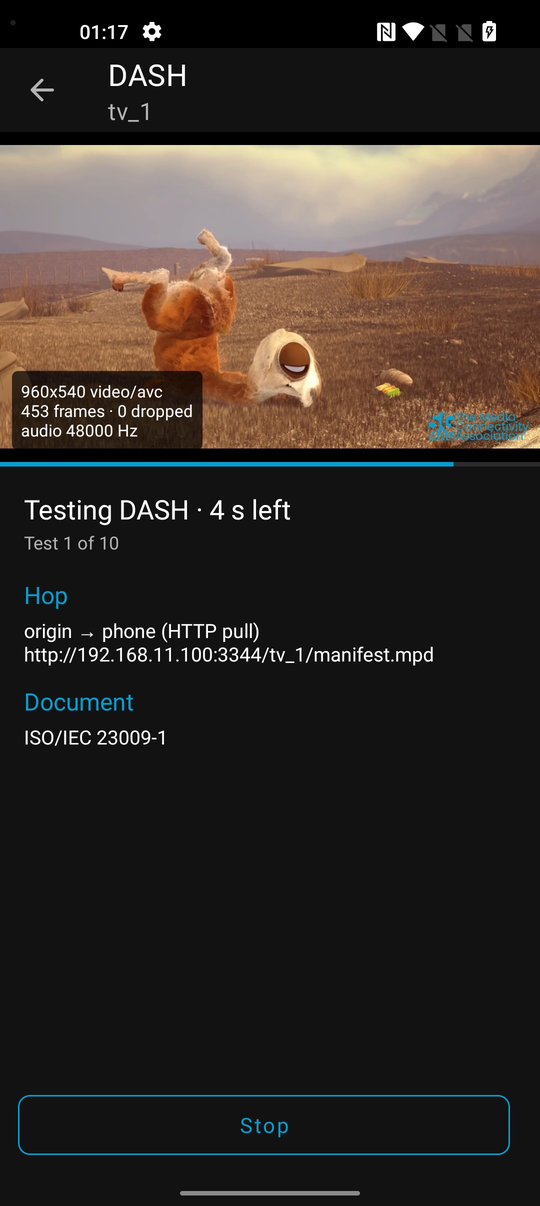
Caminandes: Llama Drama, by the Blender Foundation, under the Creative Commons Attribution licence; a 5G-MAG logo was added. Credits are in content-sources/ATTRIBUTION.md of rt-media-origin.
A test needs the application on the screen. If you open another application, pull down the notification shade or change network while it runs, the test in progress cannot show its picture or reach the origin, and it fails for that reason.
What each delivery needs. The tests receive each channel the way a real player would:
| Delivery | Path to the phone |
|---|---|
| DASH, CMAF, HLS | The origin to the phone over HTTP |
| Radio: HLS, continuous AAC stream, now playing | The origin to the phone over HTTP |
| RTSP | The origin publishes to MediaMTX; the phone plays RTSP from it |
| RTMP | The origin publishes to MediaMTX; the phone plays RTMP from it |
| SRT | The origin publishes to MediaMTX over SRT; the phone plays RTMP from it, so the relay rewraps the stream and the report says so |
| RTP multicast | The origin sends RTP over a multicast group; the phone joins the group |
| MoQ | The origin publishes to its MoQ relay; the phone subscribes over QUIC |
| RIST | Received on the laptop by rig/delivery-test.sh |
RTP multicast needs the origin started with the host-network overlay (-f docker/compose.host.yaml, see the origin tutorial, section 5) and a Wi-Fi access point that passes multicast.
The report. When a run finishes, the application writes a JSON report: the application version, the phone, the origin, the limits used and a summary of passed, failed and not-on-phone tests, then one entry per test with its delivery, address, path and document, the checks (each with what was expected, what was measured and a verdict), and the measurements (time to the first video frame and the first audio, frames rendered and dropped, stalls, the video formats and the audio seen). Copy it to your laptop:
adb pull /sdcard/Android/data/com.fivegmag.referencemediaapplication/files/reports/latest.json
It can also be shared from the menu in the application.
5. Run the tests from the laptop
With the phone connected by USB and the application installed, one script wakes the phone, runs every test and prints one line each. It needs jq and curl, and the origin on the laptop on port 3344. It stops with a message if the phone is locked.
cd rt-media-android-application/rig
RIG_HOST=<PUBLIC_HOST> ./phone-test.sh ../android/app/build/outputs/apk/debug/app-debug.apk
TEST_SECONDS=30 before the command changes the playing time of each test. The report is kept in rig/.run/phone/latest.json.
No Docker: start an origin and its relays with the rig
The rig folder can also start an origin with one channel for each delivery method, and the relays some of them need, without Docker. It downloads MediaMTX, moq-relay and moq on first use and prints the address the phone should use:
cd rt-media-android-application/rig
RT_MEDIA_ORIGIN_DIR=~/rt-media-origin ./up.sh
It needs ffmpeg, curl, jq, nodejs and npm on the laptop. To receive every channel on the laptop as well, as a baseline and for RIST, run ./delivery-test.sh. Stop everything with ./down.sh. If the address the phone should use is not the one the rig prints, set RIG_HOST to it.