This tutorial allows to: Test the M1 and M5 APIs of the 5GMSd AF with Postman.
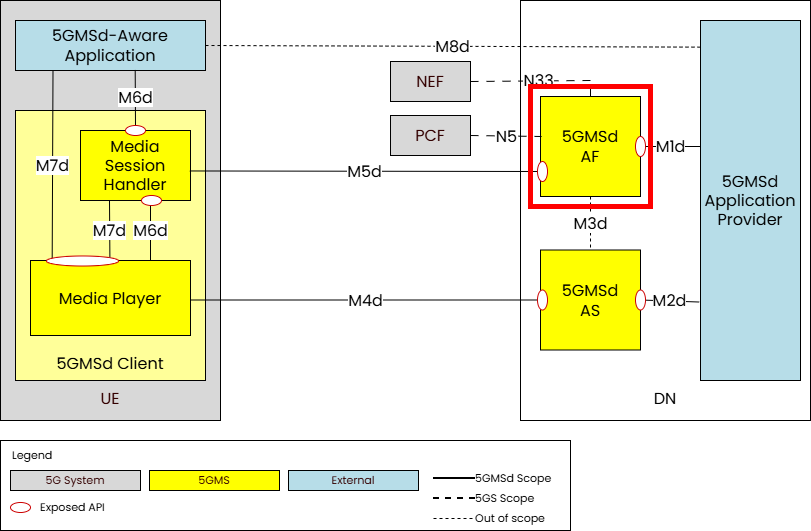
Postman is a popular API development and testing tool that allows users to create, send, and
manage HTTP requests. It provides a user-friendly interface for building and testing API endpoints, making it easier for
developers to collaborate and streamline the API development process. Postman comes in very handy when testing and
working with the M1 and M5 interfaces of the Application Function.
What you will build: a working Postman setup that drives the M1 and M5 APIs (and the 5G-MAG-specific MAF endpoints) of a running Application Function.
Components
Early Access: available to members first
rt-5gms-application-functionrt-5gms-application-providerPrerequisites
You need a running Application Function whose M1, M5 and MAF endpoints are reachable from the machine running Postman. Set one up first with the End-to-End deployment (with Docker) tutorial, or with the Testing the 5GMS Application Function tutorial.
Importing the 5G-MAG Postman Collection
Postman provides an easy way to export and import a collection of REST calls. To facilitate getting started, download the pre-defined Postman collections and environment here:
- 5G-MAG M1.postman_collection.json
- 5G-MAG M5.postman_collection.json
- 5G-MAG MAF.postman_collection.json
- 5G-MAG.postman_environment.json
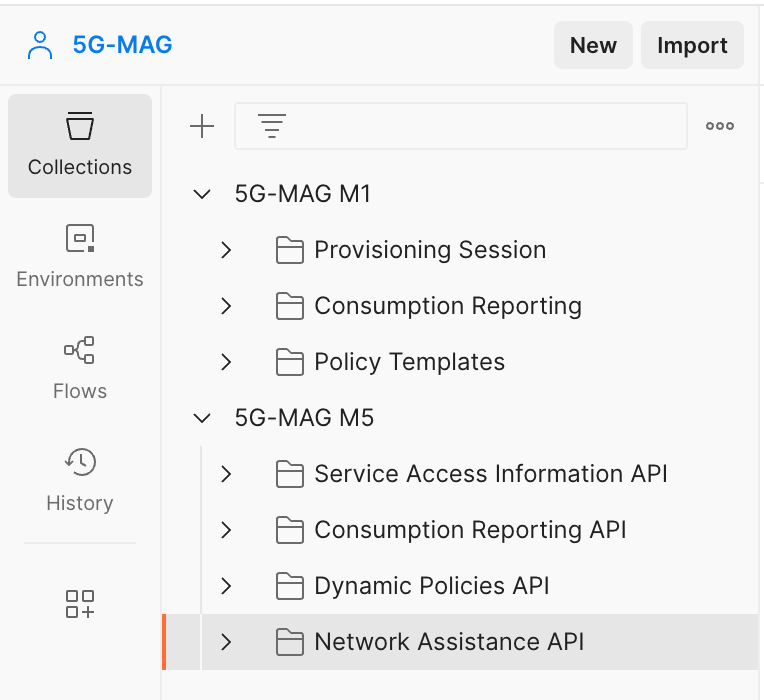
After the download, open Postman and select File->Import. After a successful import, you should see three collections
like this:
Postman Configuration
A very useful feature of Postman is the possibility to define variables. These variables can afterward be used in any of
the routes or payloads. The first variables to define are the m1_url, m5_url, maf_url variables. The maf_url points at the MAF collection: a set of 5G-MAG-specific endpoints that are not part of the TS 26.512 standard (see Using custom endpoints below). For that
reason,
select Environments on the left side and then select the 5G-MAG environment. Now you should see a list of variables
similar to this:
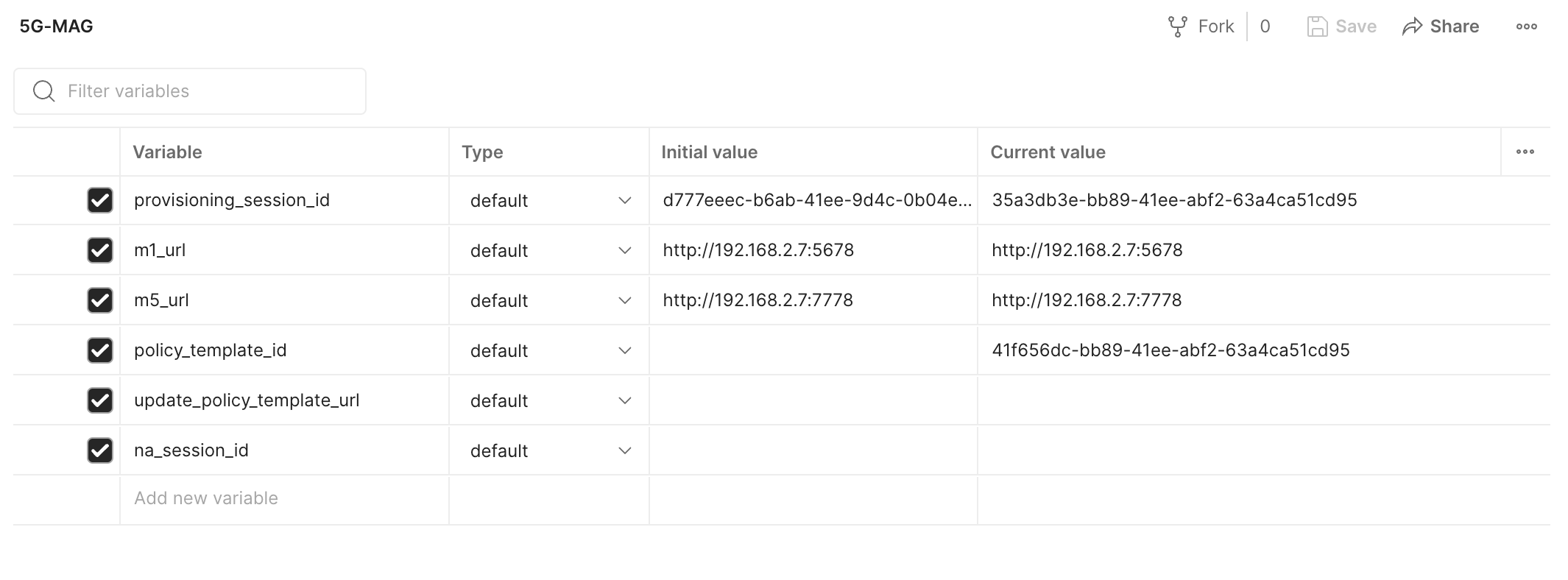
Add the URL to the M1, the M5 and the maf endpoint of your Application Function here. In the example above, the Application Function is
running
in a local network. Note that these URLs also need to contain the port. The configuration
options for the Application Function are
documented in the 5GMS AF configuration page.
Using M1
Now that the M1 endpoint is defined, it can be used:
Provisioning Session
Creating a Provisioning Session
Navigate to the Provisioning Session folder in the Postman Collection and select Create Provisioning Session. Check
the URL on the top that the request is being sent to: {{m1_url}}/3gpp-m1/v2/provisioning-sessions. Here you can see
that it uses the m1_url variable defined earlier. If the endpoint changes at some point, only the
variable needs to change instead of all the M1 calls in the Postman collection.
Click on Send on the top right. You should see a successful response (status code 201) and the payload of the
response on the bottom:
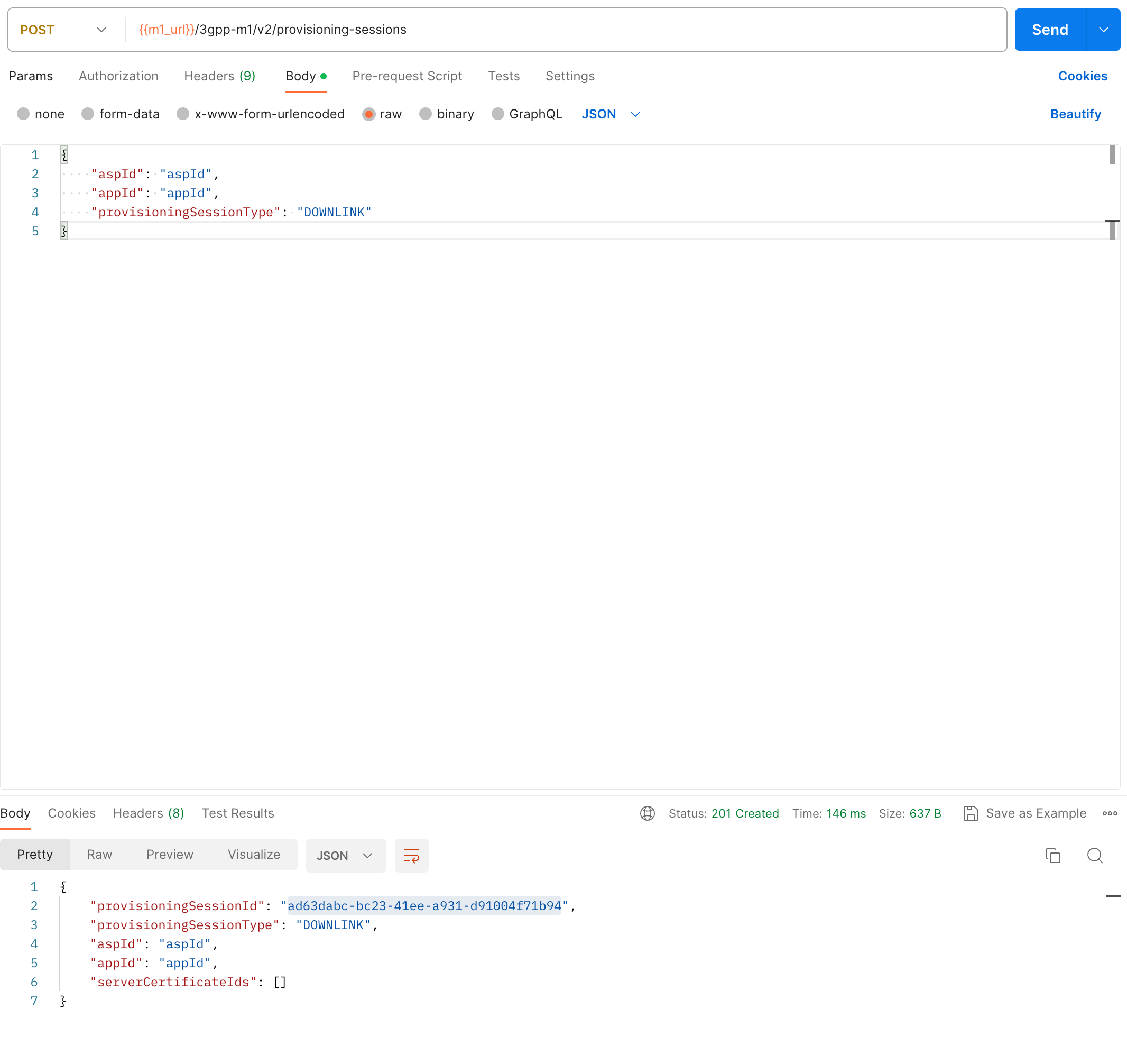
The response body contains the provisioningSessionId of the created provisioning session. The provisioningSessionId
is an important identifier and used in many of the M1 and M5 endpoints. Consequently, it makes sense to assign
the provisioningSessionId to a variable as well. The collection contains a small script that automatically assigns
the provisioningSessionId value of the response body to the provisioning_session_id variable:
var responseBody = pm.response.json();
var provisioningSessionId = responseBody.provisioningSessionId;
pm.environment.set('provisioning_session_id', provisioningSessionId);
Retrieving a Provisioning Session
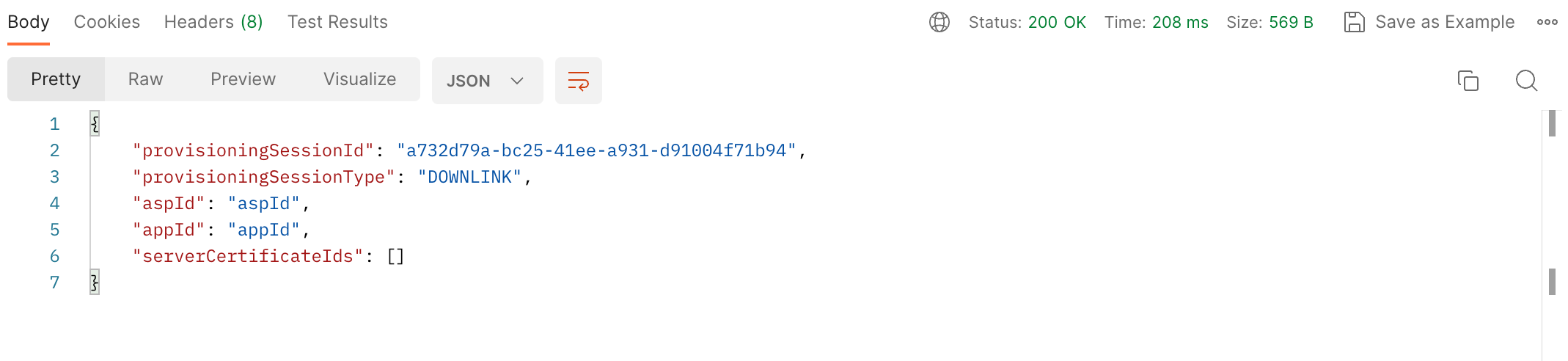
Now that a provisioning session has been created and its provisioningSessionId assigned to the variable, the
GET Provisioning Session endpoint can be called directly. As expected, the route contains the m1_url and
the provisioning_session_id variable: {{m1_url}}/3gpp-m1/v2/provisioning-sessions/{{provisioning_session_id}}.
Sending this request should result in a response similar to this:
Deleting a Provisioning Session
Deleting a provisioning session is straight forward as well. Since the required variables are already defined, you can
simply execute the call and should receive a 202 Accepted response.
Content Hosting
To manage content hosting configurations, proceed similarly to managing provisioning sessions. Note that
the create and purge functions contain a JSON structure in the payload to define the content hosting parameters.
Consumption Reporting
To manage consumption reporting configurations, proceed similarly to managing provisioning sessions. Note that
the create and update functions contain a JSON structure in the payload to define the consumption reporting parameters.
Policy Templates
To manage policy templates, proceed similarly to managing provisioning sessions. Note that the create and update
functions contain a JSON structure in the payload to define the required parameters. Moreover, open5gsIntegration
must be enabled in the configuration of the Application Function. For more details, refer to
the Configuration Guide.
After successfully creating a policy template, the new policyTemplateId contained in the Location header is
automatically assigned to the policy_template_id variable:
var policyTemplateId = pm.response.headers.get('Location').split('/').pop();
pm.environment.set('policy_template_id', policyTemplateId);
Metrics Reporting
To manage metrics reporting configurations, proceed similarly to managing provisioning sessions. Note that
the create function contains a JSON structure in the payload to define the metrics reporting parameters.
Using M5
The M5 routes to query the Service Access Information, send a Consumption Report, create a Dynamic Policy resource and
provision a new Network Assistance Session can be found in the 5G-MAG M5 folder. There is no additional configuration
required, the routes for M5 use the variables defined earlier as part of the configuration and the execution
of M1 endpoints.
Using custom endpoints
The 5G-MAG implementation of the Application Function provides additional endpoints that are not part of the TS 26.512
Rel-17 specification. These endpoints are proprietary and offer additional functionality to improve the user experience.
The custom endpoints are located in the 5G-MAG MAF collection.
Querying all provisioning sessions
It is possible to query the ID of all the available provisioning sessions. For that reason,
choose enumerateProvisioningSessions in the 5G-MAG MAF collection and click on send. The result should look like
this:
["c8fb07b0-092f-41ef-ba64-af7091b62997", "c7b38e0e-092f-41ef-ba64-af7091b62997"]
Next steps
- Test individual AF interfaces in depth: Testing the 5GMS Application Function.
- Add reporting configurations end to end: Consumption Reporting or QoE Metrics Reporting.
- Return to the Tutorials.