This tutorial allows to: Use QoE Metrics Reporting for 5G Media Streaming.
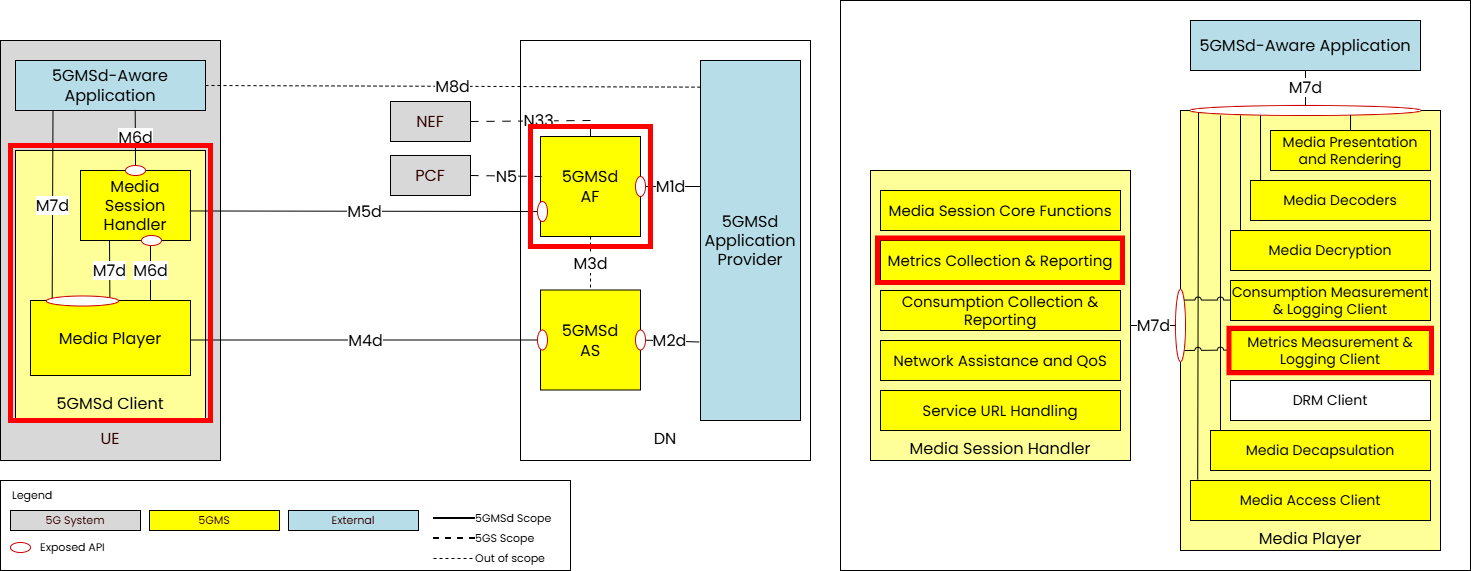
Source: right-hand panel after 3GPP TS 26.501 Figures 4.2.2-1 and 4.2.2-2 (V18.2.0 and later, including V20.0.0). The Media Session Handler box labelled "Network Assistance and QoS" is the label used in the specification figure; the text of clause 4.2.2 lists Network Assistance and Dynamic Policy as separate functions.
What you will build: a 5GMSd session in which the client collects Quality of Experience (QoE) metrics and reports them to the 5GMSd Application Function (AF), where you can then read the resulting reports.
QoE Metrics Reporting allows the Quality of Experience (QoE) of media streaming sessions to be logged by the 5GMS System and
exposed for analysis. The Reference Tools support the scenario in which the metrics collection and reporting is
configured by the 5GMSd Application Function. The metrics configuration provided by the 5GMSd AF to the 5GMSd client
comprises instructions and rules regarding metrics collection (i.e. measurement and logging) and reporting for different
schemes. A metrics scheme defines which metrics are collected and how; this tutorial uses the 3GPP DASH scheme QM10 (urn:3GPP:ns:PSS:DASH:QM10), described further on the Implementation status page. Each metrics scheme requires the 5GMSd Client to perform metrics collection and subsequent metrics reporting to
the 5GMSd AF according to the configuration rules of that scheme. In the simplest case the resulting QoE metrics reports
are then saved to disk by the 5GMS Application Function.
The workflow is: first configure the 5GMS Application Function and the 5GMS Application Server; next, start a 5GMS media streaming downlink session on the client side; finally, access the resulting QoE metrics reports from the local hard drive.
Components
Early Access: available to members first
rt-5gms-application-functionrt-5gms-application-serverrt-5gms-applicationrt-5gms-media-session-handlerrt-5gms-media-stream-handlerrt-5gms-common-android-libraryrt-5gms-application-providerPrerequisites
This tutorial assumes you have already completed the server-side and client-side setup in the basic end-to-end guide. Steps 1 to 6 below simply point back to that guide; if you have a working end-to-end deployment you can skip straight to Step 7 (adding a QoE Metrics Reporting configuration).
Server-side setup
Step 1: Install the Application Function
For details please refer to the corresponding section in the basic end-to-end guide.
Step 2: Install the Application Server
For details please refer to the corresponding section in the basic end-to-end guide.
Step 3: Start the Application Server
For details please refer to the corresponding section in the basic end-to-end guide.
Step 4: Basic Configuration of the Application Function
Follow the basic configuration steps documented in the basic end-to-end guide.
Step 5: Start the Application Function
Follow the command documented in the basic end-to-end guide.
Step 6: Create a Content Hosting Configuration and Provisioning Session
Follow the steps to create a content hosting configuration
and a provisioning session using the msaf-configuration tool.
Step 7: Adding a QoE Metrics Reporting Configuration
Now that a provisioning session has been created, a QoE Metrics Reporting configuration can be added to that provisioning session. This guide uses the Postman Collection for this. However, the same configuration is possible using any other REST client.
Step 7.1 Install and Import the Postman Collection
The Postman collection used to configure QoE Metrics Reporting via the M1 interface is in the Application Provider repository:
Step 7.2 Retrieving the Provisioning Session ID
Open a browser and navigate to http://<YOUR_MACHINE_IP_HERE>/m8.json. Replace <YOUR_MACHINE_IP_HERE> with the IP of the
machine that the 5GMS Application Function is running on. Then copy the provisioningSessionId from the JSON to your
clipboard. As an example, the m8.json can look like this with a provisioningSessionId set
to 1fd61716-fe25-41ee-8d9e-cb36a16378a2.
{
  "m5BaseUrl": "http://192.168.2.7:7778/3gpp-m5/v2/",
  "serviceList": [
    {
      "provisioningSessionId": "1fd61716-fe25-41ee-8d9e-cb36a16378a2",
      "name": "VoD: Elephant's Dream",
      "entryPoints": [
        {
          "locator": "http://192.168.2.7/m4d/provisioning-session-1fd61716-fe25-41ee-8d9e-cb36a16378a2/elephants_dream/1/client_manifest-all.mpd",
          "contentType": "application/dash+xml",
          "profiles": ["urn:mpeg:dash:profile:isoff-live:2011"]
        }
      ]
    },
    {
      "provisioningSessionId": "1fd61716-fe25-41ee-8d9e-cb36a16378a2",
      "name": "VoD: Big Buck Bunny",
      "entryPoints": [
        {
          "locator": "http://192.168.2.7/m4d/provisioning-session-1fd61716-fe25-41ee-8d9e-cb36a16378a2/bbb/2/client_manifest-common_init.mpd",
          "contentType": "application/dash+xml",
          "profiles": ["urn:mpeg:dash:profile:isoff-live:2011"]
        }
      ]
    },
    {
      "provisioningSessionId": "1fd61716-fe25-41ee-8d9e-cb36a16378a2",
      "name": "VoD: Testcard",
      "entryPoints": [
        {
          "locator": "http://192.168.2.7/m4d/provisioning-session-1fd61716-fe25-41ee-8d9e-cb36a16378a2/testcard/vod/manifests/avc-full.mpd",
          "contentType": "application/dash+xml",
          "profiles": ["urn:mpeg:dash:profile:isoff-live:2011"]
        },
        {
          "locator": "http://192.168.2.7/m4d/provisioning-session-1fd61716-fe25-41ee-8d9e-cb36a16378a2/testcard/vod/manifests/avc-full.m3u8",
          "contentType": "application/x-mpegURL"
        }
      ]
    }
  ]
}
Step 7.3 Postman - Environment Configuration
Start Postman and navigate to the Postman Environments located on the left side. Replace the provisioning_session_id
variable with the value from the JSON file:
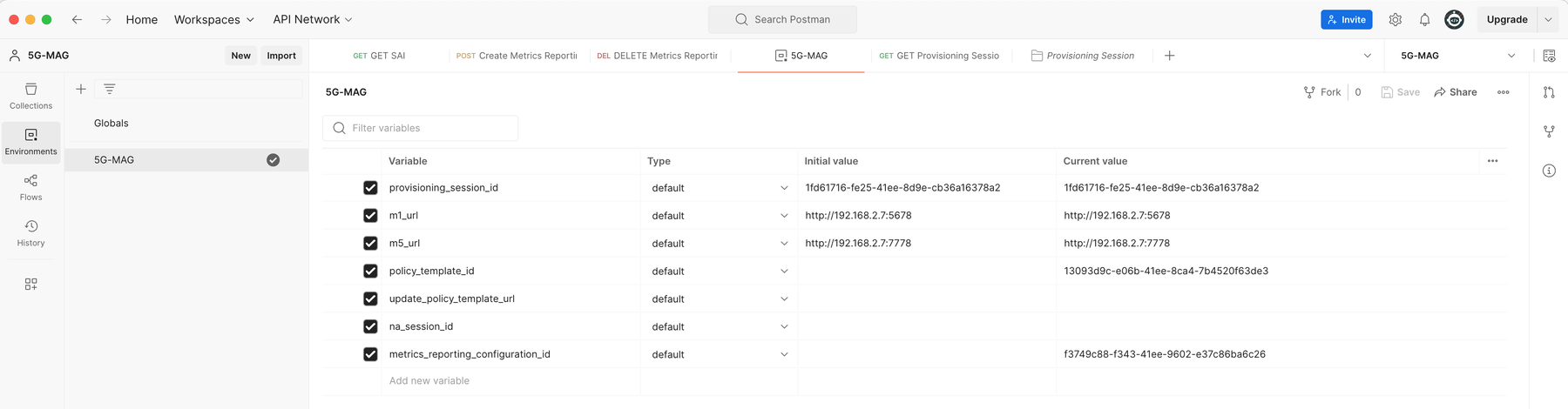
Step 7.4 Postman - Create Metrics Reporting Configuration
In Postman navigate to Collections and select 5G-MAG M1. Navigate to Metrics Reporting and
select Create Metrics Reporting Configuration. Then adjust the attributes in the payload section based on the desired
configuration. An example configuration looks the following:
{
  "scheme": "urn:3GPP:ns:PSS:DASH:QM10",
  "dataNetworkName": "",
  "reportingInterval": 10,
  "samplePercentage": 100,
  "urlFilters": [],
  "samplingPeriod": 5,
  "metrics": [
    "urn:3GPP:ns:PSS:DASH:QM10#HTTPList",
    "urn:3GPP:ns:PSS:DASH:QM10#BufferLevel",
    "urn:3GPP:ns:PSS:DASH:QM10#RepSwitchList",
    "urn:3GPP:ns:PSS:DASH:QM10#MPDInformation"
  ]
}
Click on Send once the configuration is set:
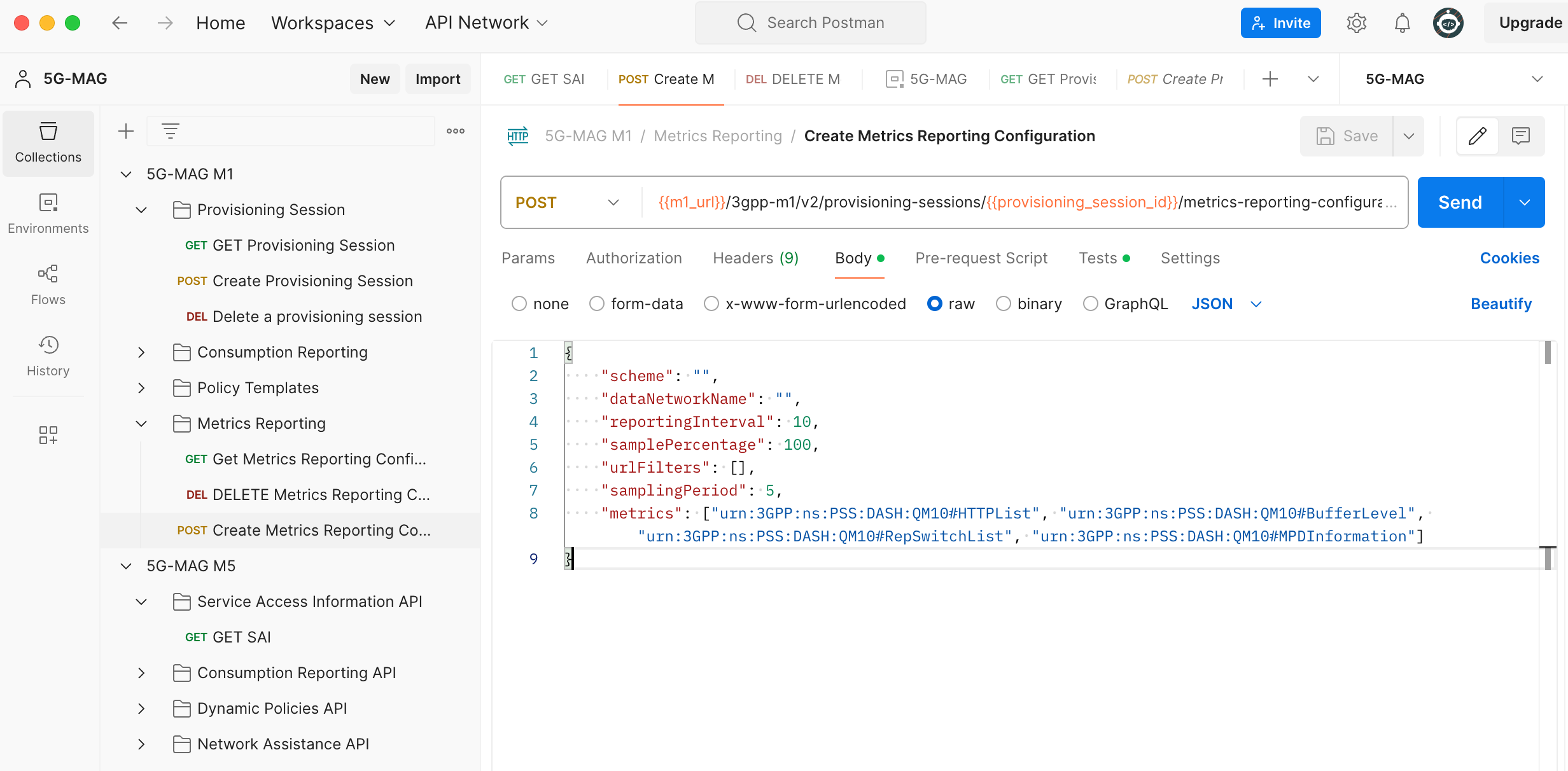
The REST call should return a 201 response code indicating that the call was accepted by the Application Function.
Step 7.5 Postman - Validate the Service Access Information
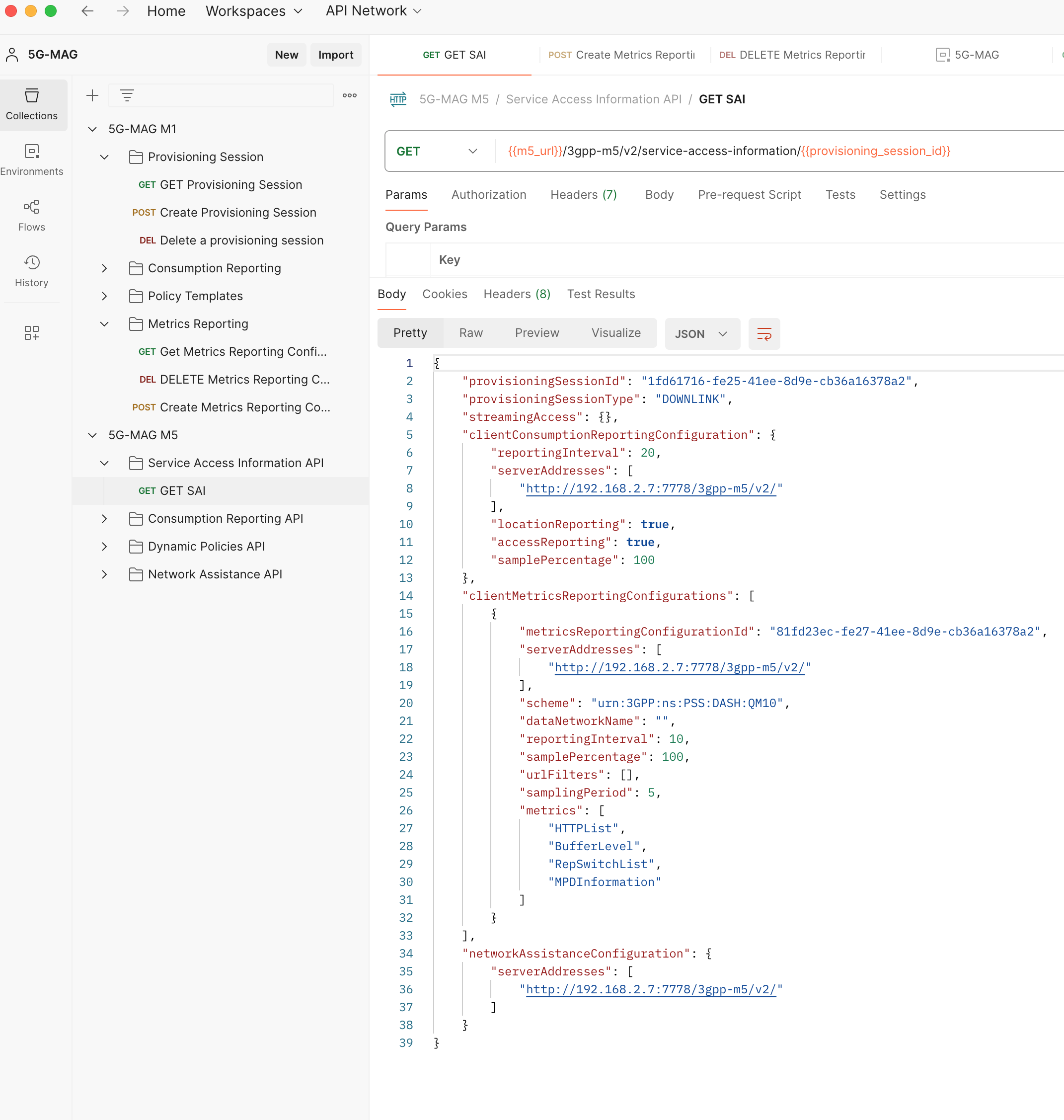
Now that a QoE Metrics Reporting configuration has been provided via the M1 interface, the Service Access Information
should contain the relevant information for the 5GMSd Client. This can be validated via the M5 interface.
Select Collections in Postman and navigate to 5G-MAG M5. Select Service Access Information API and then GET SAI.
Click Send and confirm that the Service Access Information contains a clientMetricsReportingConfigurations:
Client-side setup
With the server-side set up, focus shifts to the client side.
Step 1: Installation, Configuration and Running the 5GMSd Client
Please follow the instructions documented in the basic end-to-end guide setup guide.
Step 2: Creating QoE Metrics Report
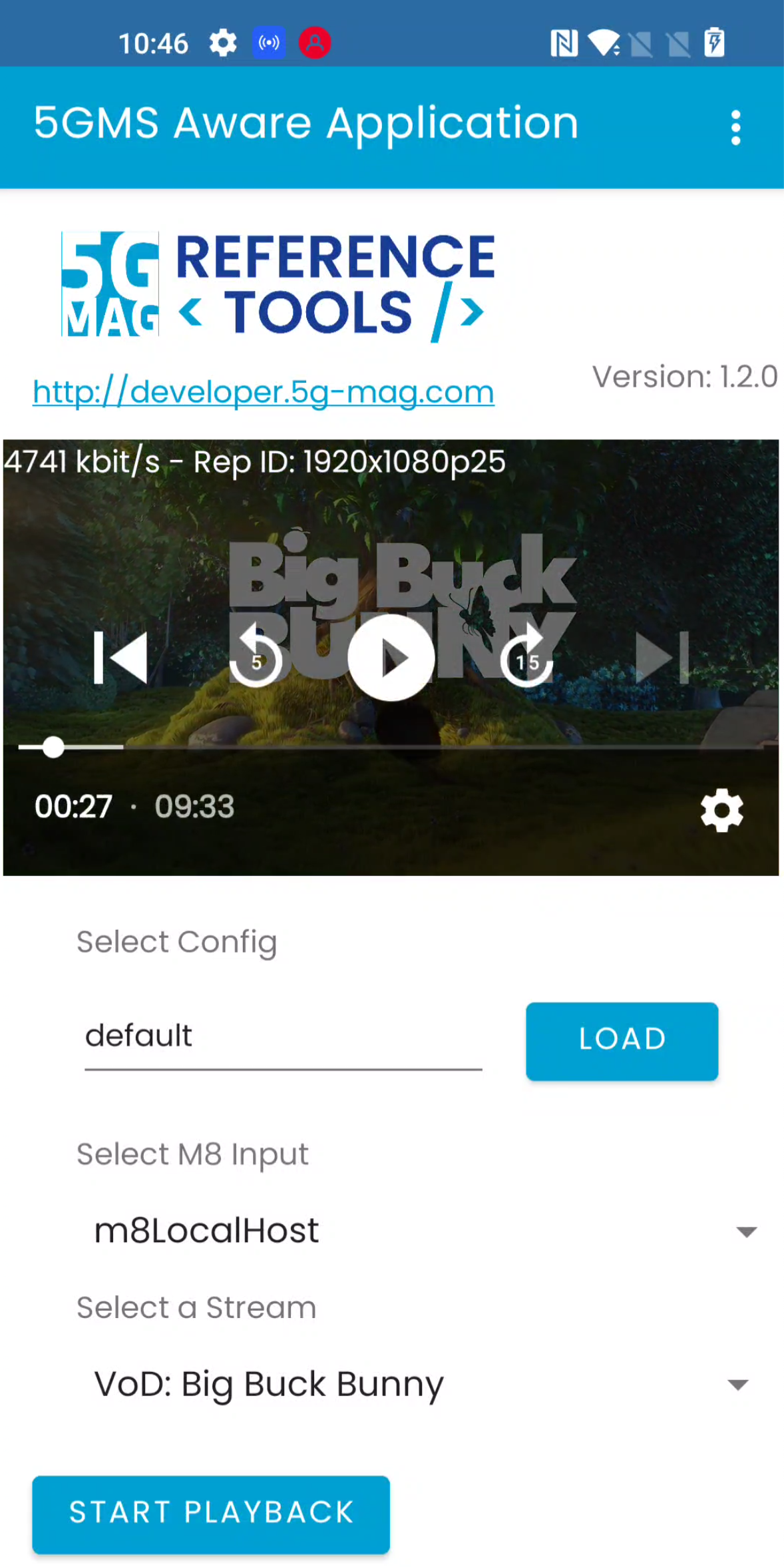
While consuming content configured and provided via the previously installed 5GMSd Application Server and 5GMSd Application Function, the client automatically creates and sends QoE Metrics Reports.
Step 3: Inspecting the QoE Metrics Report
By default the QoE Metrics Reports provided via the M5 interface from the Media Session Handler to the 5GMS
Application Function are saved to disk. They can be accessed and opened in a text editor. On the machine that
is running the Application Function:
- Navigate to
/var/local/log/open5gs/reports/ - For each provisioning session id a dedicated folder is created. Open the right folder by using the right provisioning
session identifier. In this example the folder is named
1fd61716-fe25-41ee-8d9e-cb36a16378a2. Open the folder:cd 1fd61716-fe25-41ee-8d9e-cb36a16378a2. - Open the metrics reports folder:
cd metrics_reports - Type
lsto get an overview of the different reports. - Open the reports and check the data. It should look similar to the example below.
How to read this report: each <QoeMetric> block corresponds to one of the metrics you configured in Step 7.4. In this example the <BufferLevel> block maps to QM10#BufferLevel and the <HttpList> block maps to QM10#HTTPList, each with timestamped entries. The example below has been trimmed for readability; a real report can be much longer.
<?xml version="1.0" encoding="utf-8"?>
<ReceptionReport clientID="04a3f67b-aaf6-46ee-960d-30d336873e64"
                 contentURI="http://192.168.2.7/m4d/provisioning-session-1fd61716-fe25-41ee-8d9e-cb36a16378a2/bbb/2/client_manifest-common_init.mpd"
                 xsi:schemaLocation="urn:3gpp:metadata:2011:HSD:receptionreport DASH-QoE-Report.xsd"
                 xmlns:sv="urn:3gpp:metadata:2016:PSS:schemaVersion" xmlns="urn:3gpp:metadata:2011:HSD:receptionreport"
                 xmlns:xsi="http://www.w3.org/2001/XMLSchema-instance">
    <QoeReport recordingSessionId="1992b9e33a59419f88fae51eac909ef8" reportPeriod="10"
               reportTime="2024-04-19T08:46:07.011Z" periodID="">
        <QoeMetric>
            <BufferLevel>
                <BufferLevelEntry level="6256" t="2024-04-19T08:45:57.032Z"/>
                <BufferLevelEntry level="6222" t="2024-04-19T08:45:57.061Z"/>
                <BufferLevelEntry level="6193" t="2024-04-19T08:45:57.089Z"/>
                <BufferLevelEntry level="6172" t="2024-04-19T08:45:57.270Z"/>
                <BufferLevelEntry level="9503" t="2024-04-19T08:45:57.617Z"/>
                <BufferLevelEntry level="9452" t="2024-04-19T08:45:57.669Z"/>
                <BufferLevelEntry level="9392" t="2024-04-19T08:45:57.727Z"/>
                <BufferLevelEntry level="8576" t="2024-04-19T08:45:58.710Z"/>
                <BufferLevelEntry level="11999" t="2024-04-19T08:45:58.959Z"/>
                <BufferLevelEntry level="11977" t="2024-04-19T08:45:59.006Z"/>
                <BufferLevelEntry level="11477" t="2024-04-19T08:45:59.496Z"/>
                <BufferLevelEntry level="11004" t="2024-04-19T08:45:59.960Z"/>
                <BufferLevelEntry level="14119" t="2024-04-19T08:46:00.679Z"/>
                <BufferLevelEntry level="14061" t="2024-04-19T08:46:01.508Z"/>
                <BufferLevelEntry level="16861" t="2024-04-19T08:46:01.937Z"/>
                <BufferLevelEntry level="16861" t="2024-04-19T08:46:02.724Z"/>
                <BufferLevelEntry level="18221" t="2024-04-19T08:46:03.144Z"/>
                <BufferLevelEntry level="21741" t="2024-04-19T08:46:03.898Z"/>
                <BufferLevelEntry level="21741" t="2024-04-19T08:46:04.496Z"/>
                <BufferLevelEntry level="21741" t="2024-04-19T08:46:04.543Z"/>
                <BufferLevelEntry level="25581" t="2024-04-19T08:46:05.873Z"/>
                <BufferLevelEntry level="25581" t="2024-04-19T08:46:06.326Z"/>
            </BufferLevel>
        </QoeMetric>
        <QoeMetric>
            <HttpList>
                <HttpListEntry
                        actualurl="http://192.168.2.7/m4d/provisioning-session-1fd61716-fe25-41ee-8d9e-cb36a16378a2/redir-7ad1c0d6-af9a-4694-5e53-488c34113c73/avc3/896x504p25/000001.m4s"
                        interval="878" range="" responsecode="200" trequest="2024-04-19T08:45:56.147Z"
                        tresponse="2024-04-19T08:45:56.150Z" type="MediaSegment"
                        url="http://192.168.2.7/m4d/provisioning-session-1fd61716-fe25-41ee-8d9e-cb36a16378a2/redir-7ad1c0d6-af9a-4694-5e53-488c34113c73/avc3/896x504p25/000001.m4s">
                    <Trace b="619502" d="878" s="2024-04-19T08:45:56.150Z"/>
                </HttpListEntry>
                <HttpListEntry
                        actualurl="http://192.168.2.7/m4d/provisioning-session-1fd61716-fe25-41ee-8d9e-cb36a16378a2/redir-7ad1c0d6-af9a-4694-5e53-488c34113c73/audio/128kbps/000002.m4s"
                        interval="407" range="" responsecode="200" trequest="2024-04-19T08:45:56.646Z"
                        tresponse="2024-04-19T08:45:56.650Z" type="MediaSegment"
                        url="http://192.168.2.7/m4d/provisioning-session-1fd61716-fe25-41ee-8d9e-cb36a16378a2/redir-7ad1c0d6-af9a-4694-5e53-488c34113c73/audio/128kbps/000002.m4s">
                    <Trace b="60915" d="407" s="2024-04-19T08:45:56.650Z"/>
                </HttpListEntry>
                <HttpListEntry
                        actualurl="http://192.168.2.7/m4d/provisioning-session-1fd61716-fe25-41ee-8d9e-cb36a16378a2/redir-7ad1c0d6-af9a-4694-5e53-488c34113c73/avc3/896x504p25/000002.m4s"
                        interval="823" range="" responsecode="200" trequest="2024-04-19T08:45:56.258Z"
                        tresponse="2024-04-19T08:45:56.262Z" type="MediaSegment"
                        url="http://192.168.2.7/m4d/provisioning-session-1fd61716-fe25-41ee-8d9e-cb36a16378a2/redir-7ad1c0d6-af9a-4694-5e53-488c34113c73/avc3/896x504p25/000002.m4s">
                    <Trace b="644503" d="823" s="2024-04-19T08:45:56.262Z"/>
                </HttpListEntry>
                <HttpListEntry
                        actualurl="http://192.168.2.7/m4d/provisioning-session-1fd61716-fe25-41ee-8d9e-cb36a16378a2/redir-7ad1c0d6-af9a-4694-5e53-488c34113c73/audio/128kbps/000003.m4s"
                        interval="1298" range="" responsecode="200" trequest="2024-04-19T08:45:55.961Z"
                        tresponse="2024-04-19T08:45:55.966Z" type="MediaSegment"
                        url="http://192.168.2.7/m4d/provisioning-session-1fd61716-fe25-41ee-8d9e-cb36a16378a2/redir-7ad1c0d6-af9a-4694-5e53-488c34113c73/audio/128kbps/000003.m4s">
                    <Trace b="61006" d="1298" s="2024-04-19T08:45:55.966Z"/>
                </HttpListEntry>
                <HttpListEntry
                        actualurl="http://192.168.2.7/m4d/provisioning-session-1fd61716-fe25-41ee-8d9e-cb36a16378a2/redir-7ad1c0d6-af9a-4694-5e53-488c34113c73/avc3/896x504p25/000003.m4s"
                        interval="1084" range="" responsecode="200" trequest="2024-04-19T08:45:56.517Z"
                        tresponse="2024-04-19T08:45:56.526Z" type="MediaSegment"
                        url="http://192.168.2.7/m4d/provisioning-session-1fd61716-fe25-41ee-8d9e-cb36a16378a2/redir-7ad1c0d6-af9a-4694-5e53-488c34113c73/avc3/896x504p25/000003.m4s">
                    <Trace b="667295" d="1084" s="2024-04-19T08:45:56.526Z"/>
                </HttpListEntry>
                <HttpListEntry
                        actualurl="http://192.168.2.7/m4d/provisioning-session-1fd61716-fe25-41ee-8d9e-cb36a16378a2/redir-7ad1c0d6-af9a-4694-5e53-488c34113c73/audio/128kbps/000004.m4s"
                        interval="422" range="" responsecode="200" trequest="2024-04-19T08:45:57.238Z"
                        tresponse="2024-04-19T08:45:57.242Z" type="MediaSegment"
                        url="http://192.168.2.7/m4d/provisioning-session-1fd61716-fe25-41ee-8d9e-cb36a16378a2/redir-7ad1c0d6-af9a-4694-5e53-488c34113c73/audio/128kbps/000004.m4s">
                    <Trace b="60933" d="422" s="2024-04-19T08:45:57.242Z"/>
                </HttpListEntry>
                <HttpListEntry
                        actualurl="http://192.168.2.7/m4d/provisioning-session-1fd61716-fe25-41ee-8d9e-cb36a16378a2/redir-7ad1c0d6-af9a-4694-5e53-488c34113c73/audio/160kbps/IS.mp4"
                        interval="38" range="" responsecode="200" trequest="2024-04-19T08:45:57.680Z"
                        tresponse="2024-04-19T08:45:57.684Z" type="InitializationSegment"
                        url="http://192.168.2.7/m4d/provisioning-session-1fd61716-fe25-41ee-8d9e-cb36a16378a2/redir-7ad1c0d6-af9a-4694-5e53-488c34113c73/audio/160kbps/IS.mp4">
                    <Trace b="600" d="38" s="2024-04-19T08:45:57.684Z"/>
                </HttpListEntry>
                <HttpListEntry
                        actualurl="http://192.168.2.7/m4d/provisioning-session-1fd61716-fe25-41ee-8d9e-cb36a16378a2/redir-7ad1c0d6-af9a-4694-5e53-488c34113c73/audio/160kbps/000005.m4s"
                        interval="976" range="" responsecode="200" trequest="2024-04-19T08:45:57.728Z"
                        tresponse="2024-04-19T08:45:57.731Z" type="MediaSegment"
                        url="http://192.168.2.7/m4d/provisioning-session-1fd61716-fe25-41ee-8d9e-cb36a16378a2/redir-7ad1c0d6-af9a-4694-5e53-488c34113c73/audio/160kbps/000005.m4s">
                    <Trace b="76766" d="976" s="2024-04-19T08:45:57.731Z"/>
                </HttpListEntry>
                <HttpListEntry
                        actualurl="http://192.168.2.7/m4d/provisioning-session-1fd61716-fe25-41ee-8d9e-cb36a16378a2/redir-7ad1c0d6-af9a-4694-5e53-488c34113c73/avc3/896x504p25/000004.m4s"
                        interval="1340" range="" responsecode="200" trequest="2024-04-19T08:45:57.611Z"
                        tresponse="2024-04-19T08:45:57.615Z" type="MediaSegment"
                        url="http://192.168.2.7/m4d/provisioning-session-1fd61716-fe25-41ee-8d9e-cb36a16378a2/redir-7ad1c0d6-af9a-4694-5e53-488c34113c73/avc3/896x504p25/000004.m4s">
                    <Trace b="630481" d="1340" s="2024-04-19T08:45:57.615Z"/>
                </HttpListEntry>
                <HttpListEntry
                        actualurl="http://192.168.2.7/m4d/provisioning-session-1fd61716-fe25-41ee-8d9e-cb36a16378a2/redir-7ad1c0d6-af9a-4694-5e53-488c34113c73/avc3/1920x1080p25/IS.mp4"
                        interval="39" range="" responsecode="200" trequest="2024-04-19T08:45:58.960Z"
                        tresponse="2024-04-19T08:45:58.963Z" type="InitializationSegment"
                        url="http://192.168.2.7/m4d/provisioning-session-1fd61716-fe25-41ee-8d9e-cb36a16378a2/redir-7ad1c0d6-af9a-4694-5e53-488c34113c73/avc3/1920x1080p25/IS.mp4">
                    <Trace b="627" d="39" s="2024-04-19T08:45:58.963Z"/>
                </HttpListEntry>
                <HttpListEntry
                        actualurl="http://192.168.2.7/m4d/provisioning-session-1fd61716-fe25-41ee-8d9e-cb36a16378a2/redir-7ad1c0d6-af9a-4694-5e53-488c34113c73/audio/160kbps/000006.m4s"
                        interval="926" range="" responsecode="200" trequest="2024-04-19T08:45:59.029Z"
                        tresponse="2024-04-19T08:45:59.032Z" type="MediaSegment"
                        url="http://192.168.2.7/m4d/provisioning-session-1fd61716-fe25-41ee-8d9e-cb36a16378a2/redir-7ad1c0d6-af9a-4694-5e53-488c34113c73/audio/160kbps/000006.m4s">
                    <Trace b="75972" d="926" s="2024-04-19T08:45:59.032Z"/>
                </HttpListEntry>
                <HttpListEntry
                        actualurl="http://192.168.2.7/m4d/provisioning-session-1fd61716-fe25-41ee-8d9e-cb36a16378a2/redir-7ad1c0d6-af9a-4694-5e53-488c34113c73/avc3/1920x1080p25/000005.m4s"
                        interval="1651" range="" responsecode="200" trequest="2024-04-19T08:45:59.022Z"
                        tresponse="2024-04-19T08:45:59.025Z" type="MediaSegment"
                        url="http://192.168.2.7/m4d/provisioning-session-1fd61716-fe25-41ee-8d9e-cb36a16378a2/redir-7ad1c0d6-af9a-4694-5e53-488c34113c73/avc3/1920x1080p25/000005.m4s">
                    <Trace b="2210933" d="1651" s="2024-04-19T08:45:59.025Z"/>
                </HttpListEntry>
                <HttpListEntry
                        actualurl="http://192.168.2.7/m4d/provisioning-session-1fd61716-fe25-41ee-8d9e-cb36a16378a2/redir-7ad1c0d6-af9a-4694-5e53-488c34113c73/audio/160kbps/000007.m4s"
                        interval="795" range="" responsecode="200" trequest="2024-04-19T08:46:00.709Z"
                        tresponse="2024-04-19T08:46:00.711Z" type="MediaSegment"
                        url="http://192.168.2.7/m4d/provisioning-session-1fd61716-fe25-41ee-8d9e-cb36a16378a2/redir-7ad1c0d6-af9a-4694-5e53-488c34113c73/audio/160kbps/000007.m4s">
                    <Trace b="76423" d="795" s="2024-04-19T08:46:00.711Z"/>
                </HttpListEntry>
                <HttpListEntry
                        actualurl="http://192.168.2.7/m4d/provisioning-session-1fd61716-fe25-41ee-8d9e-cb36a16378a2/redir-7ad1c0d6-af9a-4694-5e53-488c34113c73/avc3/1920x1080p25/000006.m4s"
                        interval="1251" range="" responsecode="200" trequest="2024-04-19T08:46:00.679Z"
                        tresponse="2024-04-19T08:46:00.682Z" type="MediaSegment"
                        url="http://192.168.2.7/m4d/provisioning-session-1fd61716-fe25-41ee-8d9e-cb36a16378a2/redir-7ad1c0d6-af9a-4694-5e53-488c34113c73/avc3/1920x1080p25/000006.m4s">
                    <Trace b="2110450" d="1251" s="2024-04-19T08:46:00.682Z"/>
                </HttpListEntry>
                <HttpListEntry
                        actualurl="http://192.168.2.7/m4d/provisioning-session-1fd61716-fe25-41ee-8d9e-cb36a16378a2/redir-7ad1c0d6-af9a-4694-5e53-488c34113c73/audio/160kbps/000008.m4s"
                        interval="765" range="" responsecode="200" trequest="2024-04-19T08:46:01.956Z"
                        tresponse="2024-04-19T08:46:01.957Z" type="MediaSegment"
                        url="http://192.168.2.7/m4d/provisioning-session-1fd61716-fe25-41ee-8d9e-cb36a16378a2/redir-7ad1c0d6-af9a-4694-5e53-488c34113c73/audio/160kbps/000008.m4s">
                    <Trace b="76469" d="765" s="2024-04-19T08:46:01.957Z"/>
                </HttpListEntry>
                <HttpListEntry
                        actualurl="http://192.168.2.7/m4d/provisioning-session-1fd61716-fe25-41ee-8d9e-cb36a16378a2/redir-7ad1c0d6-af9a-4694-5e53-488c34113c73/avc3/1920x1080p25/000007.m4s"
                        interval="1184" range="" responsecode="200" trequest="2024-04-19T08:46:01.954Z"
                        tresponse="2024-04-19T08:46:01.957Z" type="MediaSegment"
                        url="http://192.168.2.7/m4d/provisioning-session-1fd61716-fe25-41ee-8d9e-cb36a16378a2/redir-7ad1c0d6-af9a-4694-5e53-488c34113c73/avc3/1920x1080p25/000007.m4s">
                    <Trace b="2160691" d="1184" s="2024-04-19T08:46:01.957Z"/>
                </HttpListEntry>
            </HttpList>
        </QoeMetric>
        <sv:delimiter>0</sv:delimiter>
    </QoeReport>
</ReceptionReport>
Optional: Visualise the reports
The Application Provider repository ships with a basic user interface to visualise individual QoE Metrics Reports:
rt-5gms-application-provider (qoe-metrics-reporting-ui)Basic UI to visualise individual QoE Metrics Reports.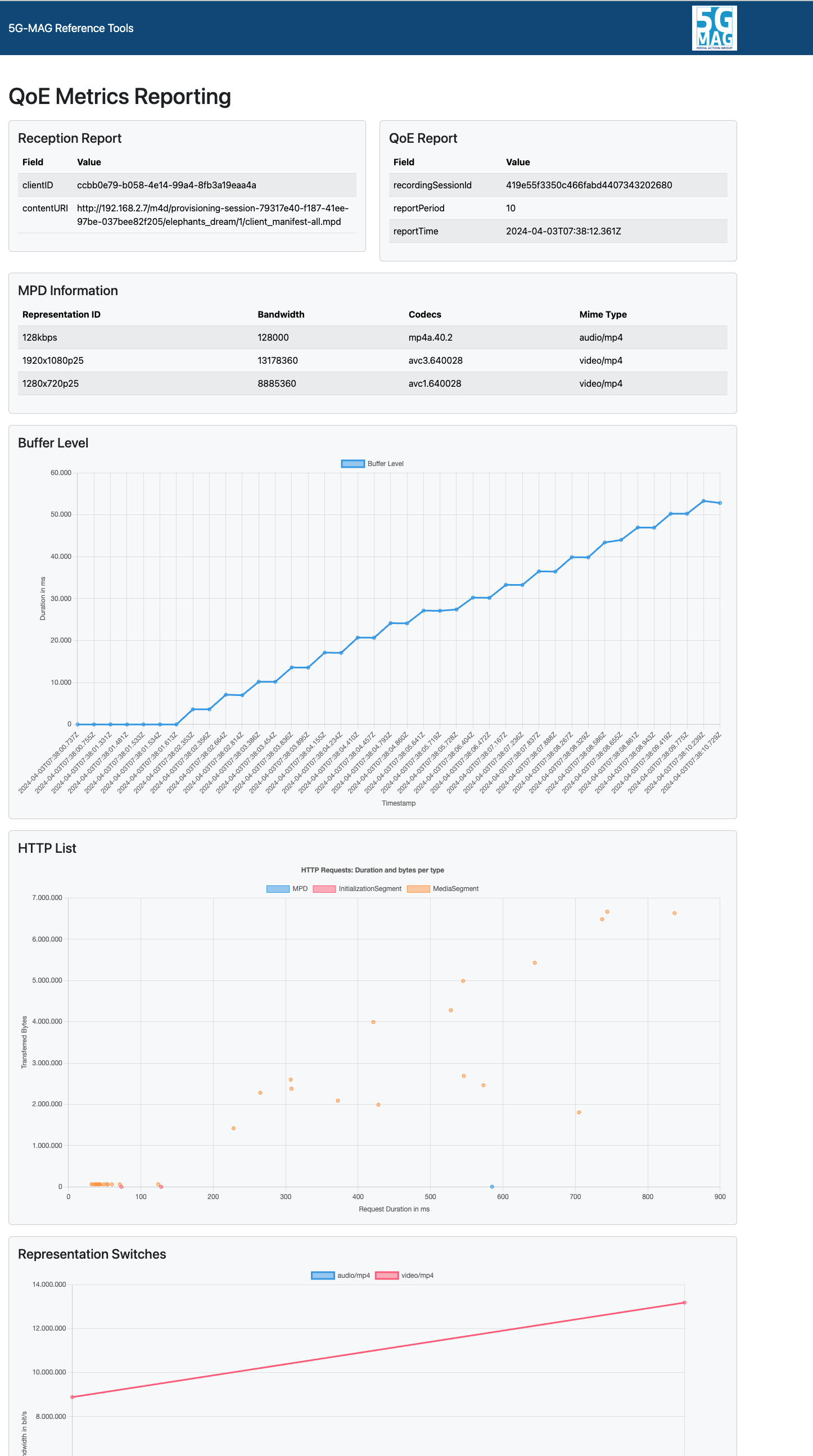
Figure: the QoE Metrics Reporting UI visualising an individual report.
Next steps
- Try the related reporting tutorials: Consumption Reporting and CMCD Reporting.
- Return to the Tutorials.