This tutorial provides the required steps to test the reception of an RTP stream processed by the MBMS Modem and played in a third-party media player such as ffplay or VLC.
More information about the Real-Time Transport Protocol (RTP) can be found in the IETF RTP specification: RTP: A Transport Protocol for Real-Time Applications
What you will build: a receiver that plays an RTP stream received over 5G Broadcast directly in ffplay or VLC, without middleware.
Prerequisites
- The MBMS Modem installed, plus VLC or ffplay (Step 1 below).
- Either an SDR and a live signal, or a downloaded RTP sample file. For hardware details see Requirements.
Basic workflow
This tutorial makes use of the rt-mbms-modem and a media player such as VLC or ffplay. The basic workflow of these components is illustrated in the Figure below:
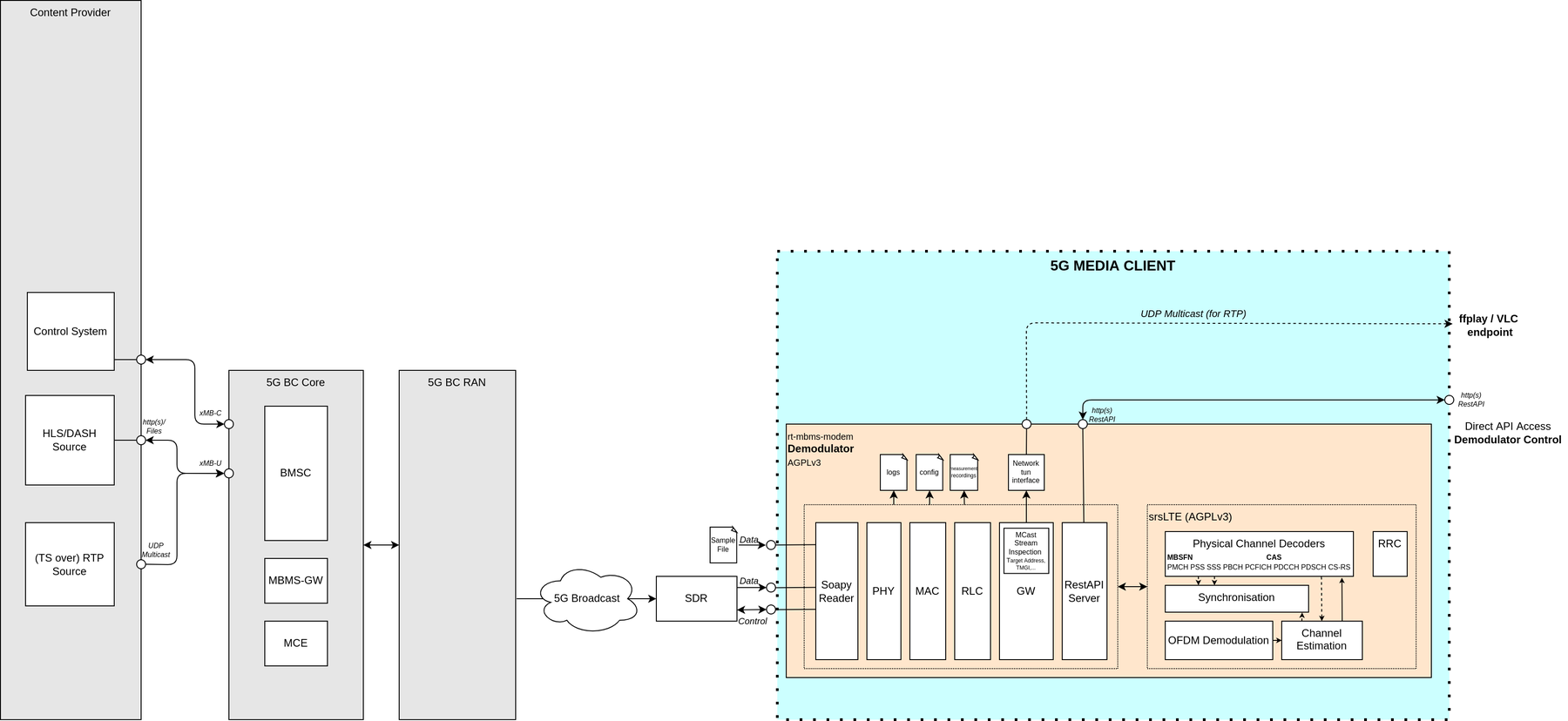
Figure: the RTP receiver path, from radio input straight to a media player.
The output of the SDR or the sample file serves as the input for the MBMS Modem. The MBMS Modem exposes the input data to a UDP multicast address. The content can be played directly in ffplay or VLC.
Step 1: Installation
- Install the MBMS Modem
- Install at least one of the following media players:
- Download an RTP sample file or setup an RTP live stream on your transmitting infrastructure.
Step 2: Configure multicast routing
Follow the detailed instructions on how to configure multicast routing provided in the MBMS Modem README, section "Running the MBMS Modem".
Start and then stop the MBMS Modem service. Starting it generates or updates the required configuration files; stopping it frees the modem so you can run it in the foreground against a sample file in the next step. This may be needed again after a reboot. - systemctl start 5gmag-rt-modem - systemctl stop 5gmag-rt-modem
Step 3: Start the MBMS Modem
Start the MBMS Modem with a sample as specified in the MBMS Modem README, section "Run a sample file". It is important to provide the right bandwidth to the MBMS Modem. Consequently, for a 5 MHz bandwidth sample file, the command looks like this:
cd rt-mbms-modem/build
sudo ./modem -f "PathToSample/5MHz_MCS16_1kHz25_RTP_3.5.raw" -b 5
The final output on the terminal should now look similar to the output below. The log repeats a block per measurement interval; the important lines are the MTCH entries at the end, which list each received service with its TMGI (service identity) and multicast address and port:
modem[10498]: Phy: PSS/SSS detected: Mode FDD, PCI 333, CFO 0.20108362 KHz, CP Extended
modem[10498]: Phy: MIB Decoded. Mode FDD, PCI 333, PRB 25, Ports 1, CFO 0.20108362 KHz, SFN 528
modem[10498]: Decoded MIB at target sample rate, TTI is 5360. Subframe synchronized.
modem[10498]: CINR 20.82 dB
modem[10498]: PDSCH: MCS 5, BLER 0.0, BER 0.0
modem[10498]: MCCH: MCS 2, BLER 0.0, BER 0.0
modem[10498]: MCH 0: MCS 16, BLER 0.0, BER 0.05661512027491409
modem[10498]:     MTCH 0: LCID 1, TMGI 0x00000309f165, 238.1.1.95:40085
modem[10498]:     MTCH 1: LCID 2, TMGI 0x00001009f165, 239.11.4.10:5520
modem[10498]: -----
To identify the correct multicast address for playback, check the MTCH lines in the log above. Here two services are listed: 238.1.1.95:40085 and 239.11.4.10:5520. Pick the address of the RTP media service, not the one carrying the FLUTE/service-announcement data. In this example the RTP media stream is on 239.11.4.10:5520 (the service-announcement/FLUTE session is the 238.1.1.95:40085 entry, matching the low-numbered MTCH 0). If unsure, try each address in the player and use the one that produces video.
Step 4: Play the stream
To play the stream in ffplay run the following steps:
- Open a new terminal
- Start ffplay specifying the address to the multicast stream:
ffplay udp://239.11.4.10:5520
The output should look like this:
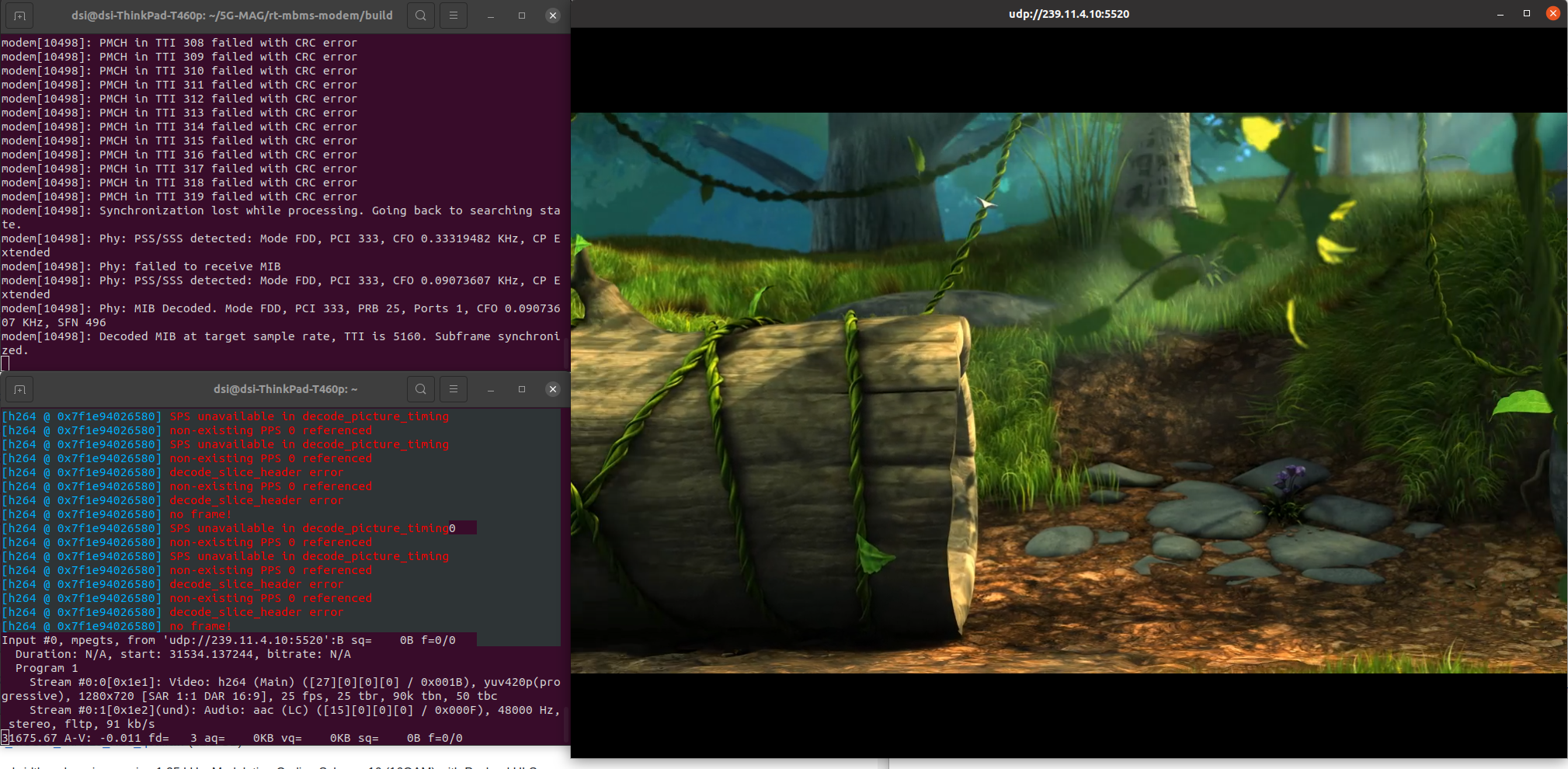
Figure: the RTP stream playing in ffplay.
To play the stream in VLC run the following steps:
- Open VLC
- Navigate to
Media > Open Network Stream - Enter the stream url
rtp://@239.11.4.10:5520 - Press play
The output should look like this:
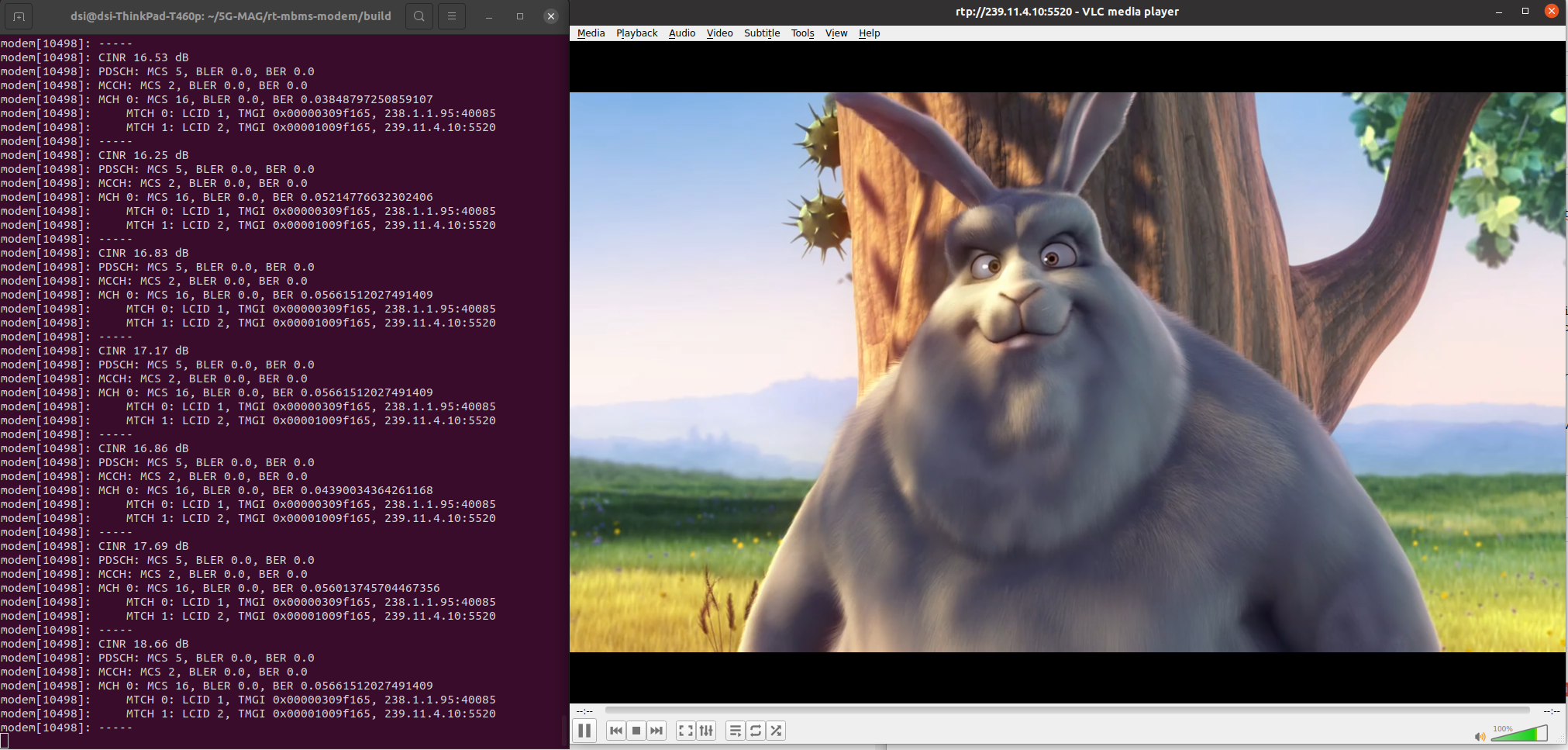
Figure: the same RTP stream playing in VLC.
Next steps
- To receive an HLS stream instead, see SDR - HLS Playback over 5G Broadcast.
- Return to the Tutorials index.