This tutorial describes the end-to-end setup for showcasing seamless switching between 5G Broadcast and unicast delivery on an Android device.
What you will build: a complete broadcast-plus-unicast chain, where an Android device plays a live stream received over 5G Broadcast and falls back automatically to unicast when the broadcast signal is unavailable.
This is an advanced, end-to-end setup involving a transmitter and an Android receiver. If you are new to the Reference Tools, first try the simpler receiver-only SDR - HLS Playback over 5G Broadcast tutorial.
Prerequisites
To replicate the setup described in this tutorial the following components are required:
The Ubuntu host installs and runs ffmpeg, an express.js webserver, the flute-ffmpeg repository and the 5G-MAG QRD/CRD transmitter software. The SDR transmits the 5G Broadcast signal. The QRD or CRD device receives that transmission in Receive-only mode (ROM) and runs the 5G-MAG MBMS Android Middleware.
Components at a glance
The steps below refer to several named processes. This maps each to its role:
Abbreviations: QRD (Qualcomm Reference Design); CRD (Commercial Reference Design); ROM (Receive-only mode).
The examples below use hardcoded IP addresses, file paths and multicast addresses (for example 192.168.0.101, 239.11.4.50, /home/fivegmag/...). Replace these with the values for your own machines and network before running.
The basic architecture of the setup is depicted in the Figure below. This tutorial then proceeds in three phases: Installation (get the components in place), Configuration (point them at each other), and Running (start them in the correct order).
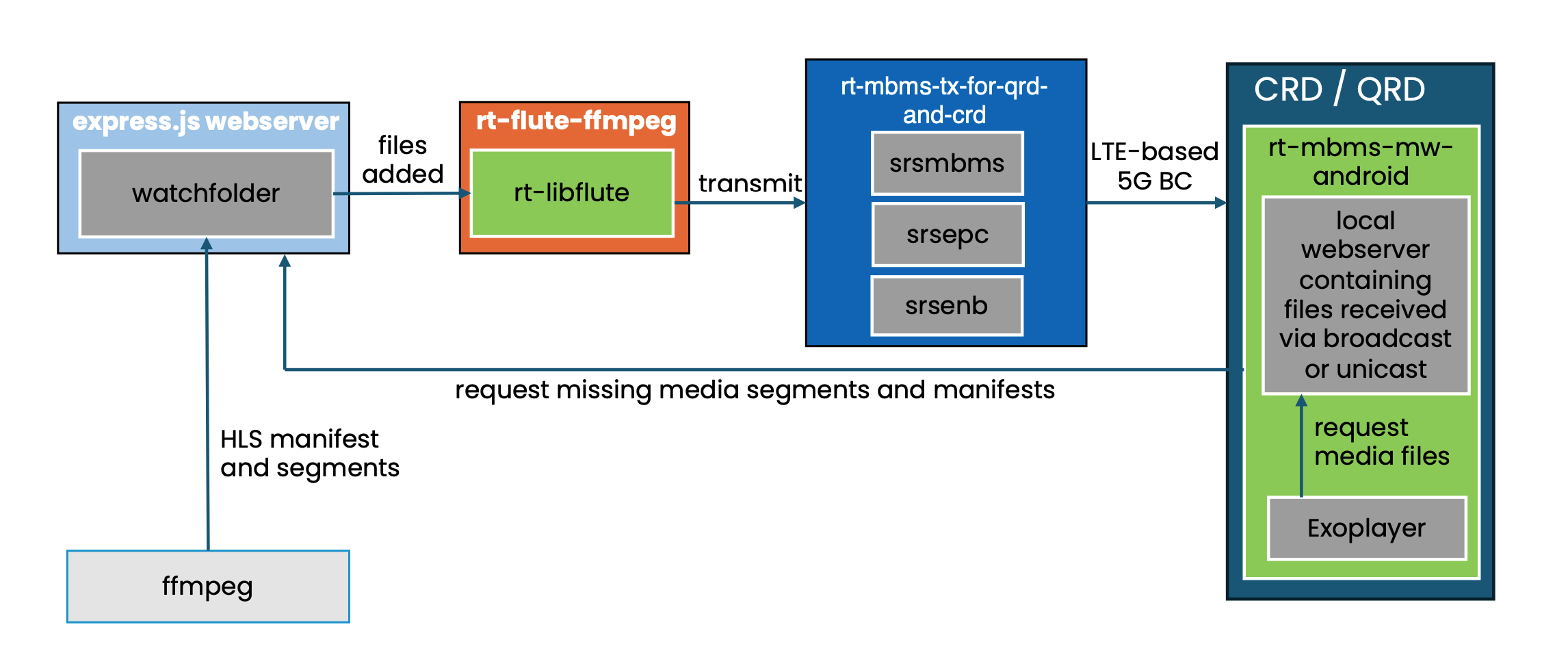
Figure: end-to-end architecture for seamless switching between 5G Broadcast and unicast on Android.
ffmpeg is used to create an HLS livestream from a plain .mp4 file. The resulting manifest files and media segments are
stored on a watchfolder located on a simple express.js webserver. From this webserver the files are accessible to
media players located in the same network. This setup corresponds to a classic OTT and CDN based workflow. As an example, the
HLS
stream can be played natively in a Safari Web-browser by simply pasting the URL to the primary or the media playlist
into the URL address bar:
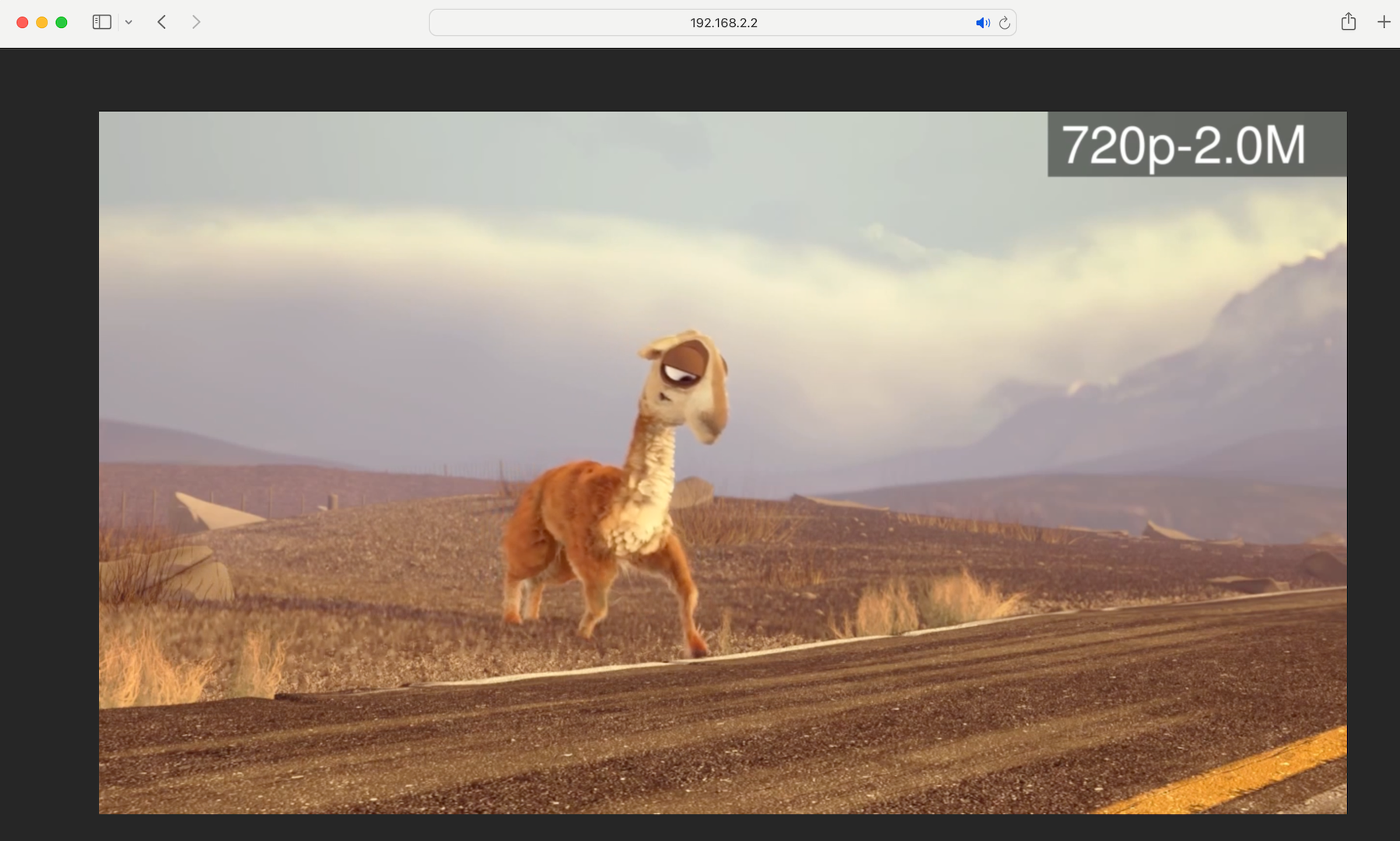
Figure: the same HLS stream played over plain unicast in Safari.
Whenever a new file is added to the watchfolder located on the webserver, a background process called flute-ffmpeg
is notified. flute-ffmpeg uses the rt-libflute library to FLUTE encode the files and sends them via a dedicated
network tunnel as a multicast to the srsmbms process. For that reason the srsmbms process acts as an MBMS gateway
and exposes the sgi_mb interface.
The rt-mbms-tx-for-qrd-and-crd repository acts as a 5G Broadcast transmitter hosting the srsmbms, srsepc
and srsenb processes. It is based on srsRAN with additional changes from the 5G-MAG developer community to support transmission to LTE-based 5G Broadcast enabled UEs.
On the receiver side the rt-mbms-mw-android is running on a QRD or CRD device. It is responsible for receiving
the media files delivered via 5G Broadcast. The files are exposed to a media player such as the Exoplayer via a local
webserver. In cases in which no 5G Broadcast is available the Android Middleware fetches the required manifest and media
files directly from the CDN via unicast and exposes them again via the local webserver. From a media player's
perspective it does not matter if the files hosted on the local webserver have been received via unicast or via 5G
broadcast. It is simply consuming the files via standard HTTP GET requests to localhost. That way the Android MW can
dynamically switch between broadcast and unicast delivery based on the availability of the respective delivery
mechanism.
Reference setup
A photo of the basic hardware setup (SDR transmitter, receiver device and host machine) is depicted below:
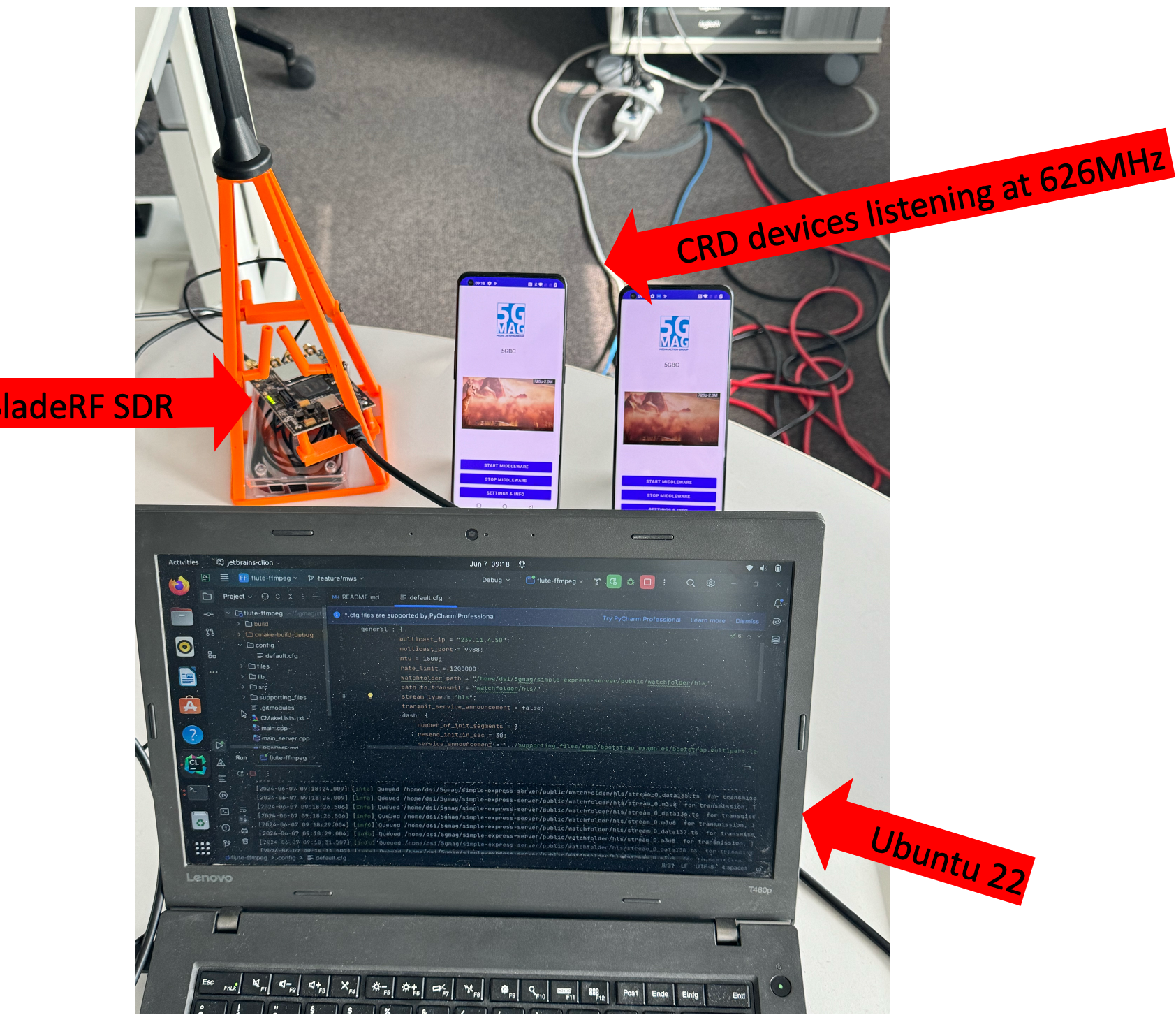
Figure: the physical setup used to run this tutorial.
Installation
In this phase, install and prepare each component. Do not start any of them yet; that happens in the Running phase.
Step 1: Install the express.js webserver
The express.js webserver acts as the CDN node for unicast delivery.
This will prepare the server so contents can be stored in the simple-express-server/public/watchfolder path.
Step 2: Install flute-ffmpeg
flute-ffmpeg creates an HLS livestream and monitors changes to the watchfolder. Once new files have been added
to the watchfolder flute-ffmpeg will FLUTE encode them and multicast them to the MBMS Gateway.
This is done later as part of this tutorial.
Step 3: Install rt-mbms-tx-for-qrd-and-crd
Next, install the 5G Broadcast transmitter.
rt-mbms-tx-for-qrd-and-crd Installation guide (Readme). Do not run the transmitter yet.Step 4: Clone the Android MW
The Android MW is responsible for receiving the media files delivered via 5G Broadcast. In addition, it fetches files from the webserver if they are not available via 5G Broadcast.
rt-mbms-mw-android Clone and install instructions (Readme).Configuration
In this phase, the components are pointed at each other (folders, multicast addresses, radio frequency and the unicast endpoint). Before putting the pieces together and running all components, complete the following configuration steps:
Step 1: Configure ffmpeg
First, configure the ffmpeg output. Navigate to rt-mbms-examples/flute-ffmpeg/files and open ffmpeg-hls.sh. Change the following
two lines and point them to the path of the local webserver installed previously. If there is no watchfolder/hls
folder on your webserver yet create that as well.
-hls_segment_filename /home/fivegmag/rt-common-shared/simple-express-server/public/watchfolder/hls/stream_%v_data%02d.ts \
-master_pl_name manifest.m3u8 \
-var_stream_map "v:0,a:0 v:1,a:1" /home/fivegmag/rt-common-shared/simple-express-server/public/watchfolder/hls/stream_%v.m3u8
Step 2: Configure flute-ffmpeg
Next, configure flute-ffmpeg to monitor the watchfolder on the webserver and also to multicast the resulting packets
to the right address. Open rt-mbms-examples/flute-ffmpeg/config/default.cfg and edit the following lines:
general : {
   multicast_ip = "239.11.4.50";
   multicast_port = 9988;
   watchfolder_path = "/home/fivegmag/rt-common-shared/simple-express-server/public/watchfolder/hls";
   path_to_transmit = "watchfolder/hls/"
}
Set the multicast_ip and the multicast_port to the multicast IP that you will be using for the sgi_mb interface of
the MBMS Gateway later. The configuration above matches the default configuration of the 5G Broadcast Transmitter. If
you are unsure what to do use the default multicast_ip and multicast_port as defined in the example above.
Set the watchfolder_path to the path of your watchfolder located on the local webserver. path_to_transmit should be
set to "watchfolder/hls/".
Step 3: Configure rt-mbms-tx-for-qrd-and-crd
Now configure the 5G Broadcast transmitter. Follow the
instructions in the transmitter README, section "Configuration after installation".
Make sure to set the right downlink frequency based on the frequency that your CRD/QRD device is operating on. For
instance, for a frequency of 626MHz using a BladeRF SDR these are the required settings
in /root/.config/srsran/enb.conf:
[rf]
dl_freq = 626000000
ul_freq = 688000000
dl_earfcn = 68676
tx_gain = 130
rx_gain = 0

device_name = soapy
device_args = id=2
device_name and device_argsmight be different in your setup. Make sure that the enb process later uses the right
SDR.
Step 4: Configure rt-mbms-mw-android
In the current implementation the Android Middleware uses a static MBMS Service Announcement file. Add the
right unicast endpoint to this static service announcement by opening the bootstrap.multipart.hls file
located in the assets folder. Search for all occurrences of watchfolder/hls that contain an IP. For
instance: http://192.168.0.101:3333/watchfolder/hls/manifest.m3u8. Now replace the IP with the IP of your machine that
is running the local webserver. The MW will use this address later to fetch manifest and media files via unicast from
the webserver.
Running
In this phase, start the components in a fixed order: the stream source and webserver first, then the transmitter, then flute-ffmpeg, and finally the Android Middleware. After the configuration, all components are ready to run; put all the pieces together:
Step 1: Start ffmpeg
Navigate to flute-ffmpeg/files and run sh ffmpeg-hls.sh. You should now see files being added to your watchfolder,
e.g.:
~/5gmag/simple-express-server/public/watchfolder/hls$ ls
manifest.m3u8          stream_0_data12773.ts  stream_0_data28.ts
stream_0_data12530.ts  stream_0_data12774.ts  stream_0_data29.ts
stream_0_data12531.ts  stream_0_data12775.ts  stream_0_data7389.ts
stream_0_data12532.ts  stream_0_data12776.ts  stream_0_data7390.ts
stream_0_data12533.ts  stream_0_data12777.ts  stream_0_data7391.ts
stream_0_data12534.ts  stream_0_data12778.ts  stream_0_data7392.ts
stream_0_data12535.ts  stream_0_data12779.ts  stream_0_data7393.ts
stream_0_data12536.ts  stream_0_data19.ts     stream_0_data7394.ts
stream_0_data12537.ts  stream_0_data20.ts     stream_0_data7395.ts
stream_0_data12538.ts  stream_0_data21.ts     stream_0_data7396.ts
stream_0_data12539.ts  stream_0_data22.ts     stream_0_data7397.ts
stream_0_data12540.ts  stream_0_data23.ts     stream_0_data7398.ts
stream_0_data12769.ts  stream_0_data24.ts     stream_0_data7399.ts
stream_0_data12770.ts  stream_0_data25.ts     stream_0.m3u8
stream_0_data12771.ts  stream_0_data26.ts
stream_0_data12772.ts  stream_0_data27.ts
Step 2: Start the express.js webserver
Run npm start in simple-express-server. The files created by ffmpeg are now hosted and available via unicast. Try
to query the master manifest to check for the availability of the files:
curl http://192.168.0.101:3333/watchfolder/hls/manifest.m3u8
#EXTM3U
#EXT-X-VERSION:6
#EXT-X-STREAM-INF:BANDWIDTH=2305600,RESOLUTION=1280x720,CODECS="avc1.64001f,mp4a.40.2"
stream_0.m3u8
Step 3: Start the rt-mbms-tx-for-qrd-and-crd
Next, start the 5G Broadcast transmitter. This requires starting three different processes. In addition, the sgi_mb
interface needs to be created. Follow the steps
described in the transmitter README, section "Running" to start everything.
Step 4: Start flute-ffmpeg
Now that the setup is ready to transmit files via 5G Broadcast, start the flute-ffmpeg process to multicast all data
that is written to the watchfolder to srsmbms (MBMS Gateway).
Navigate to flute-ffmpeg/build and run ./flute-ffmpeg. The logs should show messages similar to this indicating that
files written to the watchfolder are processed:
[2024-07-03 13:52:08.343] [info] Queued /home/dsi/5gmag/simple-express-server/public/watchfolder/hls/stream_0_data159.ts  for transmission, TOI is 38
[2024-07-03 13:52:08.347] [info] Queued /home/dsi/5gmag/simple-express-server/public/watchfolder/hls/stream_0.m3u8  for transmission, TOI is 39
[2024-07-03 13:52:10.811] [info] Queued /home/dsi/5gmag/simple-express-server/public/watchfolder/hls/stream_0_data160.ts  for transmission, TOI is 40
[2024-07-03 13:52:10.812] [info] Queued /home/dsi/5gmag/simple-express-server/public/watchfolder/hls/stream_0.m3u8  for transmission, TOI is 41
Step 5: Start the rt-mbms-mw-android
The final step is to start the Android Middleware to receive the files now being broadcast with the transmitter. Follow the instructions in the MBMS Middleware for Android repository to deploy the Android Middleware to your QRD/CRD device. As an alternative, the Android Middleware can also be deployed to the device using Android Studio.
The phones will have to retrieve the manifest over unicast. For this make sure they have access e.g. over WiFi to the watchfolder where the manifest is located. This can be done by opening a hotspot on the same PC running the watchfolder or by means of a router serving all the equipment.
After the Android Middleware has started click on "Start Middleware". Then click on the play icon in the middle of the screen. Since the 5G broadcast is active the HLS media playlist and the HLS media segments are now received via 5G broadcast and placed on the local webserver of the Android Middleware. From there they are consumed by the underlying media player:
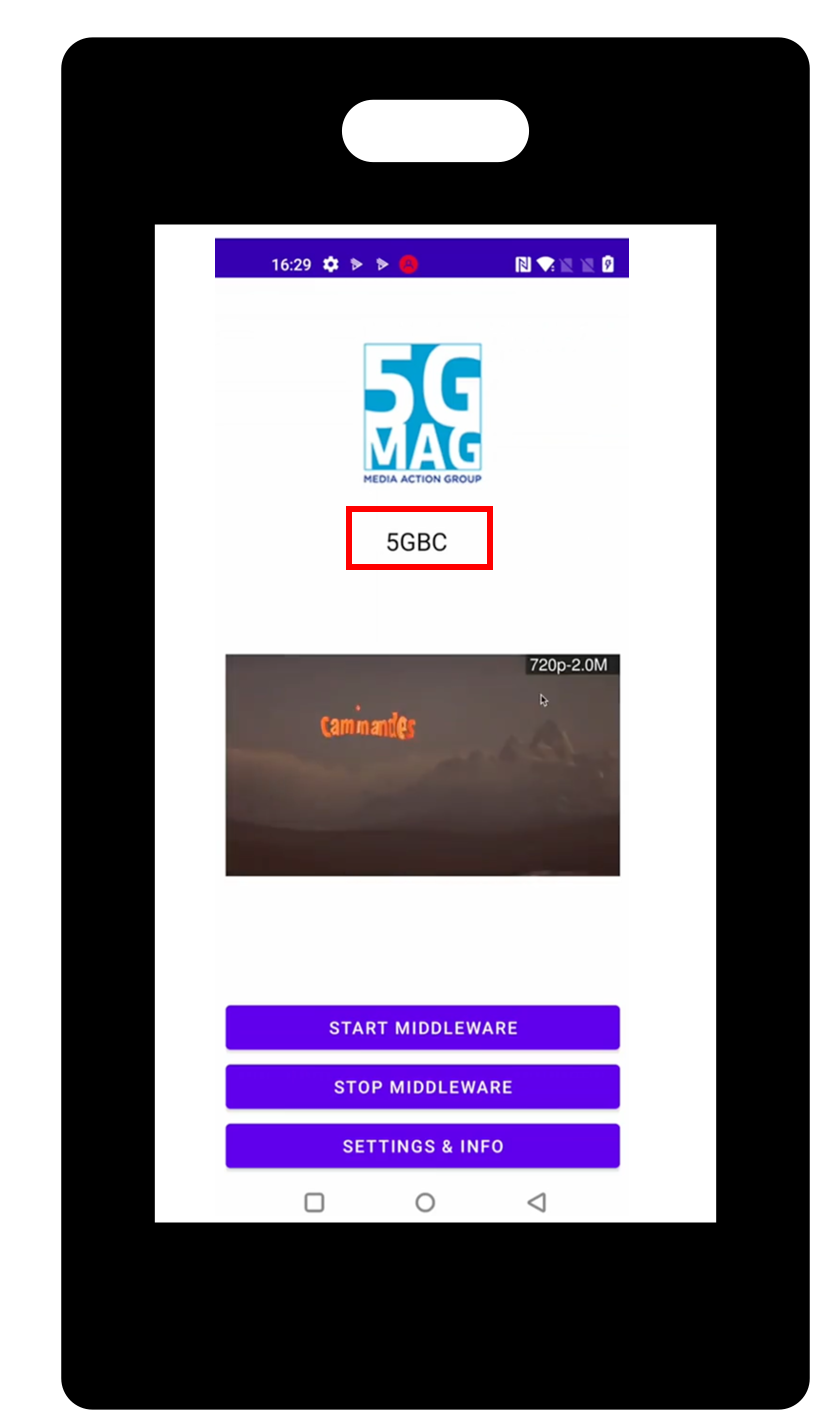
Figure: playback while the stream is delivered over 5G Broadcast.
When terminating the enb process the media files are no longer transmitted via 5G Broadcast. Now the Android
Middleware falls back to fetching the media files via unicast:
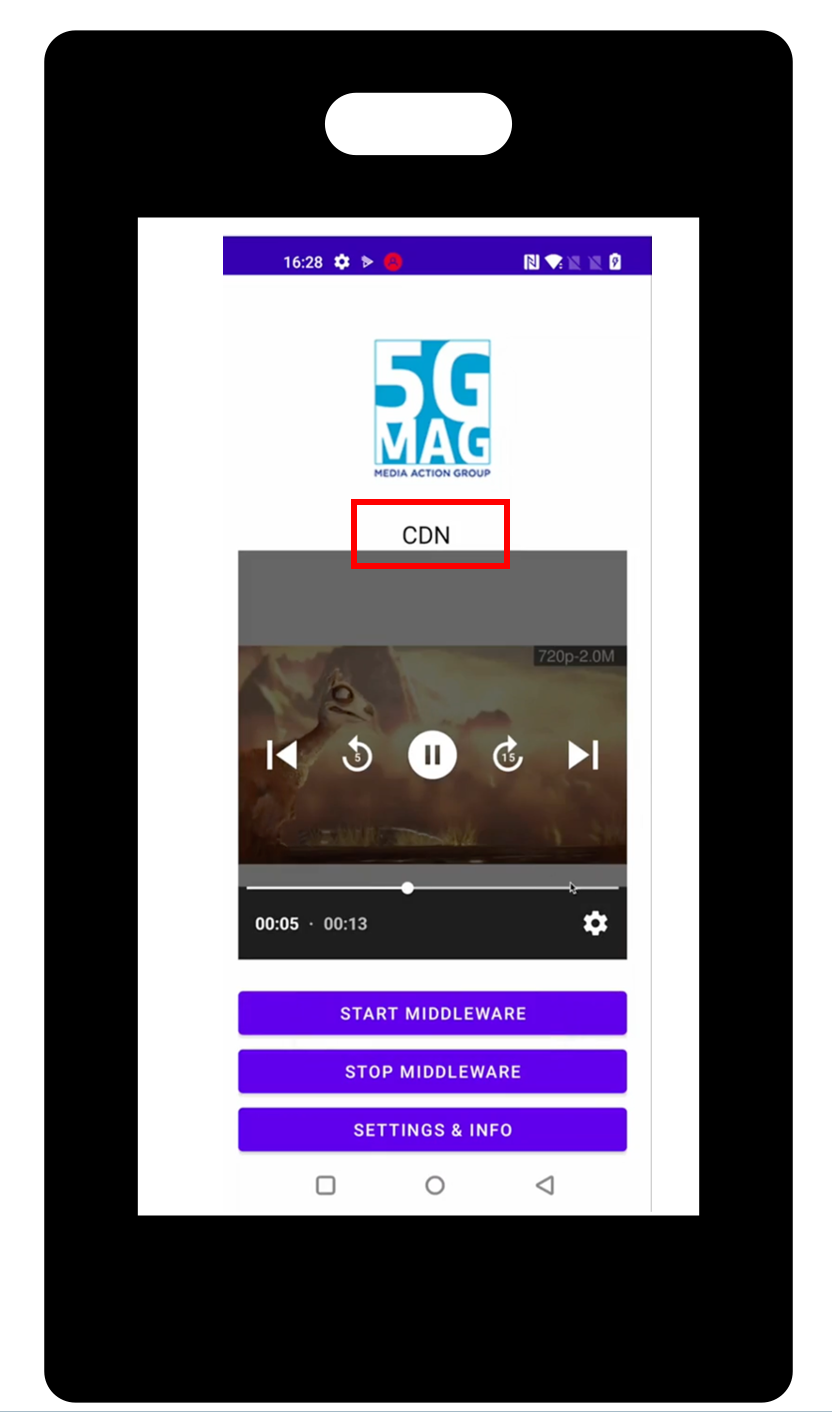
Figure: playback after the broadcast signal stops and the middleware falls back to unicast.
Next steps
- For a receiver-only setup without a transmitter, see SDR - HLS Playback over 5G Broadcast.
- For the service announcement formats used in the middleware configuration, see Service Announcement Formats.
- Return to the Tutorials index.